
LLM Providers
OpenAI Integration
You can connect MLJAR Studio to OpenAI by using your own OpenAI API key. This is useful when your team already uses OpenAI, needs a specific GPT model, or wants to manage AI usage through an existing OpenAI account.
Before you start
Activate a lifetime MLJAR Studio license to configure your own AI provider.
- Create or use an existing OpenAI account.
- Create an API key in the OpenAI dashboard.
- Make sure your account has billing and model access configured.
- Decide which OpenAI model name you want to use in MLJAR Studio.
Configure OpenAI in MLJAR Studio
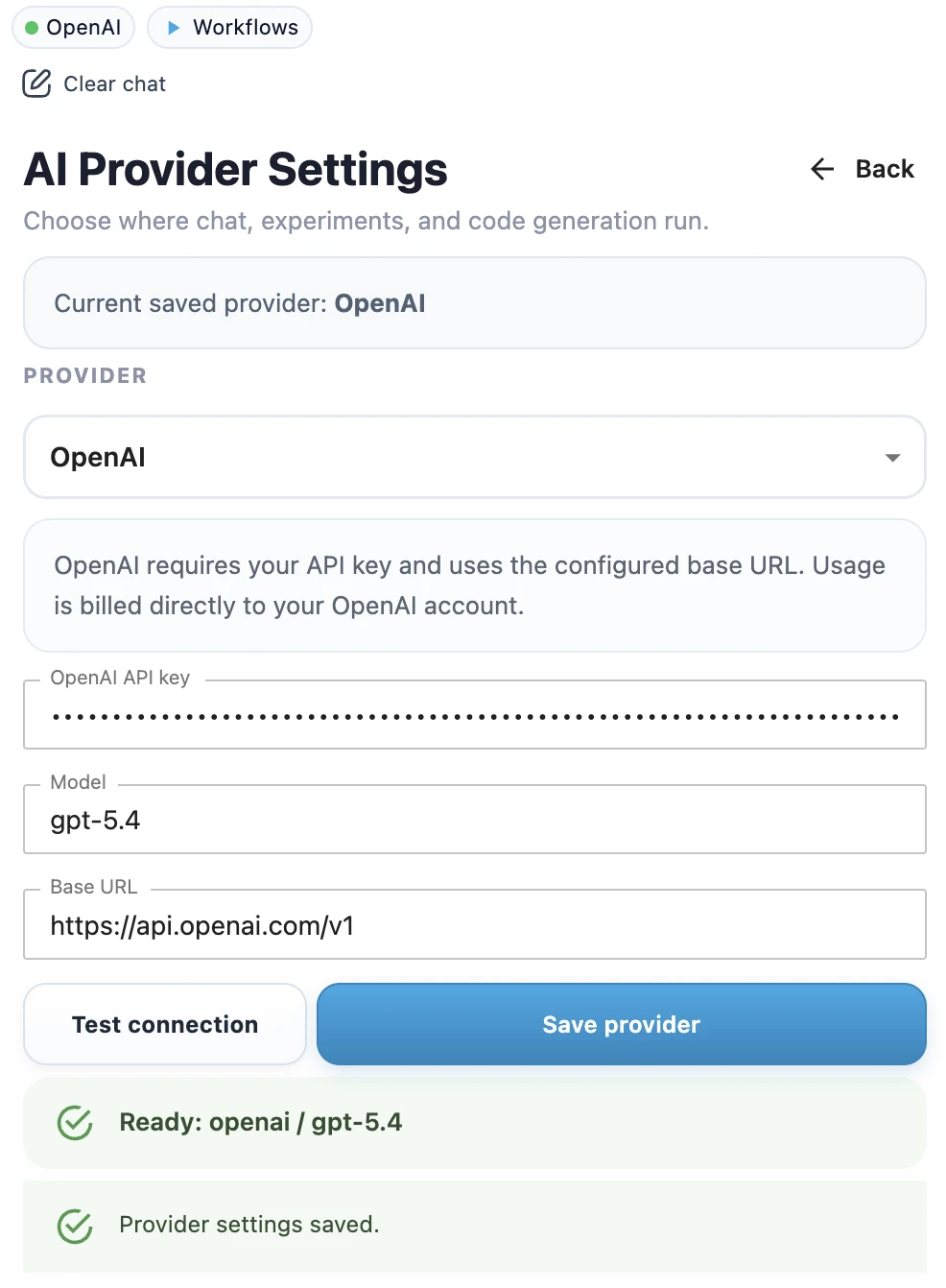
- Open MLJAR Studio.
- Open AI provider settings.
- Select OpenAI as the provider.
- Paste your OpenAI API key.
- Wait for models to load, then select an available model from Model.
- Click Test connection to check whether the API key works and the model is available.
- When the test succeeds, click Save provider.
- Confirm the success toast.
- Check the top provider chip in the sidebar. It should show OpenAI with a green dot.
Example model names
The model name depends on your OpenAI account and the models available to you.
gpt-5.4Use OpenAI in a notebook workflow
After OpenAI is configured, you can use the same MLJAR Studio AI workflows as with other providers. Ask AI Data Analyst to inspect a dataset, ask AI Code Assistant to generate Python code, or use the assistant inside a classic notebook.
Privacy note
OpenAI is a cloud provider. When you use OpenAI as the LLM provider, prompts and relevant context may be sent to OpenAI according to your configuration and provider terms. If you need local-only execution, use Ollama Local Setup instead.
Troubleshooting
If you see an API key error, invalid model error, or rate limit problem, go to LLM Setup Troubleshooting.
For other provider choices, see the LLM provider overview.