
Automated Machine Learning
AutoML in MLJAR Studio
AutoML helps you train machine learning models without writing every step by hand. In MLJAR Studio, AutoML is powered by mljar-supervised, our open-source Python package for automated machine learning.
You can use AutoML in two beginner-friendly ways. The first way is to ask AI Data Analyst in a conversational notebook. The second way is to write Python code in a classic notebook, with optional help from AI in the sidebar.
When should you use AutoML?
Use AutoML when you want to train a machine learning model quickly, without manually testing many algorithms, settings, and preprocessing steps.
You can use it to predict customer churn, estimate prices, classify support tickets, detect risky transactions, or solve other prediction problems based on your data.
To get started, you need a dataset and the name of the column you want to predict. MLJAR Studio will use mljar-supervised to train and compare machine learning models, then show the results in an AutoML report.
Option 1: Use AutoML in a conversational notebook
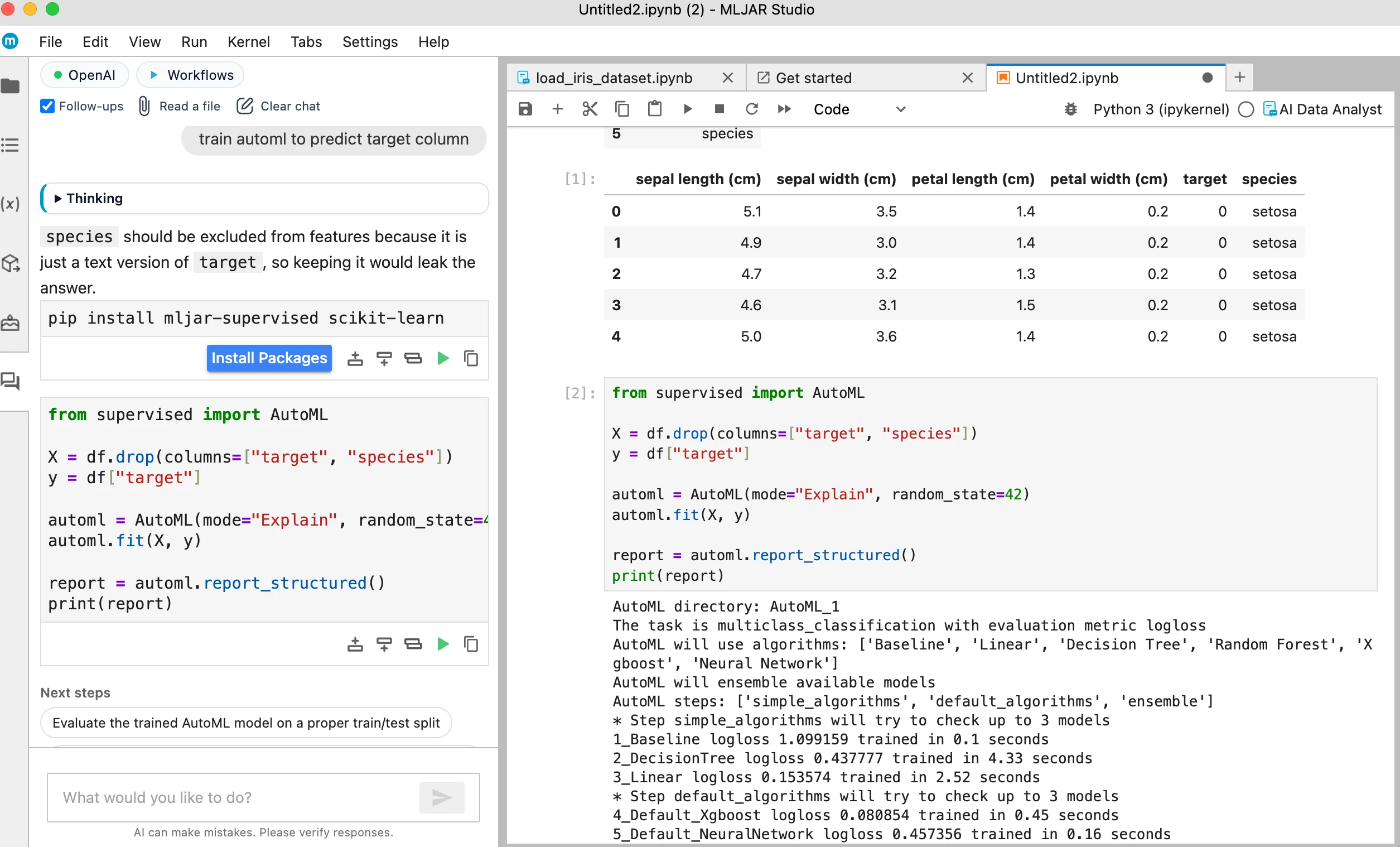
The easiest way to start is to open a conversational notebook and ask AI Data Analyst to train AutoML. Describe your dataset and tell AI which column you want to predict. In this example, the dataset is Iris and the target column is named target.
Example prompt used in this tutorial:
train automl to predict targetBefore training starts, mljar-supervised must be installed in your selected Python environment. If the package is missing, MLJAR Studio can install it for you. You stay in control and approve the package installation before AutoML training begins.
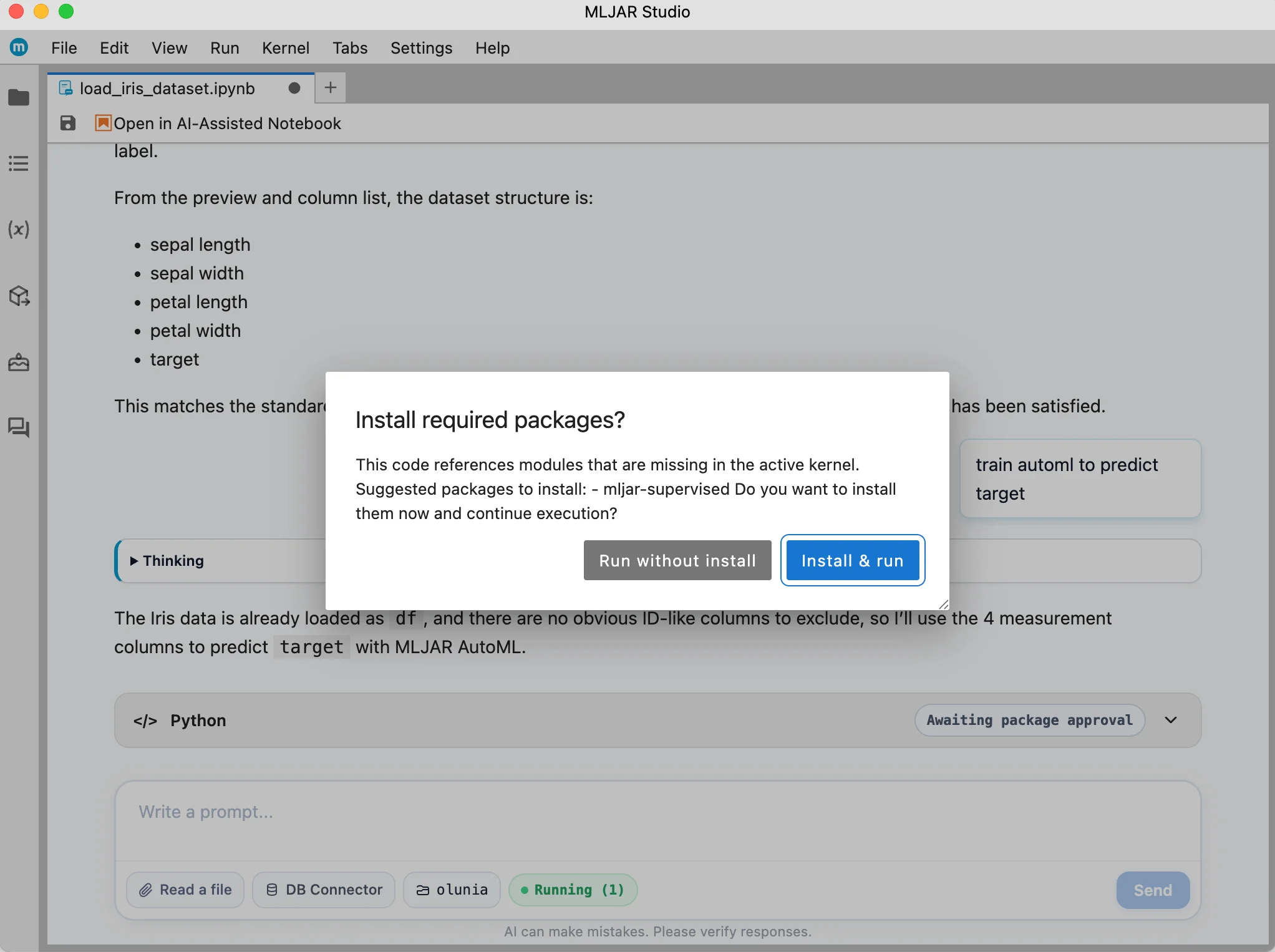
After the package is installed, AI Data Analyst prepares the workflow, runs Python code in the notebook, and uses mljar-supervised to train machine learning models.
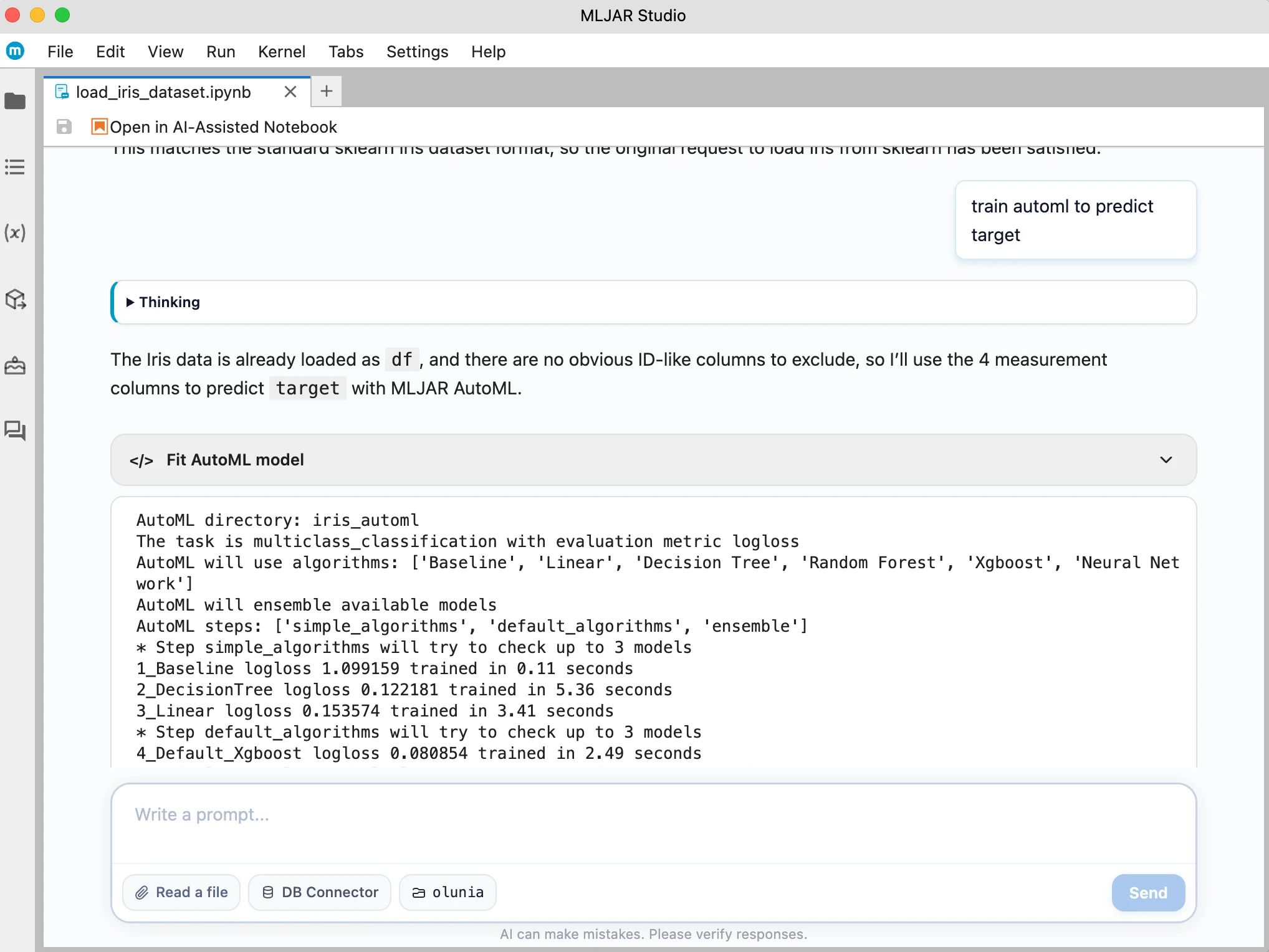
Python code is available when you need it
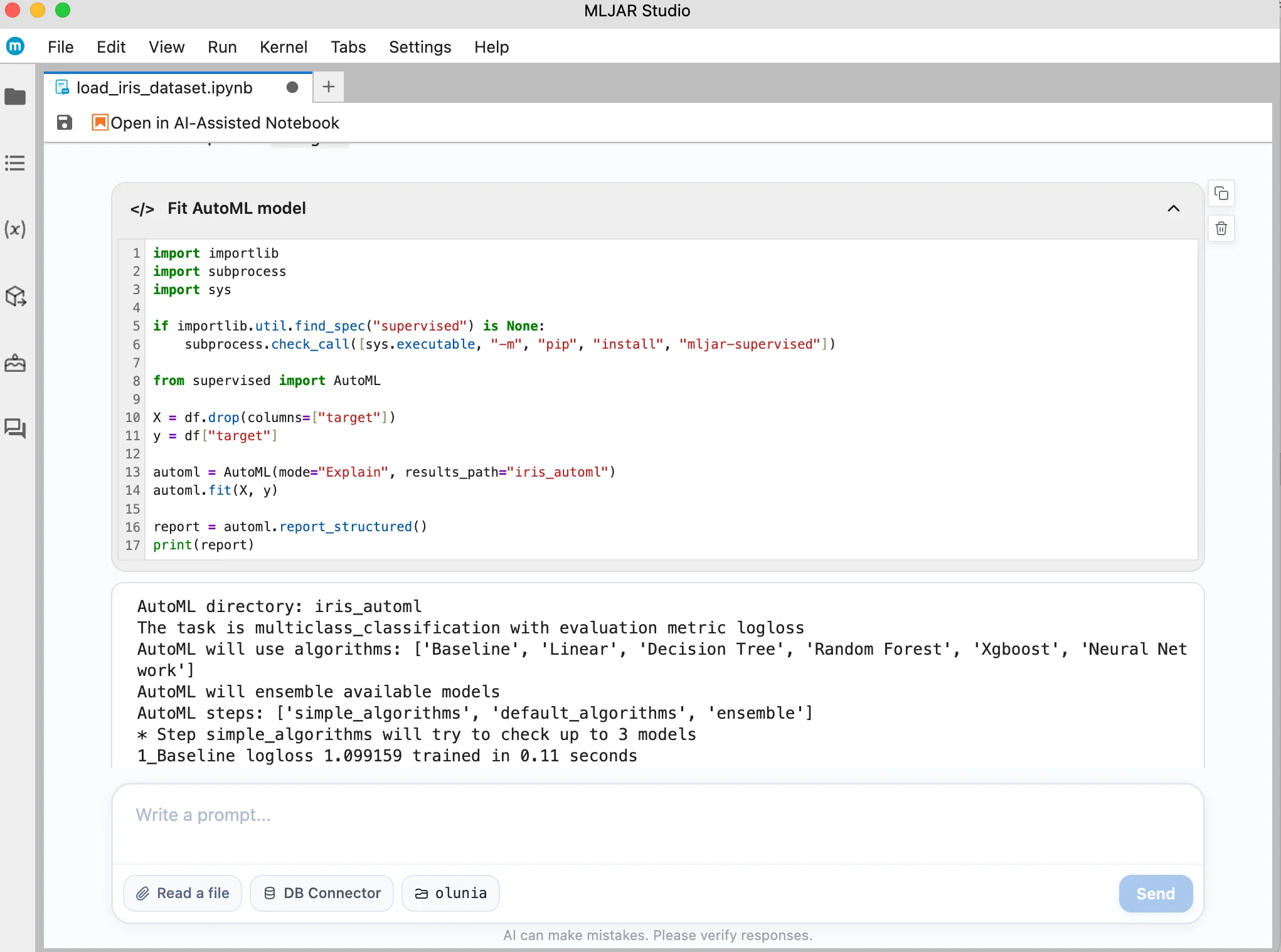
In a conversational notebook, the generated Python code is hidden by default. This keeps the notebook clean and friendly for beginners. If you want to see what happened under the hood, click the cell header to expand it and inspect the generated code.
This is helpful because you can learn from the generated Python code, copy it, edit it, or rerun it later.
Review the AutoML report
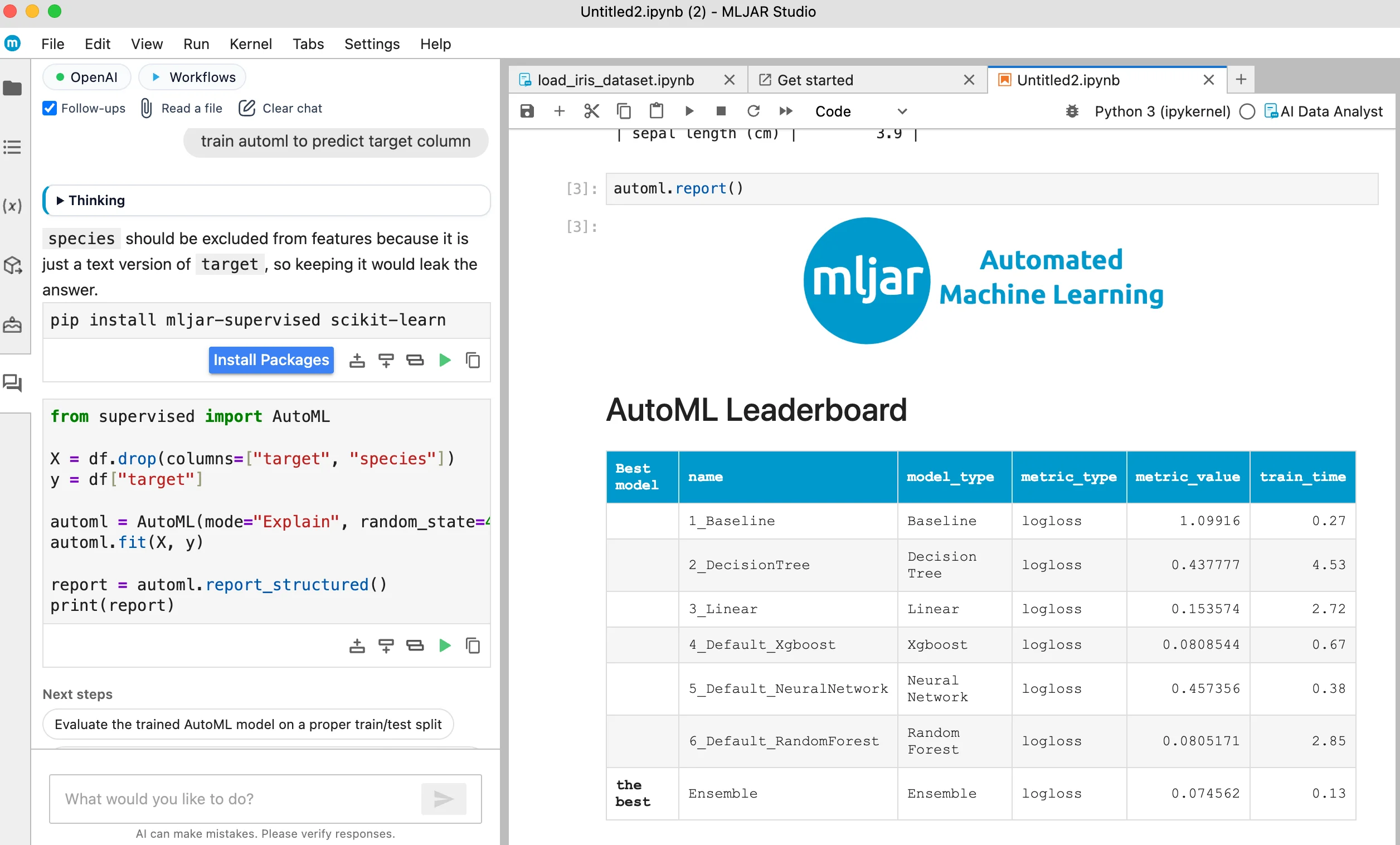
After training finishes, MLJAR Studio displays the AutoML report directly in the notebook. The report helps you understand what was trained and which model performed best.
The report includes:
- a leaderboard with trained models and their scores,
- details about the best models,
- a table with the most influential features,
- a table with the least influential features,
- AI-generated insights about the training results.
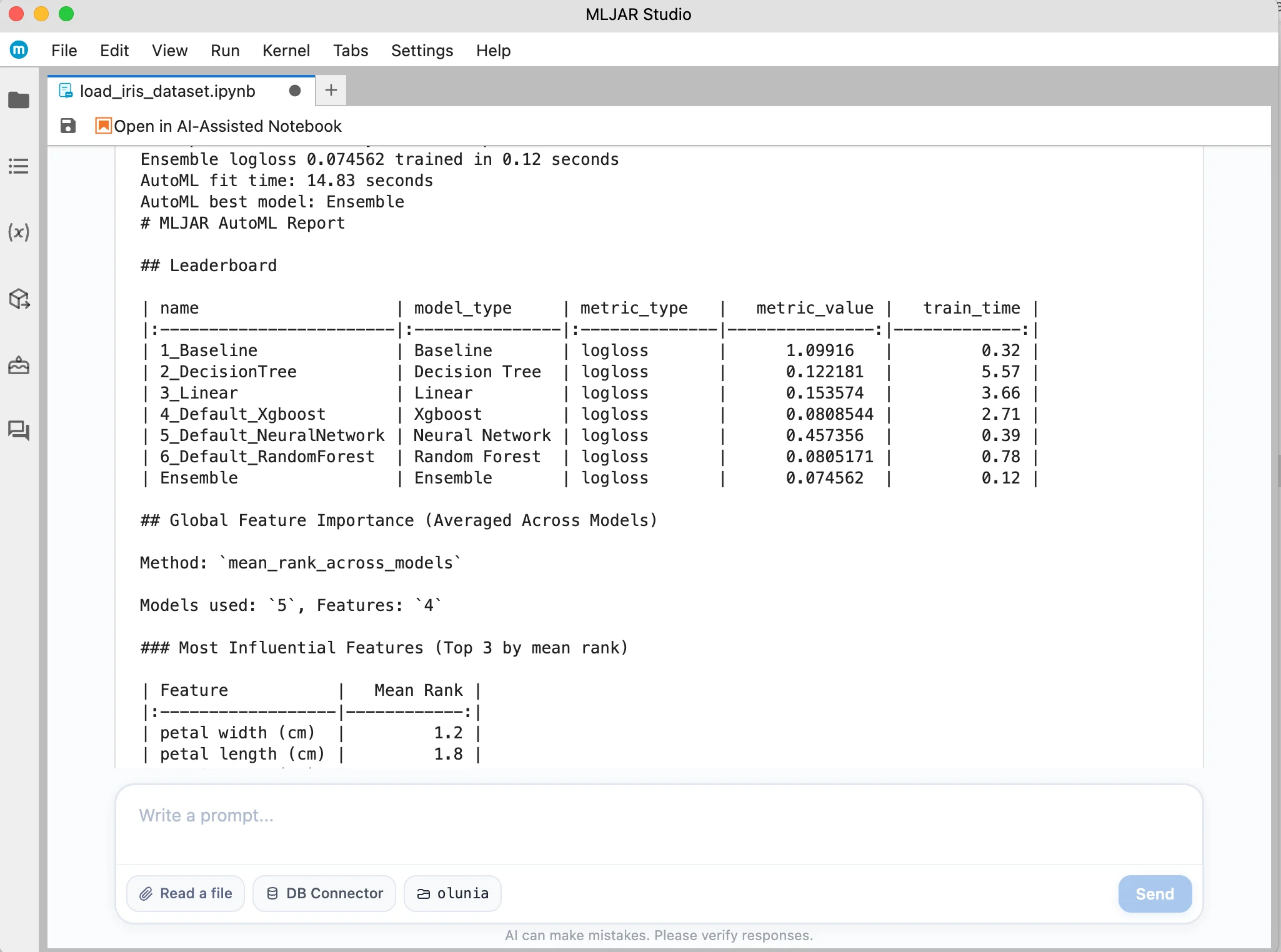
The AI analysis is useful when you are just starting with machine learning. It can help you understand the leaderboard, compare models, and notice which columns had the biggest impact on predictions.
Option 2: Use AutoML in a classic Python notebook
You can also use AutoML in a regular code-first notebook. This approach is great when you want to write Python yourself, reuse the notebook later, or adapt the training workflow to an existing project.
In a classic notebook, you can write the code manually or ask AI in the sidebar to generate the code for you. You still use the same mljar-supervised AutoML engine.
First, install the package in your Python environment:
pip install mljar-supervisedThen import AutoML, create the AutoML object, and train models on your data:
from supervised import AutoML

# Create AutoML object
automl = AutoML(mode="Explain")

# Train models
automl.fit(X_train, y_train)

# Display interactive AutoML report
automl.report()
The automl.report() command displays an interactive report inside the notebook. It is helpful for checking the leaderboard, model details, and feature importance after training.
The classic notebook workflow can display the same AutoML report after training.
Where are AutoML files saved?
All files generated during AutoML training are saved locally on your hard drive. This includes trained model files, reports, logs, and other AutoML outputs. You can inspect them, copy them, or keep them as part of your project.
This is important because your work is not hidden in the cloud. The training results belong to your local project and can be reused later.
Which workflow should you choose?
Choose the conversational notebook when you want the fastest and easiest start. You describe your goal in plain English, tell AI which column to predict, and let MLJAR Studio prepare the AutoML workflow for you.
Choose the classic Python notebook when you prefer explicit code, want to learn the Python API, or need full control over the training pipeline.
Beginner checklist
Before you start AutoML, make sure that:
- your dataset is loaded in the notebook,
- you know which column you want to predict,
- the target column contains values you want the model to learn,
- you have enough time for model training to finish.
Related pages
Learn more about AI Data Analyst, installing Python packages. You can also visit the mljar-supervised GitHub repository and package documentation.