
Workflow guide
Workflows in MLJAR Studio
What are Workflows?
Step-by-step Python notebooks for data analysis, wrangling, and machine learning.
Find Workflows
Search workflows on mljar.com or directly in MLJAR Studio app.
Use Workflows
Run workflows cell by cell—click buttons to launch recipes or use the AI assistant.
Share Workflows
Publish your own workflows from the desktop app—make them public or private.
What are Workflows?
Workflow is a list of prompts that AI Data Analyst executes one by one, in order. Each next prompt runs after the previous one finishes, so you can automate repeatable data analysis pipelines.
Workflows are ideal for standard analysis patterns such as loading data, plotting key views, checking missing values, and summarizing insights with consistent prompt sequences.
- Deterministic order: prompts run sequentially from top to bottom.
- Reusable definition: same workflow can be rerun for new datasets or models.
Workflow automation in AI Data Analyst
In AI Data Analyst, you can define a list of prompts that are executed automatically as a workflow. This is useful for repeatable analysis runs where the same sequence of steps should be applied every time.
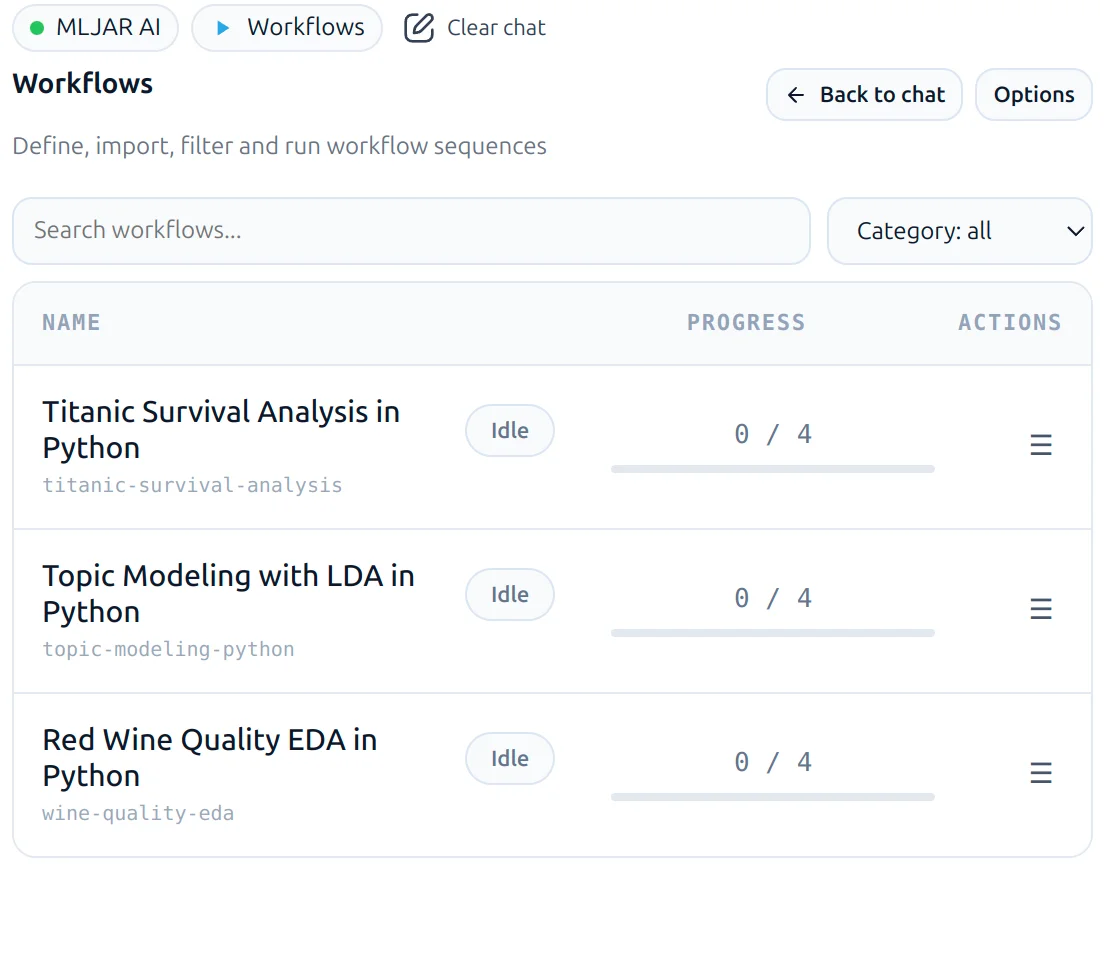
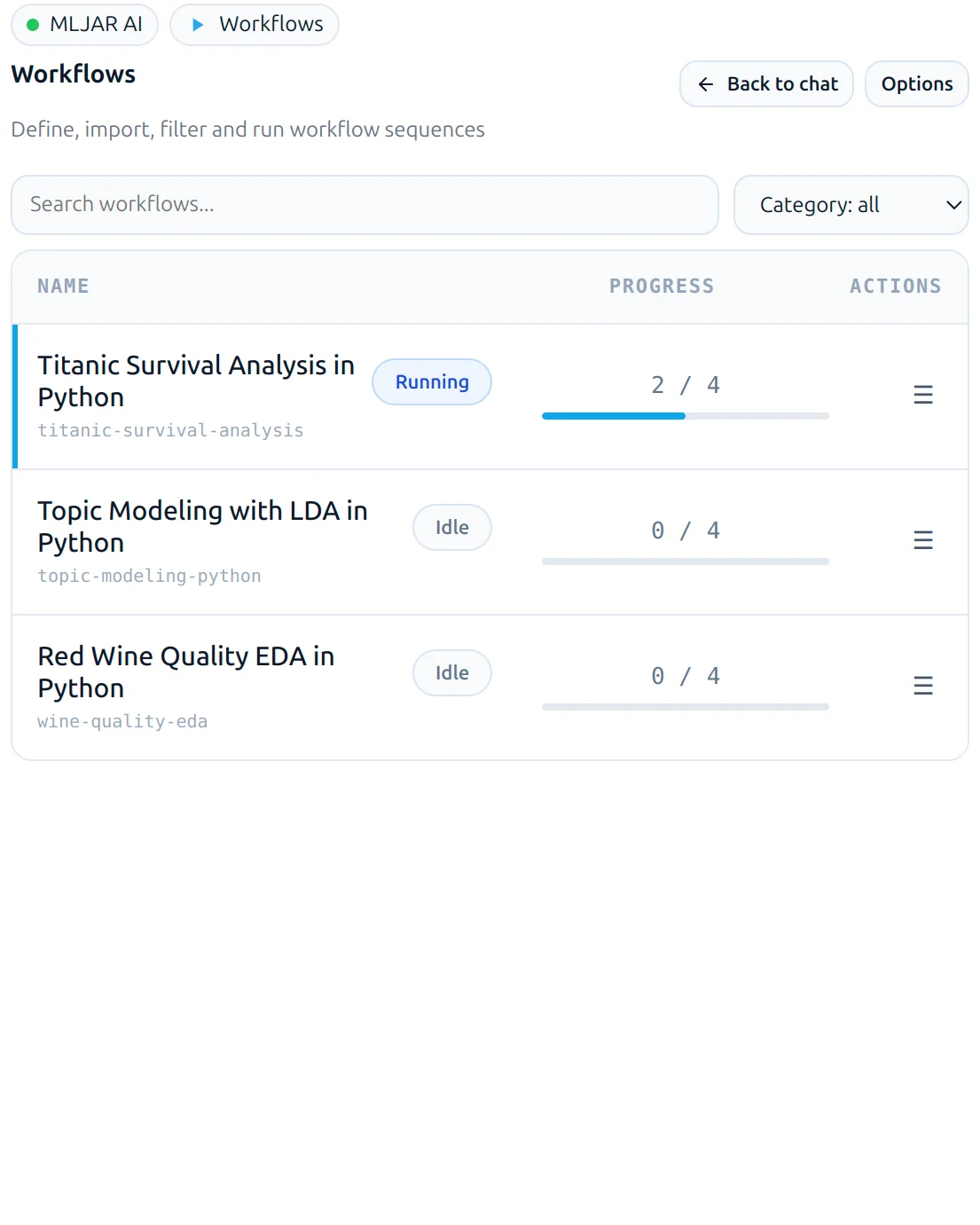
Open the left sidebar and use the Workflows chip at the top to access workflow management. From there, you can create, edit, run, and organize prompt sequences.
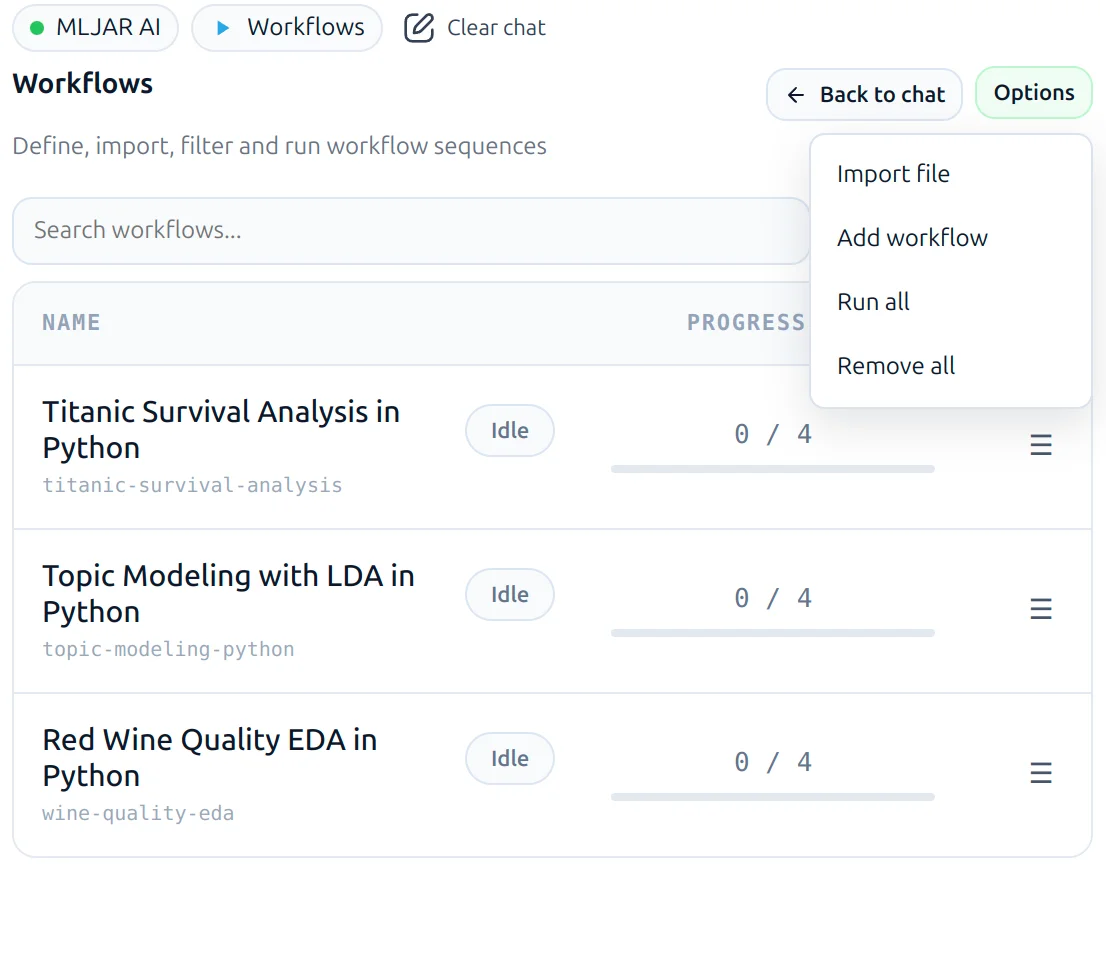
Options menu
Use the Options button in the Workflows area to:
- Import workflows from a file.
- Add a single workflow.
- Run all workflows.
- Remove all workflows.
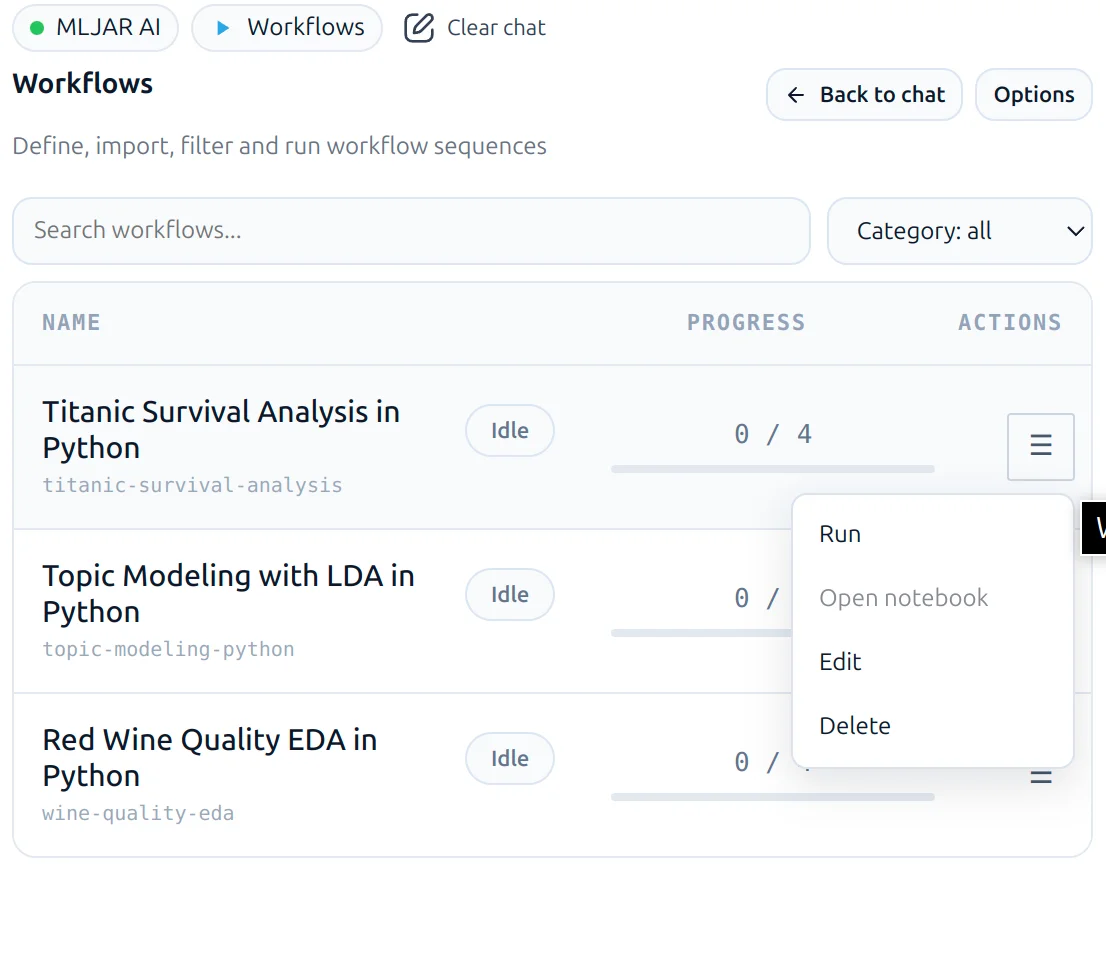
Single workflow actions
For each workflow, MLJAR Studio shows action controls. Depending on available width, these appear as direct action buttons or in a burger/actions menu.
- Run
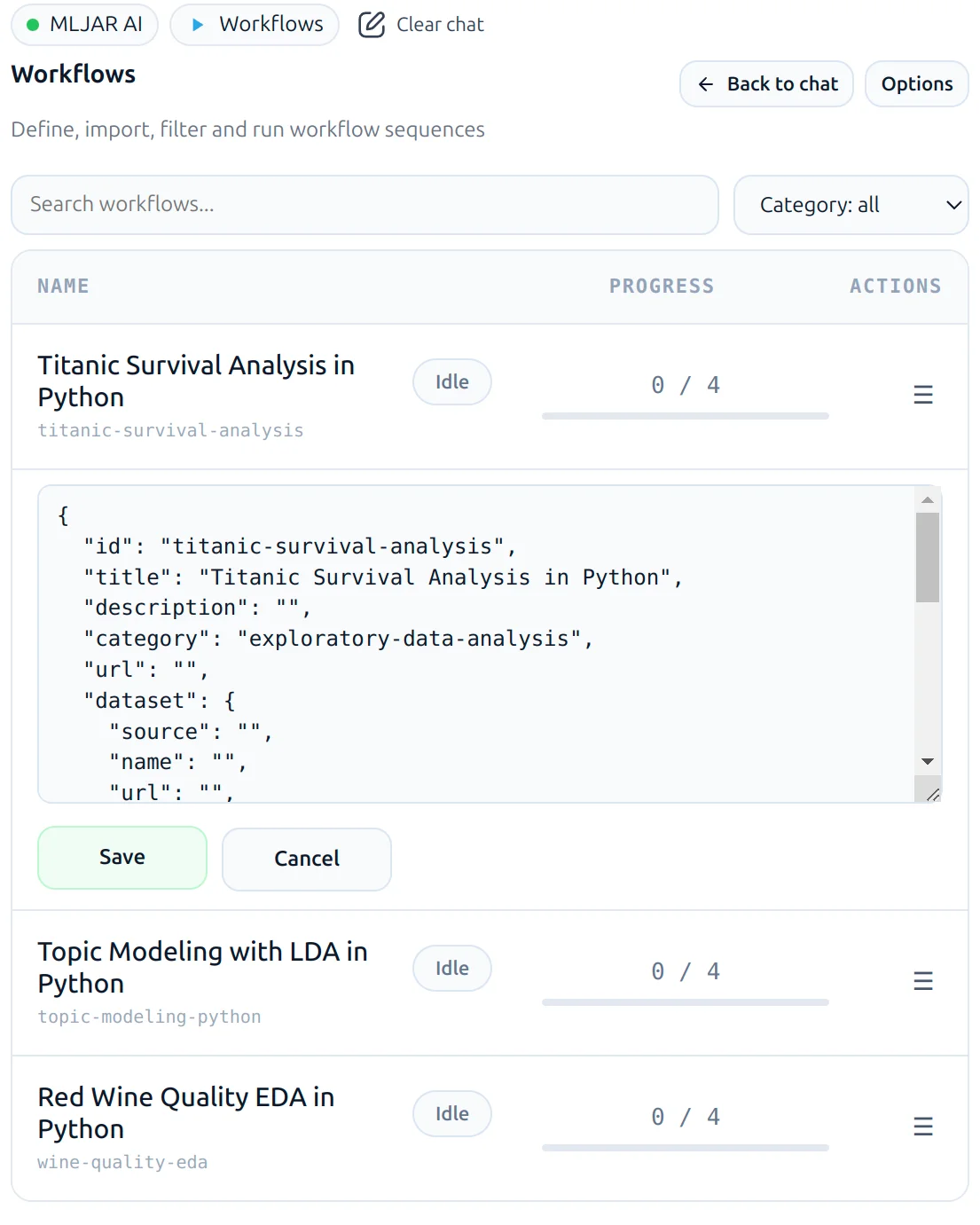
- Edit
- Delete
- Open related notebook with run
Example workflow definition
Example JSON you can import or use as a template:
{
  "id": "titanic-survival-analysis",
  "title": "Titanic Survival Analysis in Python",
  "category": "exploratory-data-analysis",
  "prompts": [
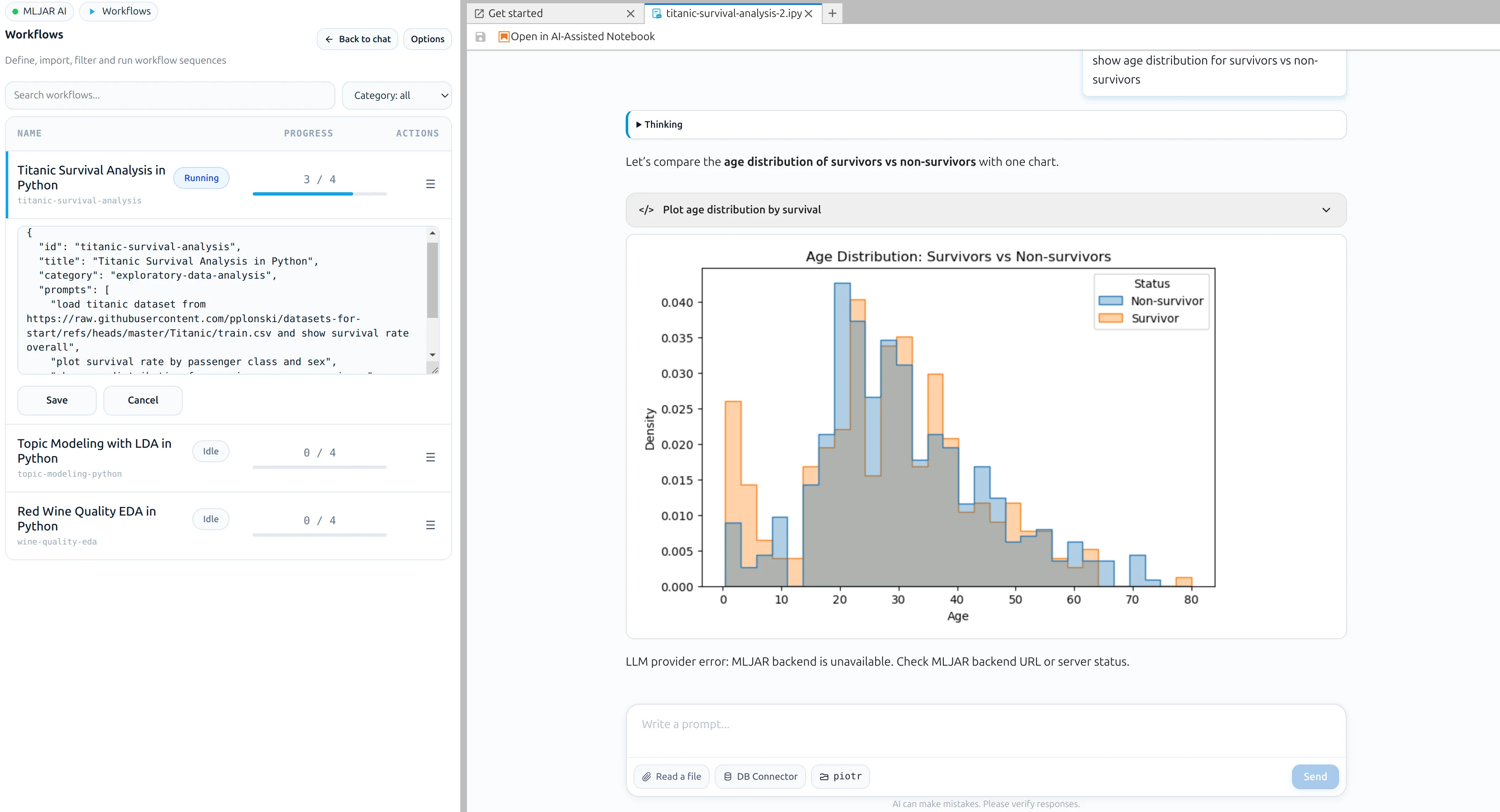
    "load titanic dataset from https://raw.githubusercontent.com/pplonski/datasets-for-start/refs/heads/master/Titanic/train.csv and show survival rate overall",
    "plot survival rate by passenger class and sex",
    "show age distribution for survivors vs non-survivors",
    "how many missing values are there and which columns?"
  ]
}
How to Find Workflows
You can find example workflows in two ways:
- On the web at mljar.com/analysis
- In the MLJAR Studio desktop app from the Workflows section in AI Data Analyst. Use import/add actions to load workflow definitions into your notebook session.
Once you find a workflow you like, simply click to start. Each step is interactive and beginner-friendly.
How to Use Workflows
Open Workflows from the left sidebar and run prompt sequences in AI Data Analyst:
- Run all executes all workflows in the current list.
- Run executes prompts for a single workflow.
- Edit/Delete updates or removes workflow definitions.
- Open related notebook with run opens the linked notebook and starts execution.
This gives you a repeatable, auditable way to automate common analyses without manually retyping prompts.
Share Your Workflows
Workflows are JSON files. If you want to share a workflow, share the JSON file with your team or community.
- Use Import workflows from file to load shared workflow JSON into MLJAR Studio.
- You can keep private workflow files internally or distribute them publicly.
- Workflow JSON files are easy to version in Git and review in pull requests.
This file-based approach makes workflow sharing simple, portable, and reproducible.
Running workflows in progress:
Editing an existing workflow:
Why Use Workflows?
- Learn by doing—see, run, and change code in real time.
- Access expert knowledge—many workflows are written by MLJAR team and expert users.
- Make your own workflows public—help others and build your data science portfolio.
Get Started
Ready to try? Head to mljar.com/analysis or open MLJAR Studio and explore workflows today.