
Database Connections
ClickHouse connection setup
ClickHouse connector is available in AI Data Analyst conversational notebooks. Click DB Connector in the prompt box, choose ClickHouse, configure connection details, test the connection, and save.
Required fields
- host
- port
- database
- user
- password
- Use HTTPS toggle
Schema is optional. MLJAR Studio uses ClickHouse over HTTP/HTTPS via clickhouse-connect. Default ports are 8123 for HTTP and 8443 for HTTPS.
Connection flow
- Open AI Data Analyst notebook.
- Click DB Connector.
- Select ClickHouse and fill the required fields.
- Choose whether the connection should use HTTP or HTTPS.
- Click Test connection.
- If
clickhouse-connectis missing, MLJAR Studio asks to install it and installs it. - When test succeeds, click Save connection.
- MLJAR Studio scans available tables and prepares LLM context.
- Review scanned tables and choose which should be visible to the LLM.
- Click final Save.
SQL block in conversational notebook
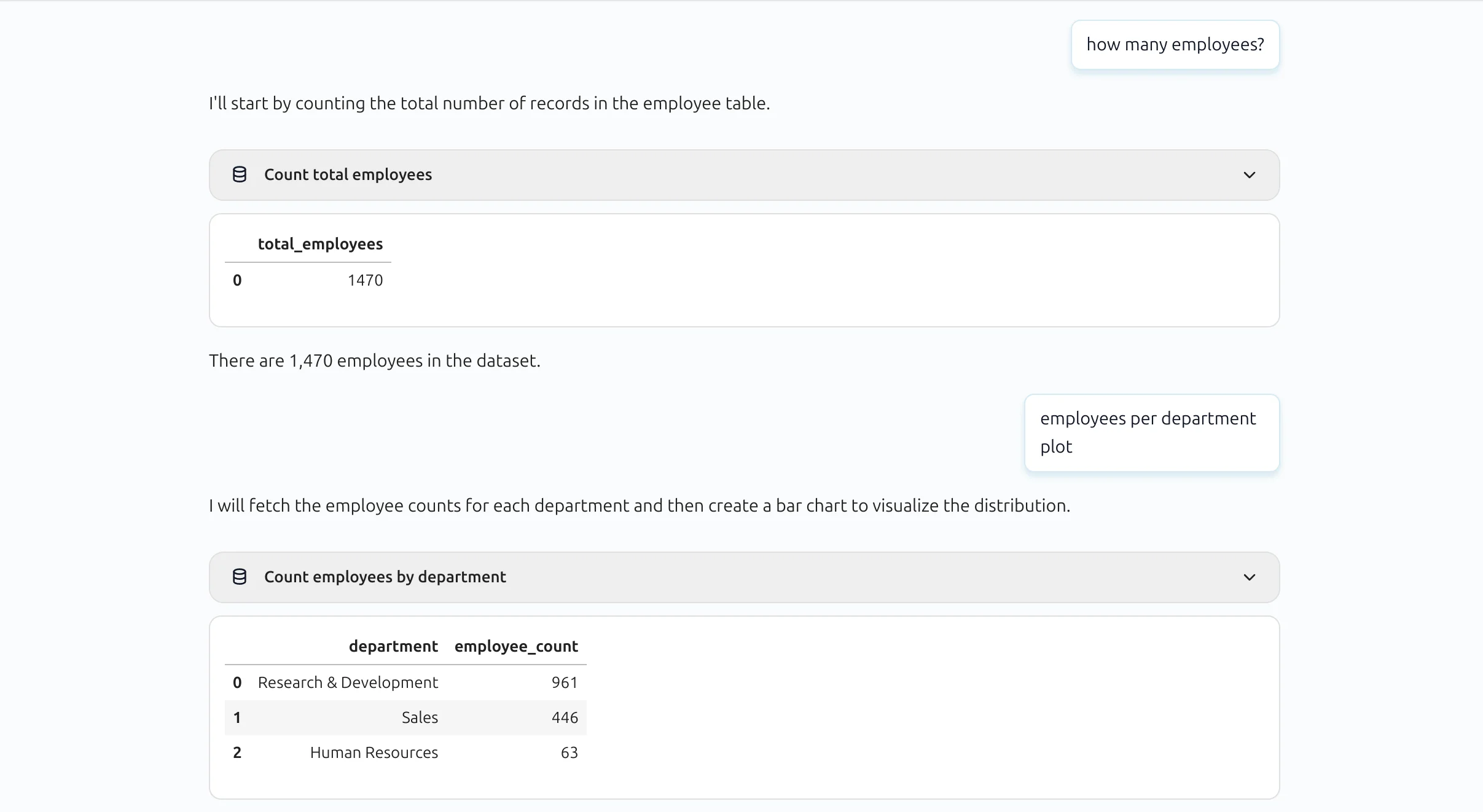
SQL queries are shown in a compact block by default. Users can expand the block to inspect full SQL text.
Expanded SQL block view:
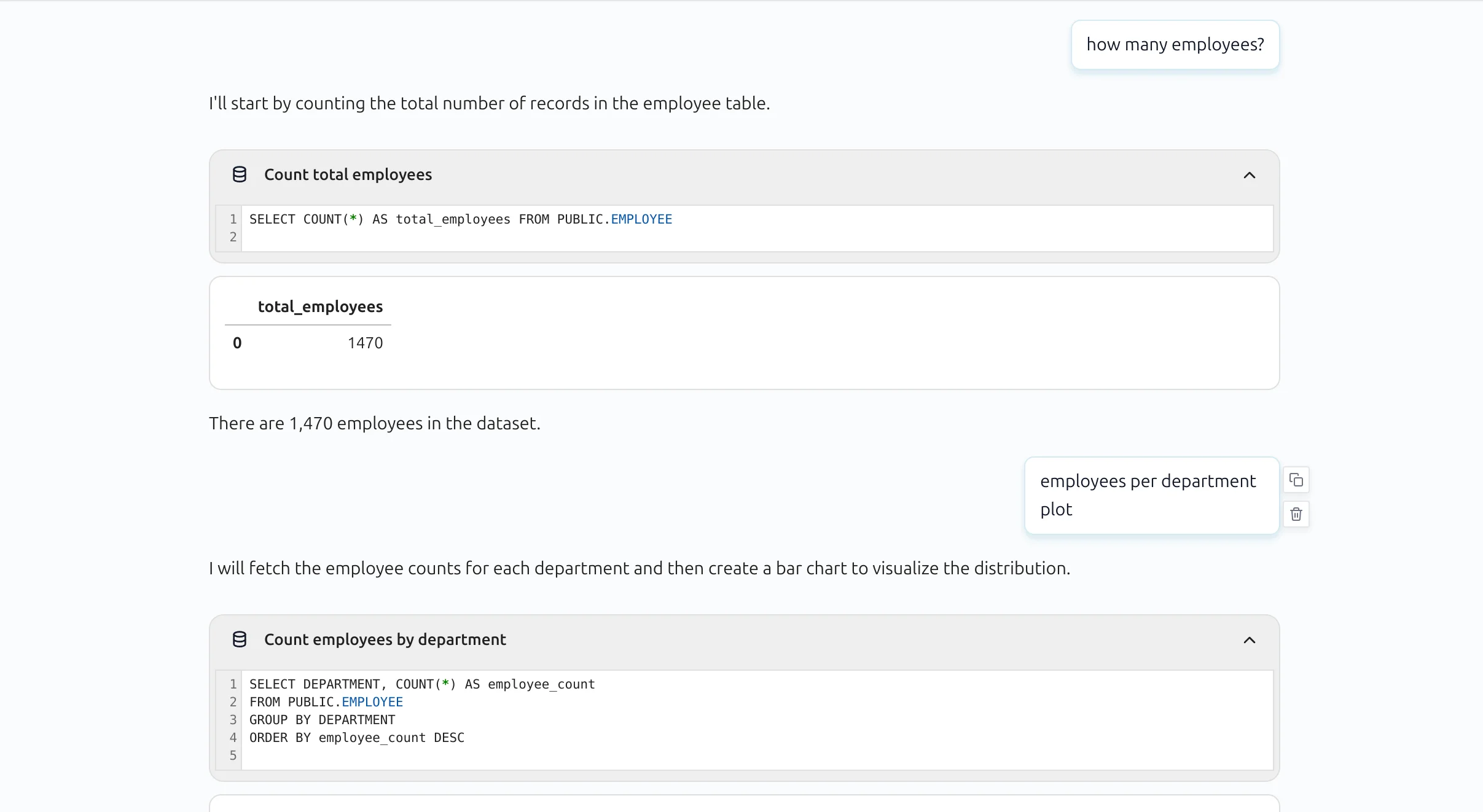
MLJAR Studio can execute read-only SQL blocks, materialize outputs into notebook variables, and continue analysis in Python for visualizations and machine learning workflows.
Troubleshooting
- Connection refused: verify host, port, network access, and whether ClickHouse HTTP or HTTPS endpoint is exposed.
- Authentication failed: check username/password and database-level permissions.
- HTTPS issues: confirm the Use HTTPS toggle matches the server configuration and port.
- Schema or tables not visible: verify the target database/schema and table visibility selection in the connector save flow.
Related docs
See the Database Connections overview and AI Data Analyst for prompt-driven analysis on top of SQL outputs.