
AI-generated Python, reviewed by you
Merge Excel Files with AI + Python
Ask MLJAR Studio to combine your Excel workbooks in plain English. The AI writes real pandas code, runs it locally, and keeps a source_file column so every row still tells you which workbook it came from.
The real problem
Copy and paste removes the audit trail
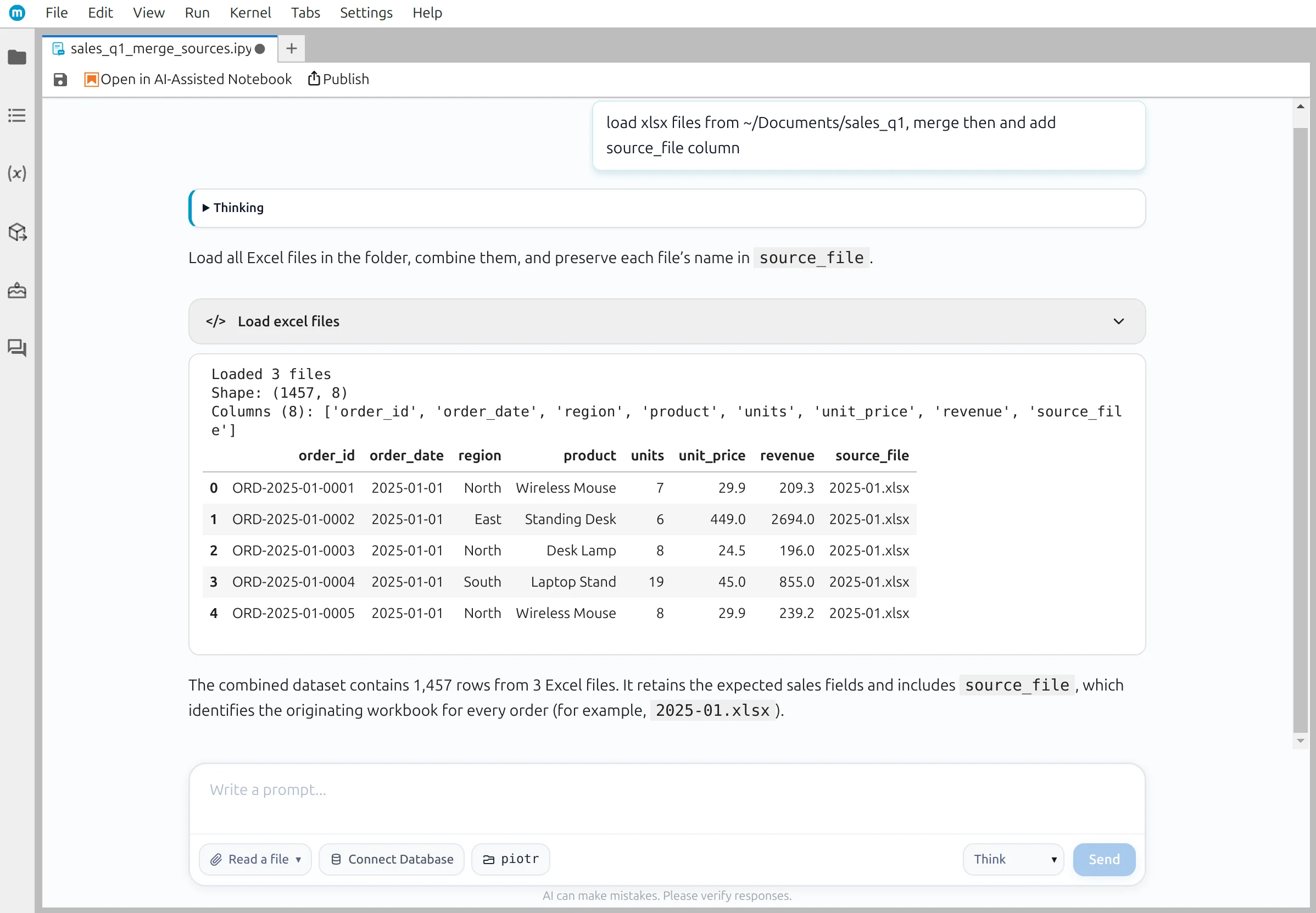
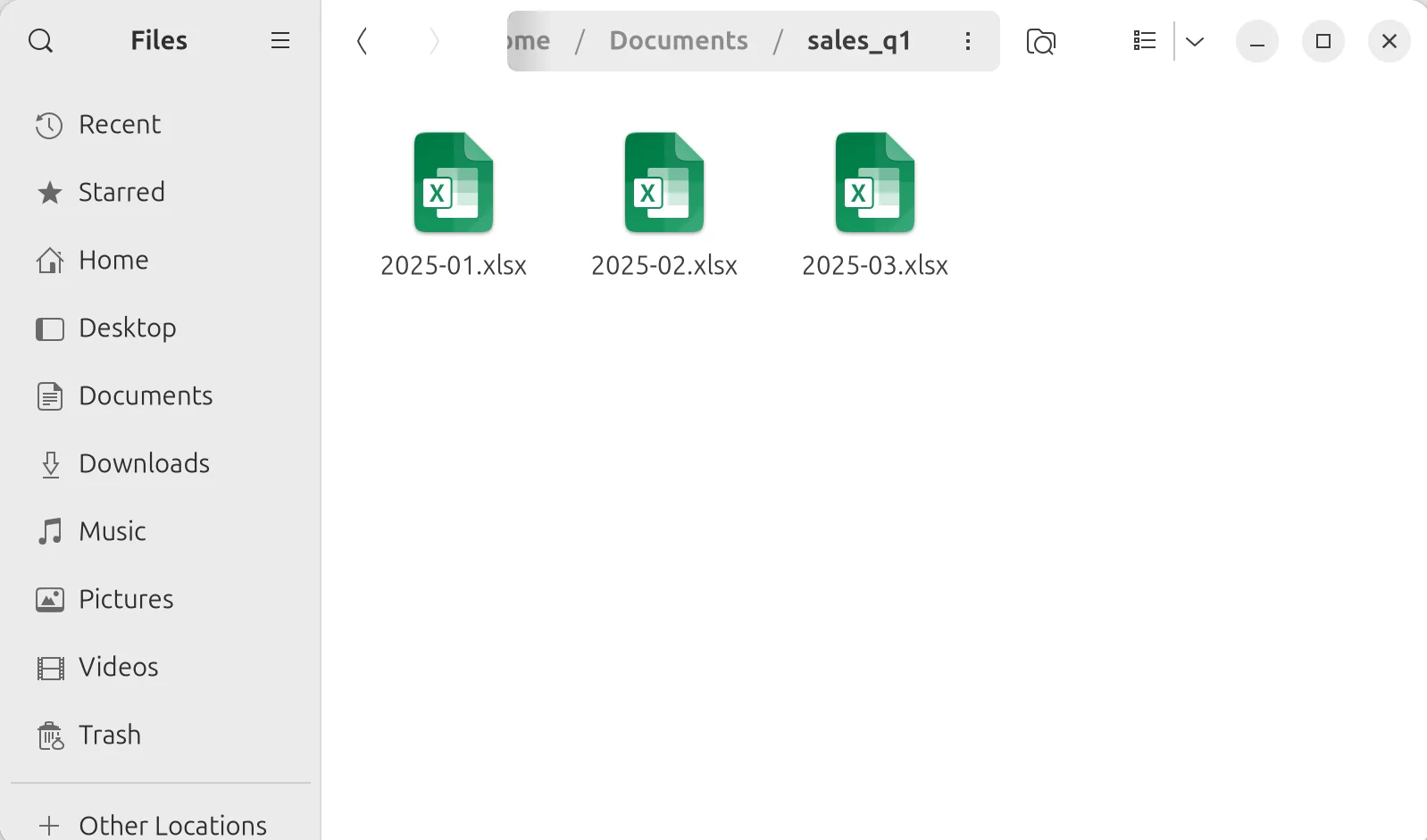
Every quarter you receive three monthly sales exports and need one combined workbook. The rows are easy to stack, but a manual merge forgets which source file each row came from.
Studio generates the merge and adds source_file. You inspect the Python, confirm that all three files contributed the expected rows, and approve the workbook before it is saved.
Working with a full year of exports or files whose columns may differ? Use the folder-based Excel merge workflow.
Four checkpoints
Keep a human in the analysis loop
Studio handles repetitive code generation. You review the generated Python, verify the data, and decide when the merge is ready to save.
- Checkpoint 1
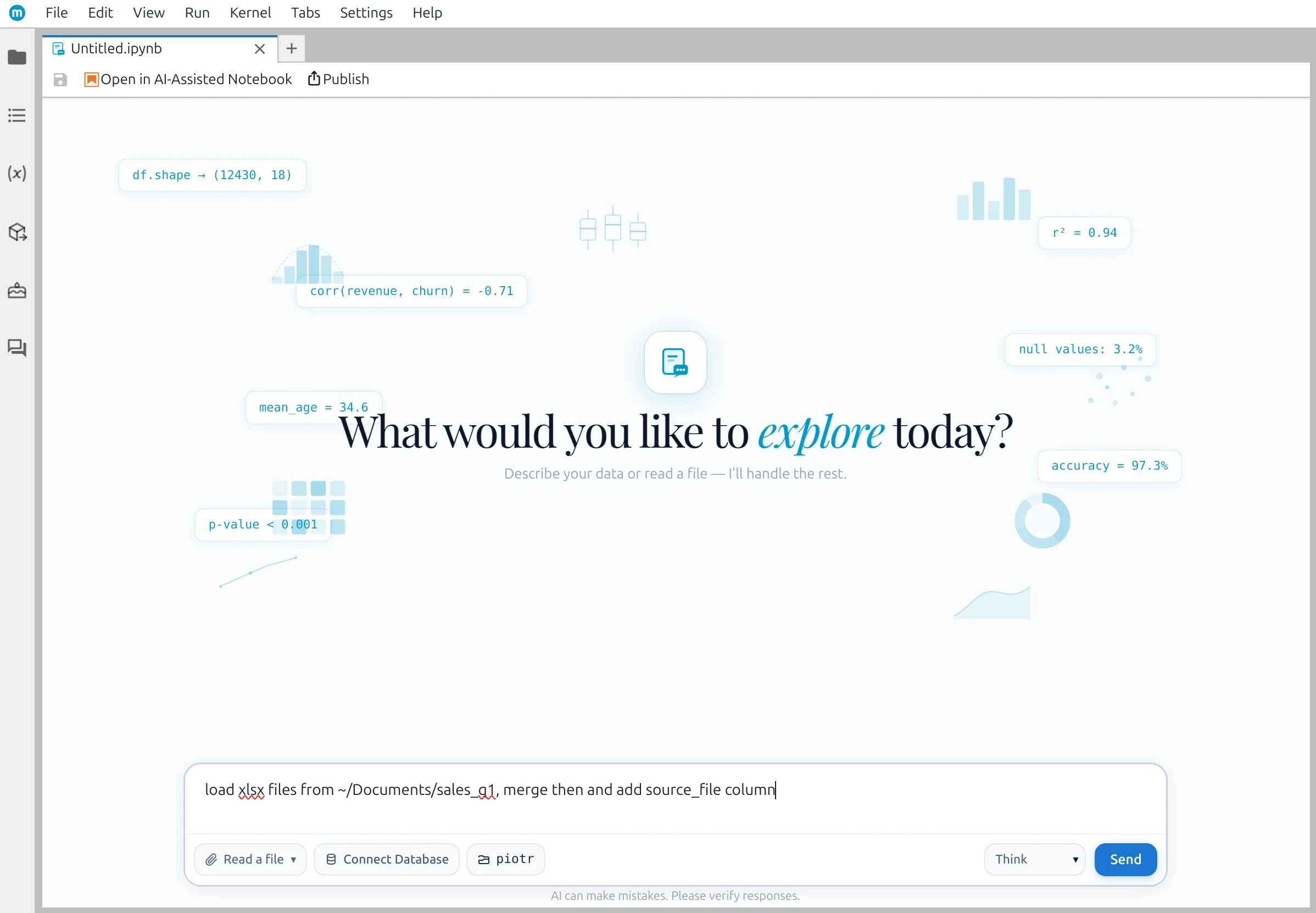
Load the files
Ask in plain English — “load xlsx files from ~/Documents/sales_q1, merge them, add source_file column”.
- Checkpoint 2
AI writes the pandas
Studio generates the code, runs it locally, and shows the merged dataframe with a source_file column.
- Checkpoint 3
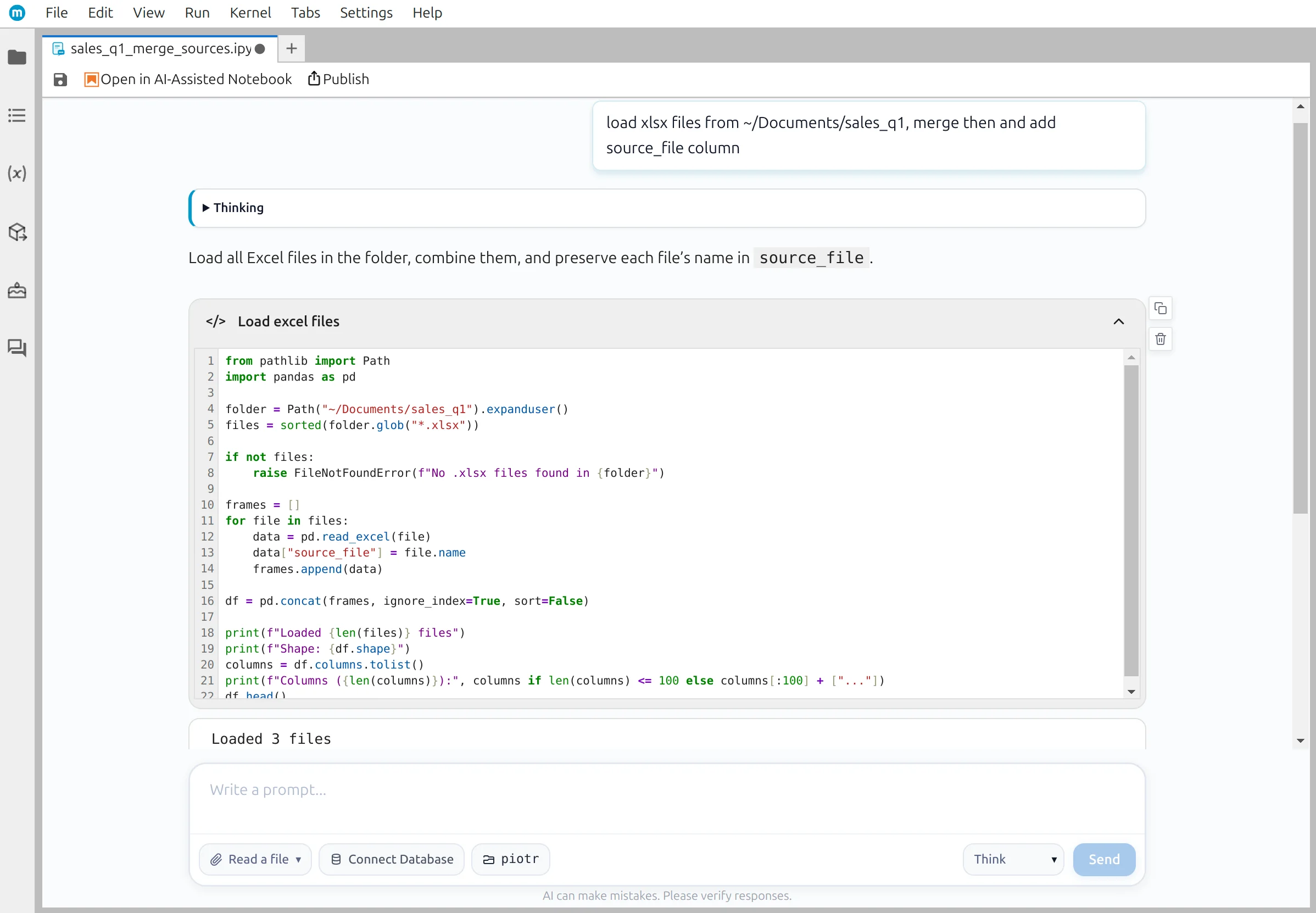
You review the code
Expand the cell to see the actual pandas. Edit it, ask the AI to double-check it, or leave a note for next time.
- Checkpoint 4
Verify and save
Count rows per file to confirm nothing was dropped, then save the result as a new Excel workbook.
The code you get
Real pandas, in three cells
The AI generates a notebook you can read line by line. Here is the essential code the merge produces — every step is a plain pandas operation you can edit or reuse.
# Cell 1 — find and read every Excel file in the folder
from pathlib import Path
import pandas as pd

folder = Path("~/Documents/sales_q1").expanduser()
files = sorted(folder.glob("*.xlsx"))

if not files:
raise FileNotFoundError(f"No .xlsx files found in {folder}")# Cell 2 — read each file and remember where each row came from
frames = []
for file in files:
data = pd.read_excel(file)
data["source_file"] = file.name
frames.append(data)
df = pd.concat(frames, ignore_index=True, sort=False)# Cell 3 — save the merged workbook without the pandas index
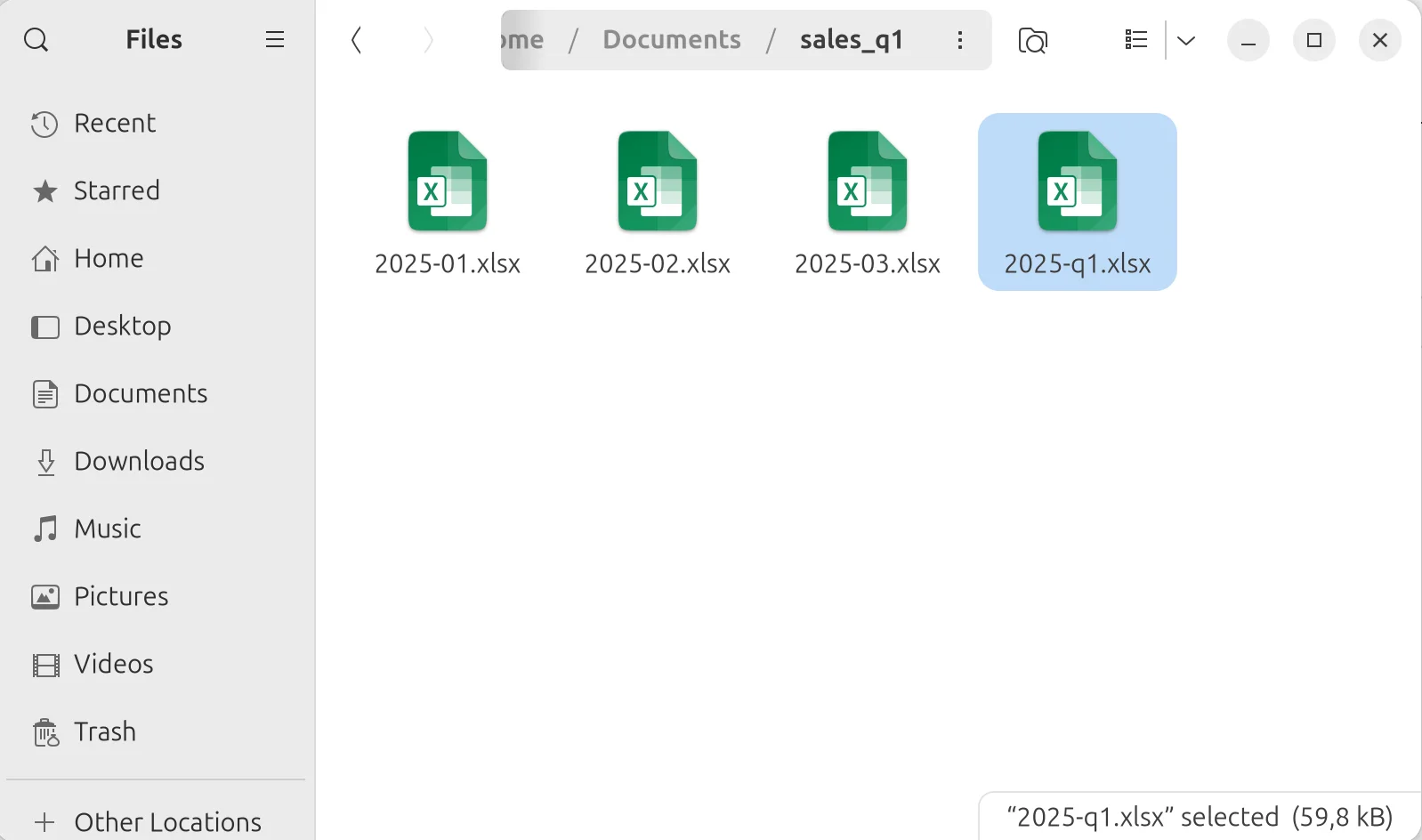
output_file = folder / "2025-q1.xlsx"
df.to_excel(output_file, index=False)
print(f"Saved merged file: {output_file}")You can rerun this notebook next quarter — change the folder path and output filename, and the same steps produce the next merged workbook.
Verification
A person approves the merge—not the model
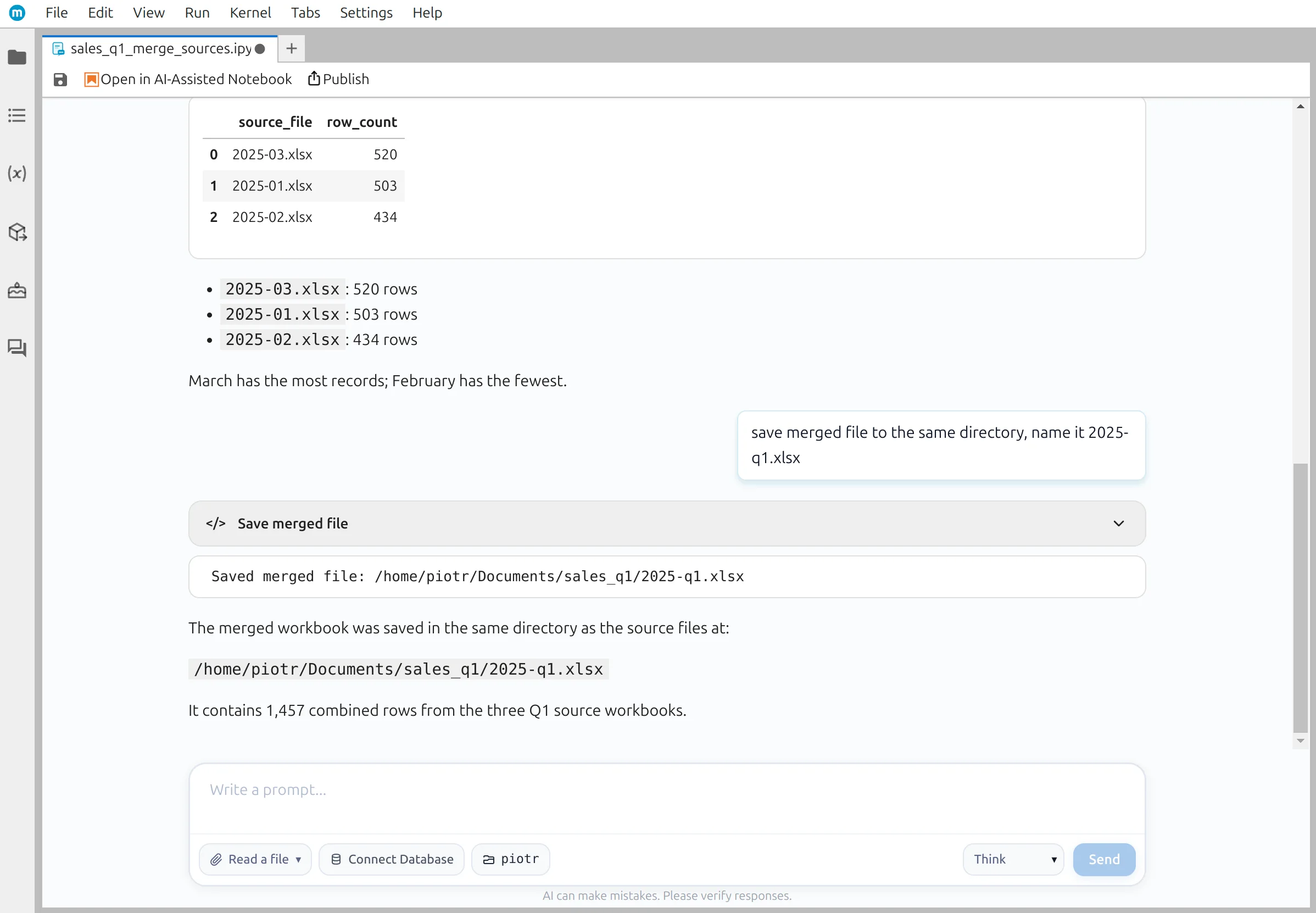
A merge that silently dropped rows is worse than no merge at all. Ask Studio to count rows per source file, then compare those counts with the original workbooks before saving.
- Confirm every file contributed rows
- Catch a partial load before it becomes a report
- Compare the generated check with the source workbooks
Prompt used: count rows per source_file
| source_file | row_count |
|---|---|
| 2025-01.xlsx | 503 |
| 2025-02.xlsx | 434 |
| 2025-03.xlsx | 520 |
| Total | 1,457 |
Matches the merged dataframe: 503 + 434 + 520 = 1,457 rows.
Run the merge locally—or fully offline
Python reads and writes the Excel files on your computer. Use a local LLM through Ollama, vLLM, llama.cpp, LM Studio, or Jan when prompts and data context must stay on your own hardware too.
Reviewed output
Save one traceable quarterly workbook
The final file contains 1,457 rows, the seven original sales fields, and source_file provenance. The notebook keeps the prompts, generated Python, checks, and outputs used to create it.
- Every merged row remains traceable to its original workbook
- Change the folder path and rerun the same reviewed notebook next quarter
- Keep prompts, code, checks, and human decisions in one reviewable record
Related guides
Keep going
Read the full step-by-step, or explore the folder-based version and the broader spreadsheets hub.
Full tutorial with screenshots
Every prompt, every screenshot, and the exact pandas code — walk through the whole merge start to finish.
Read nextMerge every Excel file in a folder
A folder-first workflow for twelve monthly files, including a renamed column and a genuinely new field.
Read nextSpreadsheet workflows with AI + Python
The hub for analyzing, transforming, automating, and building on top of your Excel and CSV files.
Read nextFAQ
Common questions
Can I run this fully offline, without sending data to a cloud AI?+
Yes. Point MLJAR Studio at a local LLM through Ollama, vLLM, llama.cpp, LM Studio, or Jan. Your prompts, your files, and the generated code all stay on your computer — nothing is sent to a third-party API.
Can I edit the generated Python before running it?+
Yes. Every code cell is fully editable. You can tweak column names, change the file pattern, add validation, or replace an approach the AI chose — then rerun the cell.
What if the AI writes wrong code?+
You review the code before saving anything, and the row-count check is there specifically to catch problems (missing rows, duplicated files, wrong columns). You can also ask the AI to double-check its own output — for example, “verify every source file contributed rows”.
Do I need to know Python?+
No. You describe what you want in plain English and MLJAR Studio generates the pandas code. Reading Python helps if you want to audit the merge, but it isn't required to complete the task.
How many files can I merge?+
The generated code reads every .xlsx file in the folder, so the practical limit is your machine's memory rather than a fixed count. Dozens of monthly files or hundreds of daily exports are routine.
What if my Excel files have different columns?+
pandas.concat aligns columns by name and fills missing ones with NaN. If you want stricter behavior — for example, fail the merge when columns do not match — ask the AI to add that check and it will edit the code.
Merge the files. Verify the rows. Keep the Python.
Use MLJAR Studio on your own monthly workbooks and keep a human in control of the final result.