
AI-generated Python, reviewed by you
Merge All Excel Files in a Folder with AI + Python
Ask MLJAR Studio to load every workbook in a folder. The AI writes real Python and runs it locally. You inspect the code, verify every source file, decide how schema changes should be handled, and approve the final workbook.
The real problem
The merge can succeed while the analysis is wrong
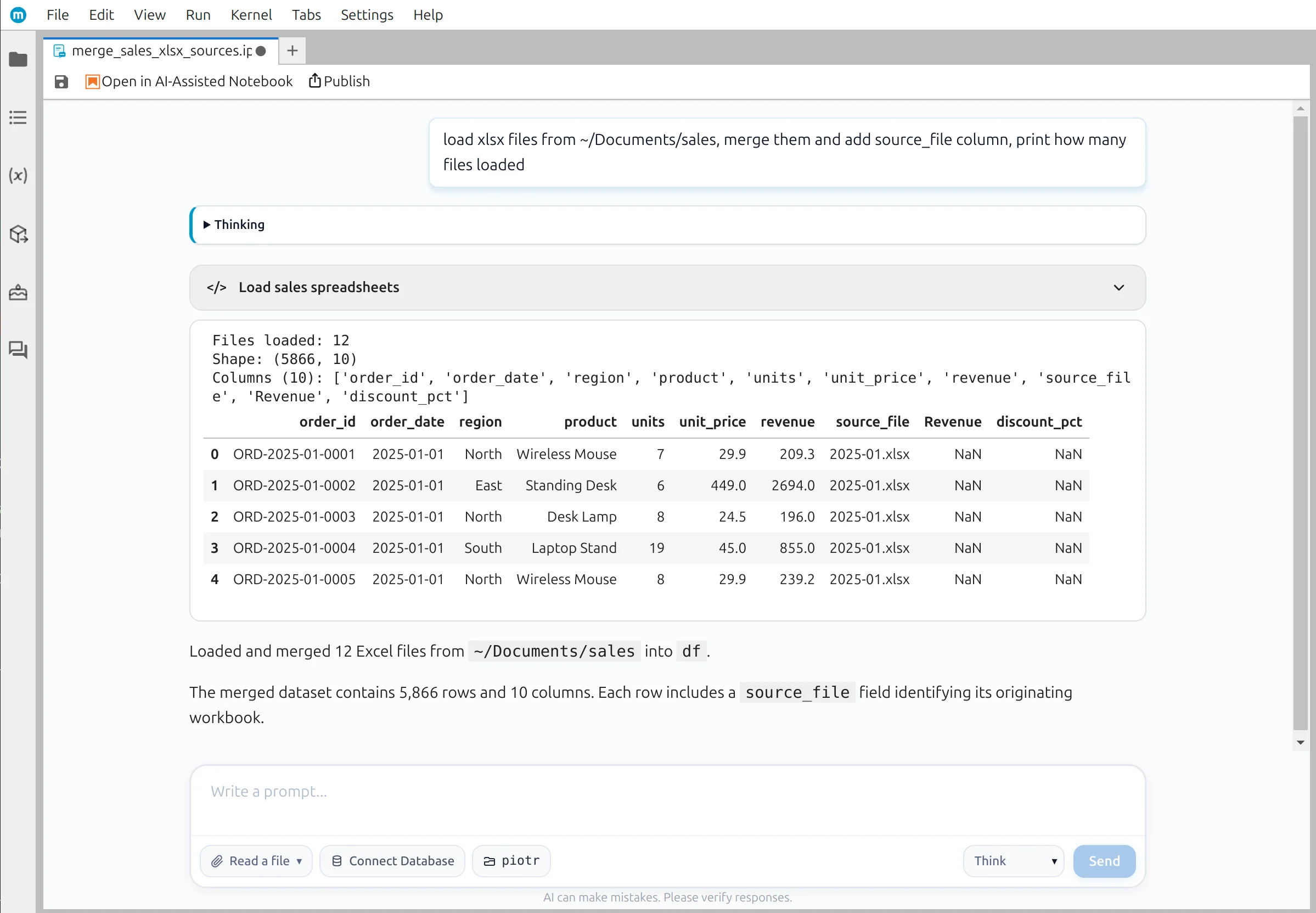
The twelve files are almost identical. July renamed revenue to Revenue, while November introduced discount_pct. pandas accepts both changes and completes the merge—so a successful run is not proof of a correct dataset.
AI can identify the different fields and propose code. A person still needs to decide whether two columns mean the same thing, whether missing values mean zero, and whether the final totals make business sense.
If you only need to combine a few workbooks with matching columns, start with the simpler three-file Excel merge.
Four checkpoints
Keep a human in the analysis loop
The workflow alternates between AI assistance and human review. Studio handles repetitive code generation; you validate what the data means before moving forward.
- Checkpoint 1
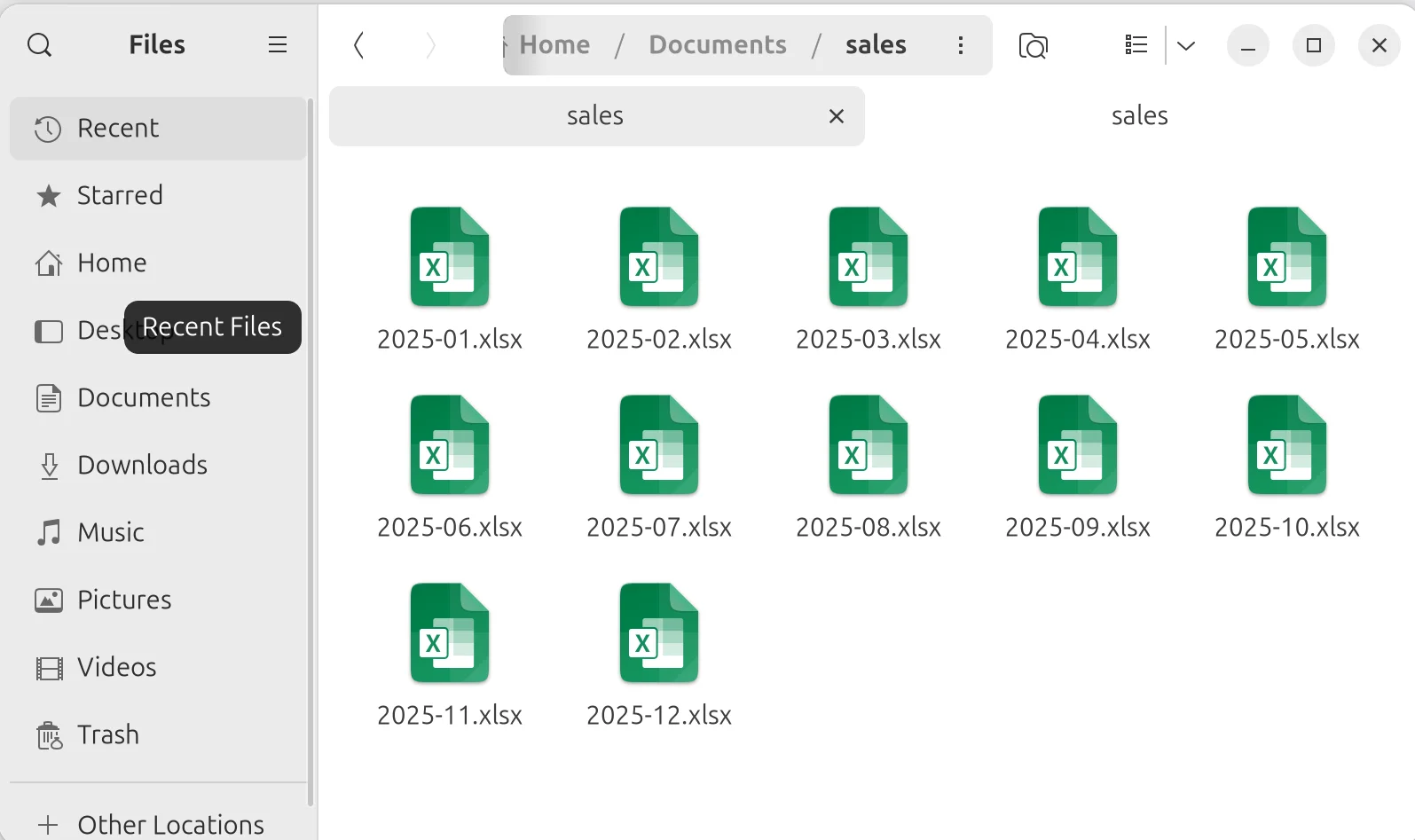
Point Studio at the folder
Describe the merge in plain English and ask Studio to report how many workbooks it found.

- Checkpoint 2
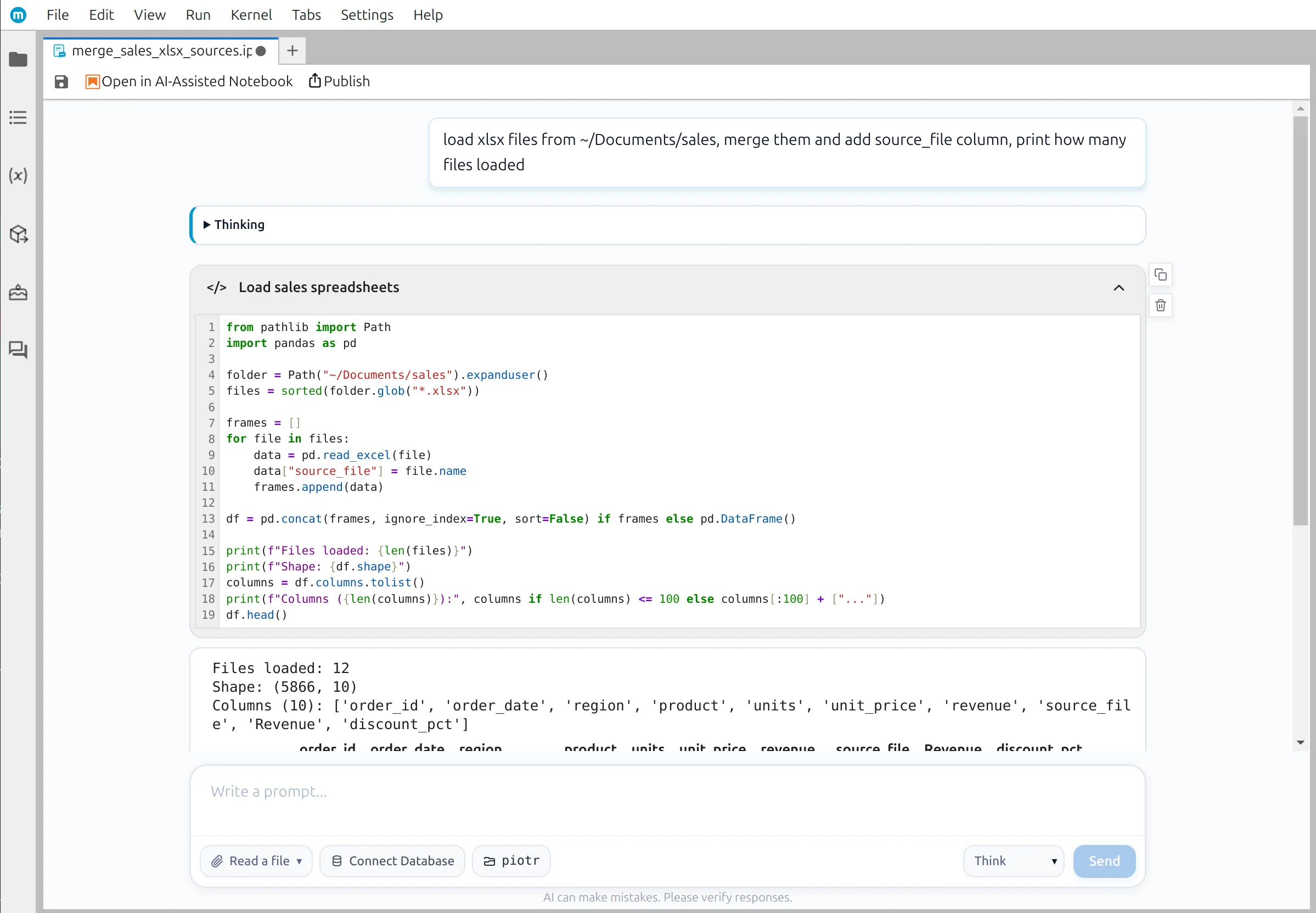
Review the generated Python
Inspect the loop, file pattern, source_file tag, and concat settings before trusting the result.
- Checkpoint 3
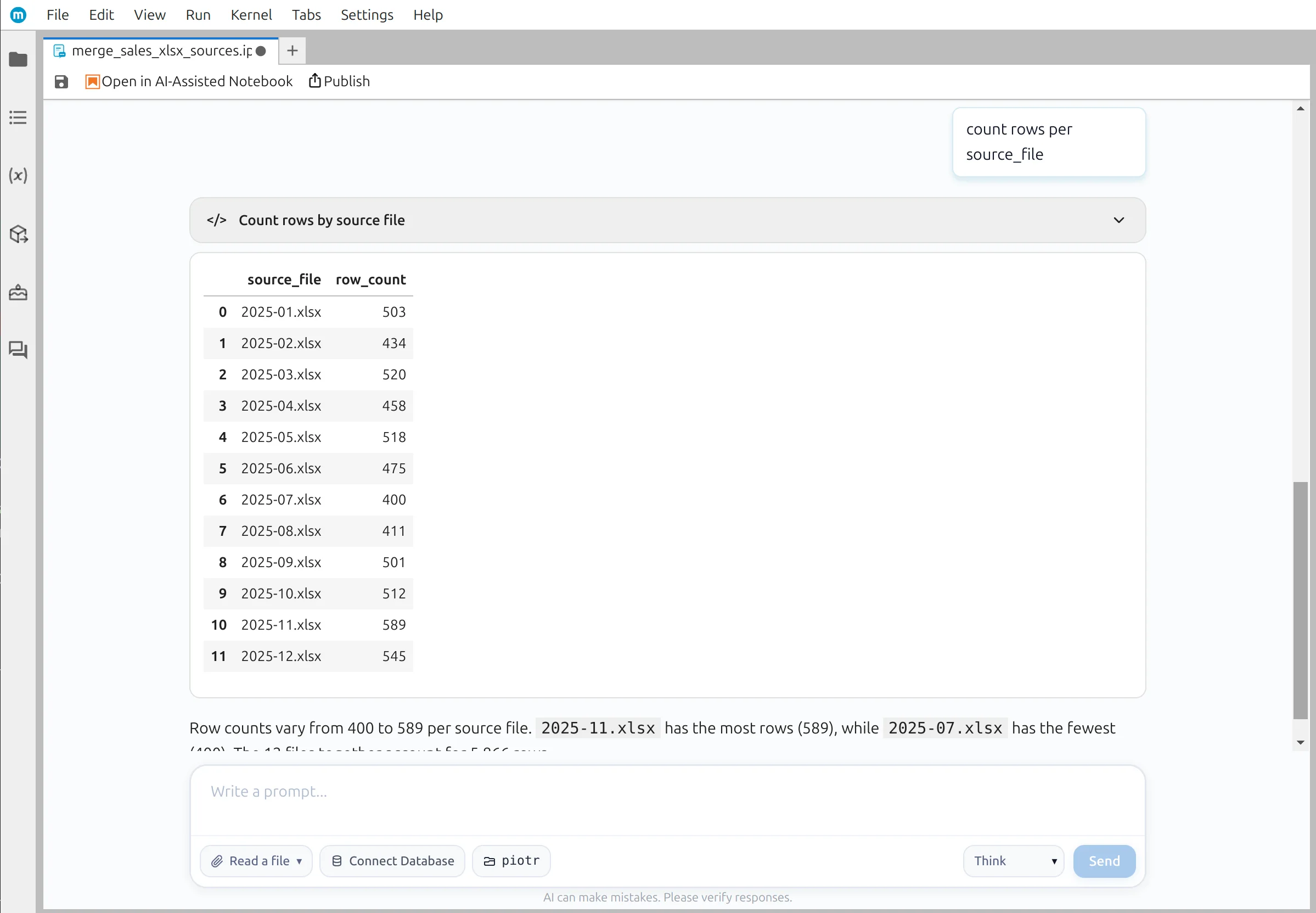
Verify every input file
Count rows per source_file so a missing, partial, or accidentally duplicated workbook is visible.
- Checkpoint 4
Resolve schema changes
Use human judgment to combine renamed fields while preserving genuinely new information.
Silent schema drift
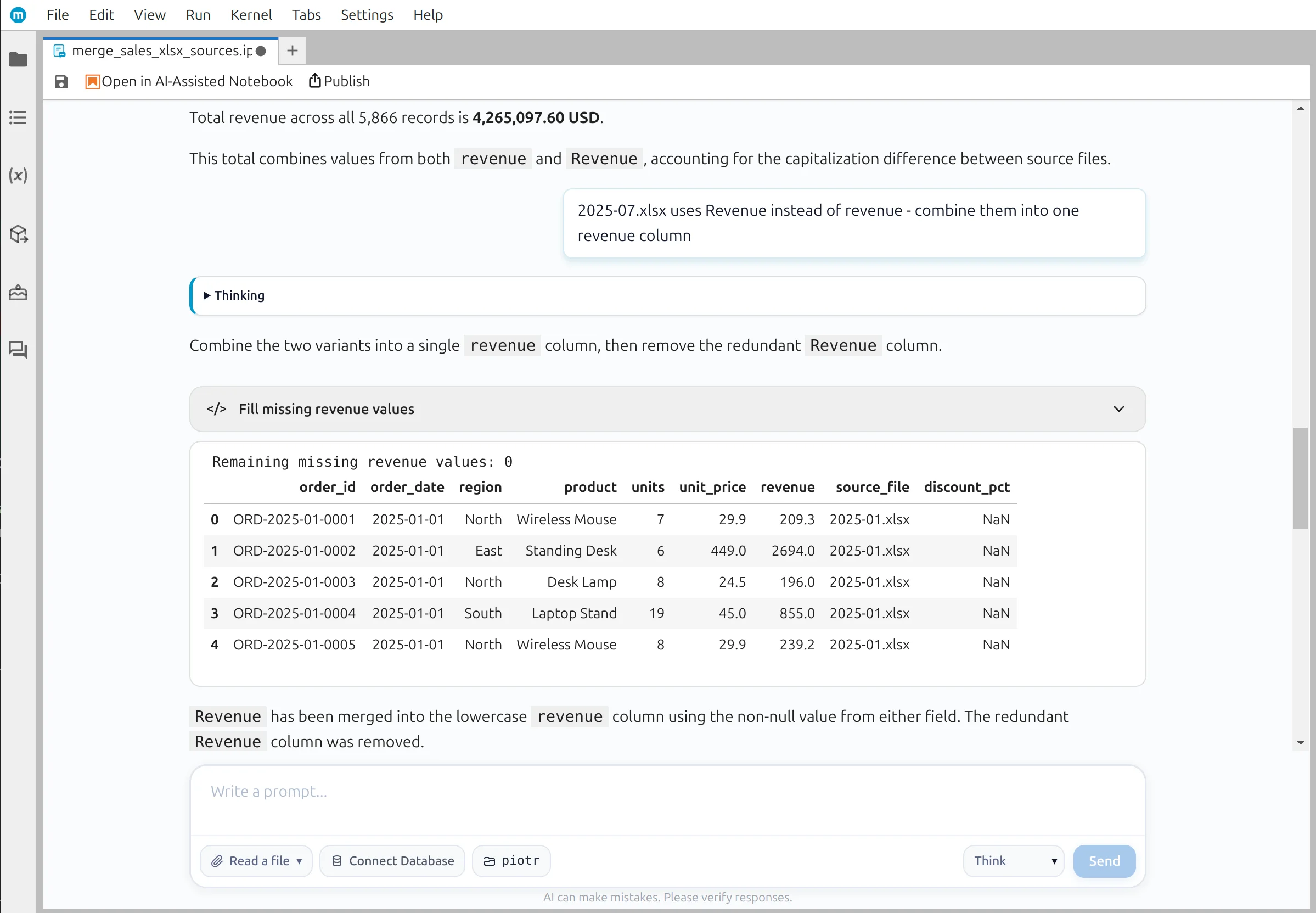
One capital letter hides $285,281 of revenue
July uses Revenue instead of revenue. pandas creates two columns rather than raising an error, so summing only revenue produces a plausible but incomplete total.
- Incomplete total
- $3,979,816.60
- Missing July
- $285,281.00
- Correct total
- $4,265,097.60
Studio proposes combine_first(). You confirm that both columns represent the same business field and that no row contains conflicting values before dropping the duplicate column.
The Python you keep
A reusable merge with checks built in
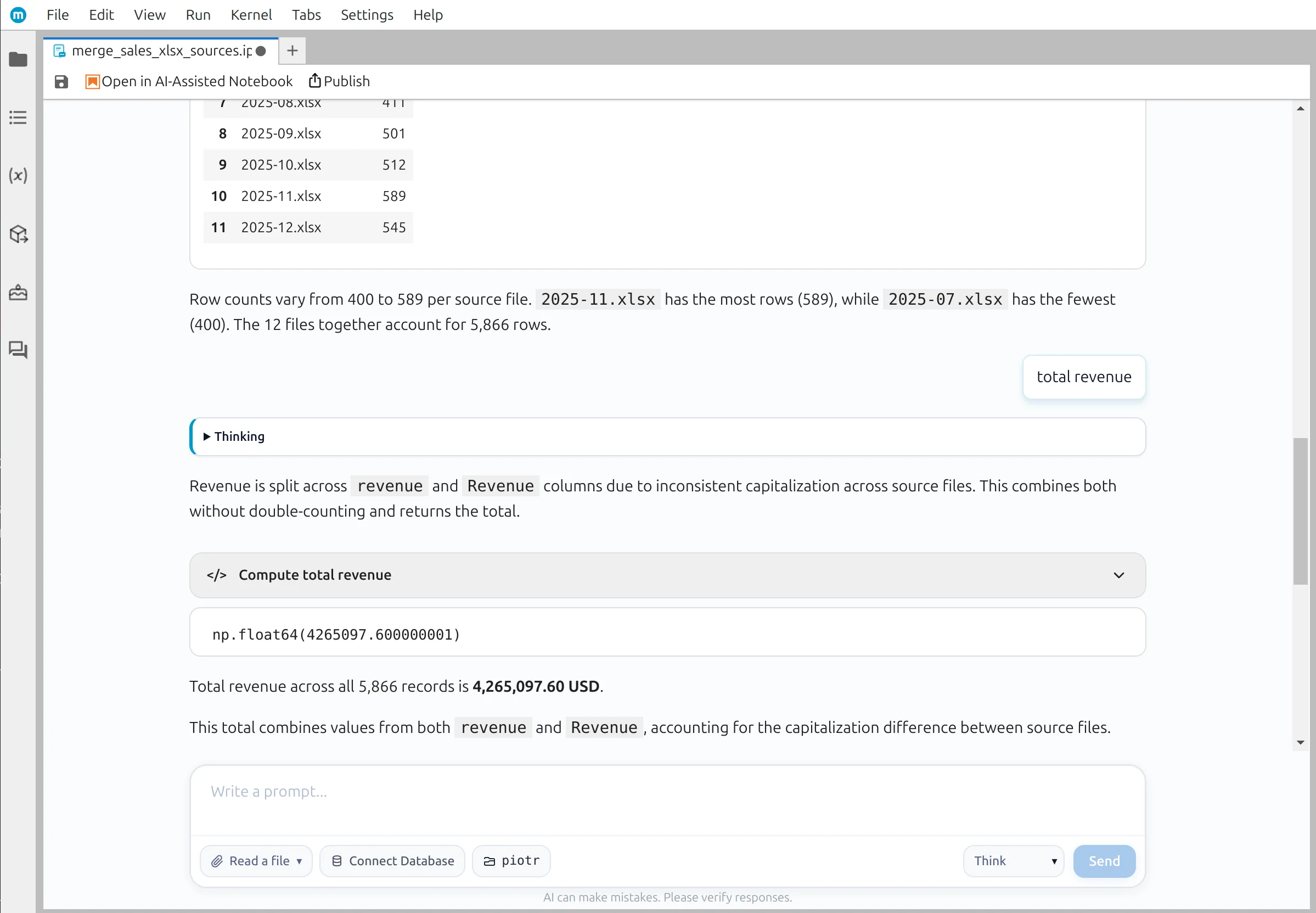
The notebook excludes its own output, preserves row provenance, normalizes the reviewed revenue field, and produces file-level checks before saving.
# Cell 1 — find the monthly workbooks and exclude the generated output
from pathlib import Path
import pandas as pd

folder = Path("~/Documents/sales").expanduser()
output_file = folder / "2025-full-year.xlsx"
files = sorted(file for file in folder.glob("*.xlsx") if file != output_file)

if not files:
raise FileNotFoundError(f"No input .xlsx files found in {folder}")# Cell 2 — load every workbook and preserve row provenance
frames = []
for file in files:
data = pd.read_excel(file)
data["source_file"] = file.name
frames.append(data)
df = pd.concat(frames, ignore_index=True, sort=False)
print(f"Files loaded: {len(files)}")
print(f"Shape: {df.shape}")
print("Columns:", df.columns.tolist())# Cell 3 — normalize the renamed revenue field
if "Revenue" in df.columns:
df["revenue"] = df["revenue"].combine_first(df["Revenue"])
df = df.drop(columns="Revenue")
print("Missing revenue values:", df["revenue"].isna().sum())# Cell 4 — verify each workbook before saving
checks = (
df.groupby("source_file", as_index=False)
.agg(row_count=("order_id", "size"), total_revenue=("revenue", "sum"))
.sort_values("source_file")
)
checks["total_revenue"] = checks["total_revenue"].round(2)
checks# Cell 5 — save the reviewed dataframe
df.to_excel(output_file, index=False)
print(f"Saved: {output_file}")The AI can generate and revise these cells. The checks remain visible so you can review the same assumptions when next year's exports arrive.
Verification
A grand total is not enough
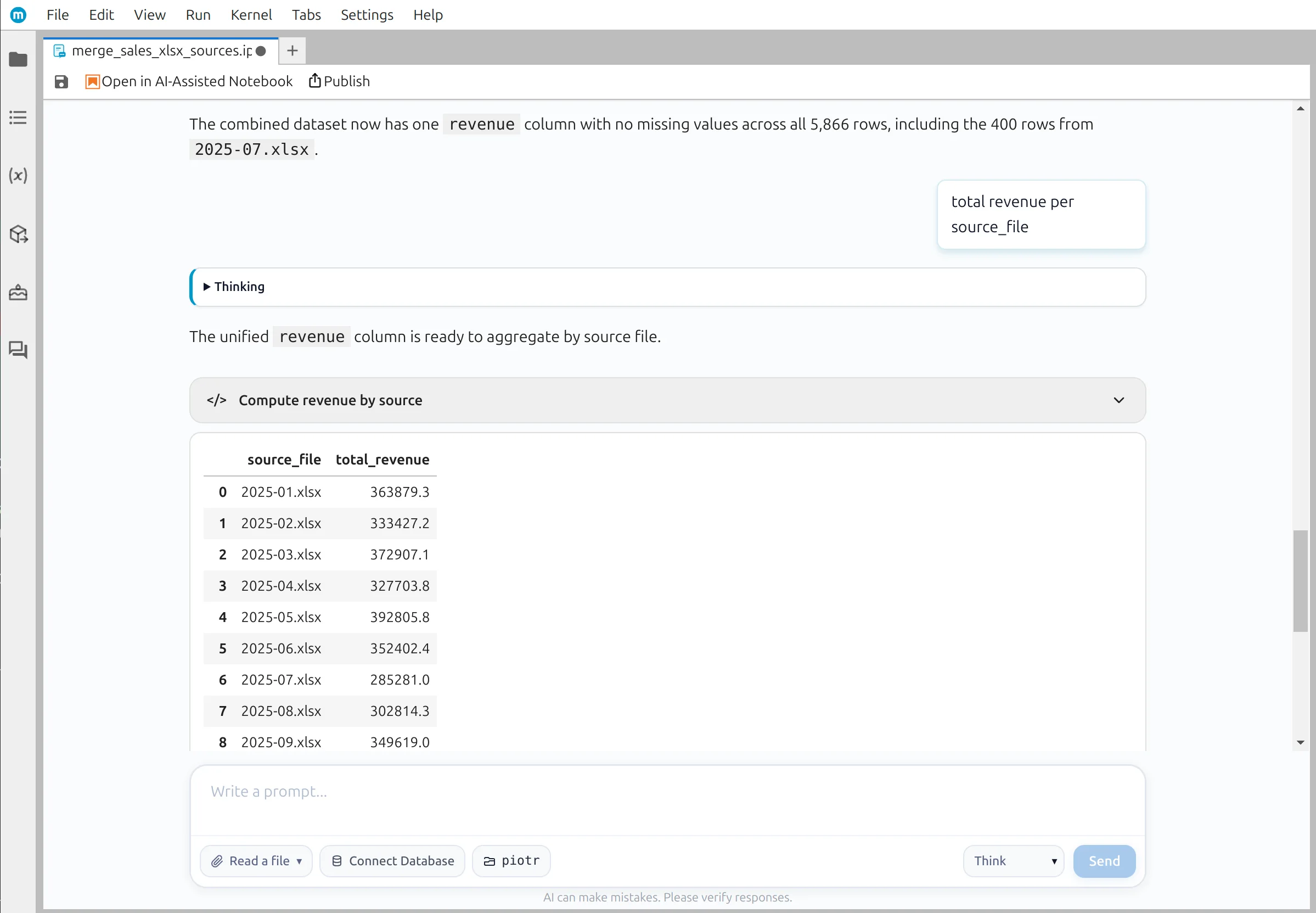
Break the result down by source_file. July should contribute $285,281.00, all twelve months should be present, and the monthly values should add up to $4,265,097.60.
- Every expected filename appears exactly once
- Row counts add up to 5,866
- No revenue values remain missing after normalization
- Monthly revenue totals reconcile to the reviewed full-year total
Human judgment
Missing does not automatically mean zero
discount_pct appears only in November. That is genuinely new information, not a renamed field. Earlier NaN values mean the export did not record discounts—not that every earlier order had a zero-percent discount.
Combine renamed fields
revenue and Revenue contain the same kind of value.
Preserve new information
discount_pct remains nullable because earlier values are unknown.
The analyst owns the meaning
The model can compare column names, inspect missing values, and write transformation code. It cannot know your organization's data contract unless you provide it. Keep the analytical decision visible in the notebook so the next reviewer understands why one field was combined and another was retained.
Reviewed output
Save one clean full-year workbook
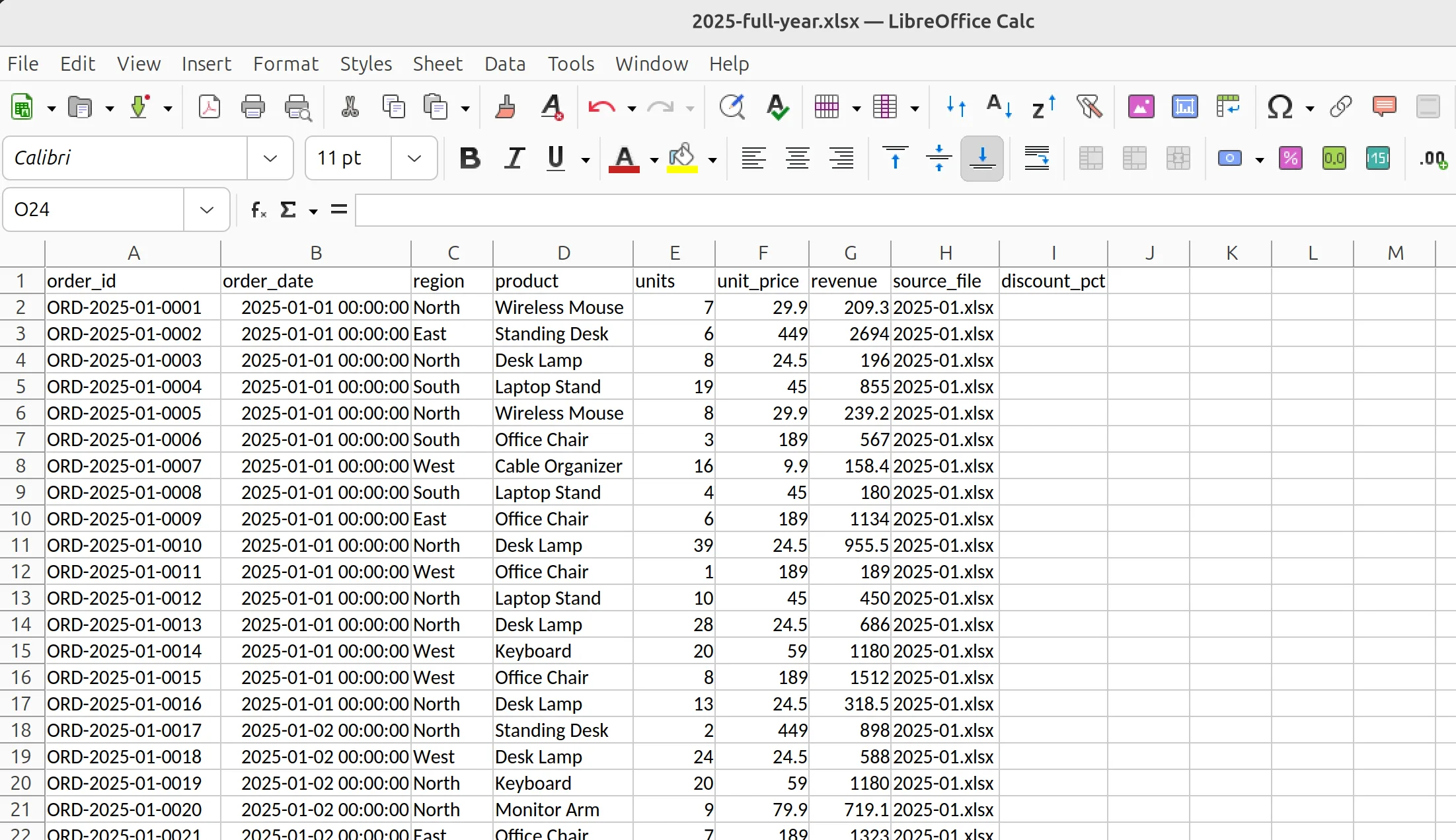
The final file contains 5,866 rows, one normalized revenue column, source_file provenance, and the new discount_pct field. The notebook records every prompt, check, and decision used to produce it.
- Visible Python instead of a hidden transformation
- Reusable when next year’s monthly exports arrive
- AI assistance with human review at each analytical checkpoint
Run the merge locally—or fully offline
Python reads and writes the Excel files on your computer. Use a local LLM through Ollama, vLLM, llama.cpp, LM Studio, or Jan when prompts and data context must remain on your own hardware too.
Related guides
Keep working with Excel in Python
Choose the detailed tutorial, the simpler three-file workflow, or the spreadsheet automation hub.
Full folder-merge tutorial
Follow every prompt, code cell, validation step, and screenshot for all twelve workbooks.
Read nextMerge three Excel files
Start with the simpler quarterly workflow where all source columns already match.
Read nextSpreadsheet workflows with AI + Python
Explore analysis, transformation, automation, and reusable notebook workflows.
Read nextFAQ
Common questions
Will pandas warn me when Excel files have different columns?+
Not necessarily. pandas.concat aligns columns by name and fills unavailable values with NaN. That flexibility is useful, but it means a renamed column such as revenue to Revenue can silently become a second field. Always inspect the merged column list.
Why add a source_file column?+
It preserves the origin of every row. You can verify that every workbook contributed data, calculate totals by file, investigate anomalies, and trace a questionable row back to the original spreadsheet.
What does “human in the analysis loop” mean here?+
The AI generates and runs Python, but you review the code and decide what the data changes mean. A renamed field can be combined, while a genuinely new field may need to remain nullable. Those are analytical decisions, not merely code-generation tasks.
Should missing discount_pct values be replaced with zero?+
Only if zero is truly what the source data means. In this example, earlier exports did not record discounts, so NaN means unknown or unavailable. Replacing it with zero would incorrectly claim that those orders had no discount.
How do I stop the output workbook from being merged again?+
Save generated files in a separate output folder or explicitly exclude the output filename when collecting input files. Also keep the expected file-count check: seeing 13 instead of 12 is an immediate warning.
Can I merge the files fully offline?+
Yes. Python reads and writes the workbooks locally. Connect MLJAR Studio to a local LLM through Ollama, vLLM, llama.cpp, LM Studio, or Jan to keep prompts and AI context on your own computer or infrastructure as well.
Merge the folder. Review the analysis. Keep the Python.
Use MLJAR Studio on your own monthly exports and keep a human in control of every data decision.