
Starting point
- Mercury
- Your existing Jupyter notebook (.ipynb)
- Streamlit
- A separate Python application script (.py)
Python framework comparison · Reviewed August 2026
Streamlit reruns the whole script after an interaction. Mercury reruns the changed widget’s cell and the cells below it, so model loading, warehouse queries, and other expensive setup above the widget stay put without cache decorators.
Streamlit remains a strong script-first option with a larger ecosystem. This comparison explains when Mercury’s notebook-native workflow saves the rewrite and the extra application structure.
import mercury as mrname = mr.TextInput(label="What is your name?")mr.Markdown(f"## Hello {name.value}! 👋")import streamlit as st
name = st.text_input("What is your name?")
if name:
st.markdown(f"## Hello {name}! 👋")The short answer
Quick answer
Streamlit starts from the top of the script by default and provides caching, Session State, forms, and fragments to control that model. Mercury uses notebook position: the changed widget and downstream cells rerun, while earlier cells remain untouched.
The starting point
For a small form, the code is similarly compact. Mercury keeps the notebook as the application; Streamlit uses a script as its entry point.
import mercury as mrname = mr.TextInput(label="What is your name?")mr.Markdown(f"## Hello {name.value}! 👋")import streamlit as st
name = st.text_input("What is your name?")
if name:
st.markdown(f"## Hello {name}! 👋")For something this small, both are about equally simple. The difference becomes more visible when data loading, model initialization, or another expensive step happens before the widget.
Mercury customization
Start from a ready-made Mercury style and use config.toml to control colors, typography, surfaces, widgets, navigation, and application details—without maintaining a separate frontend.
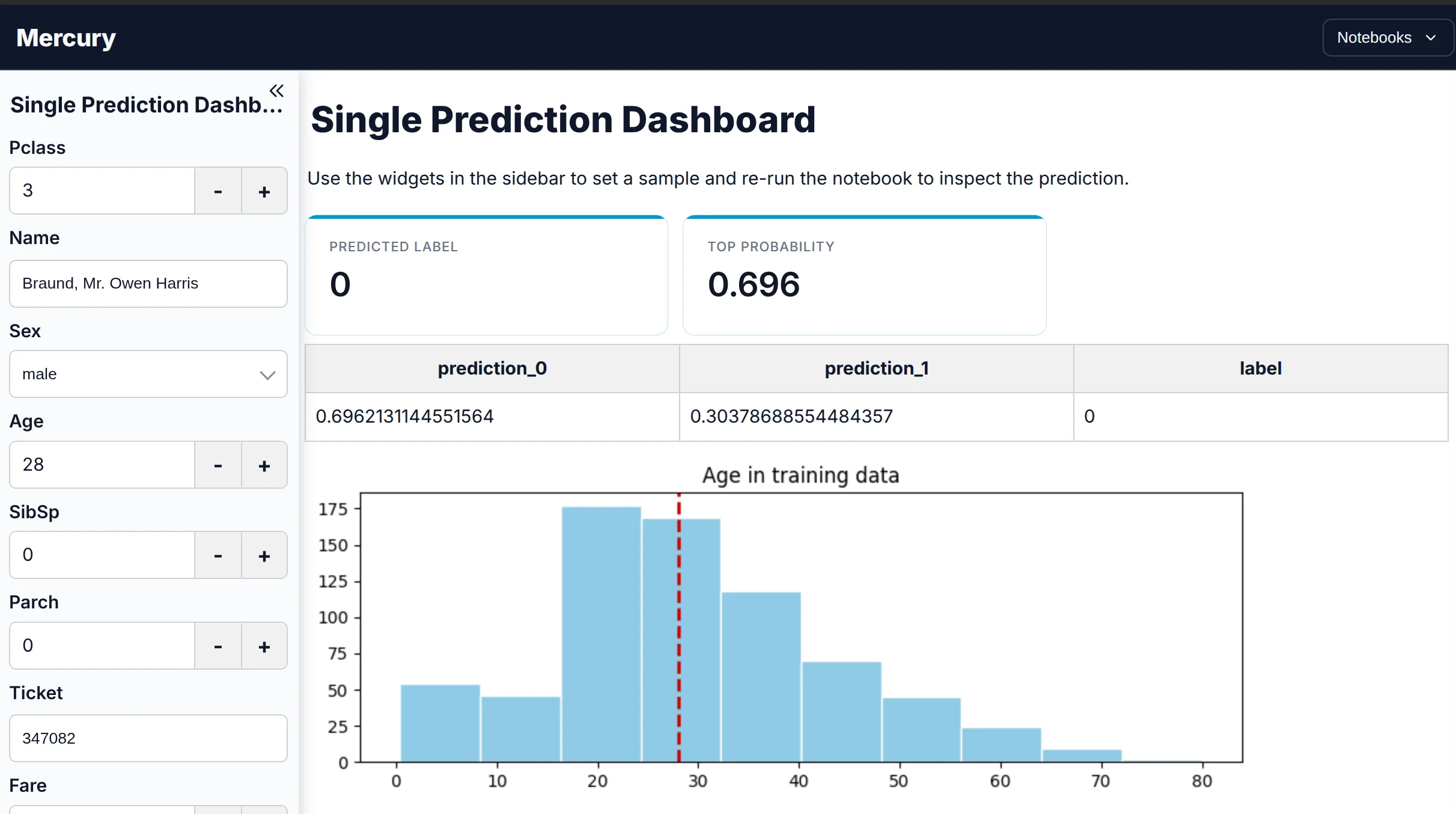
A clean, neutral application theme for reports and everyday dashboards.
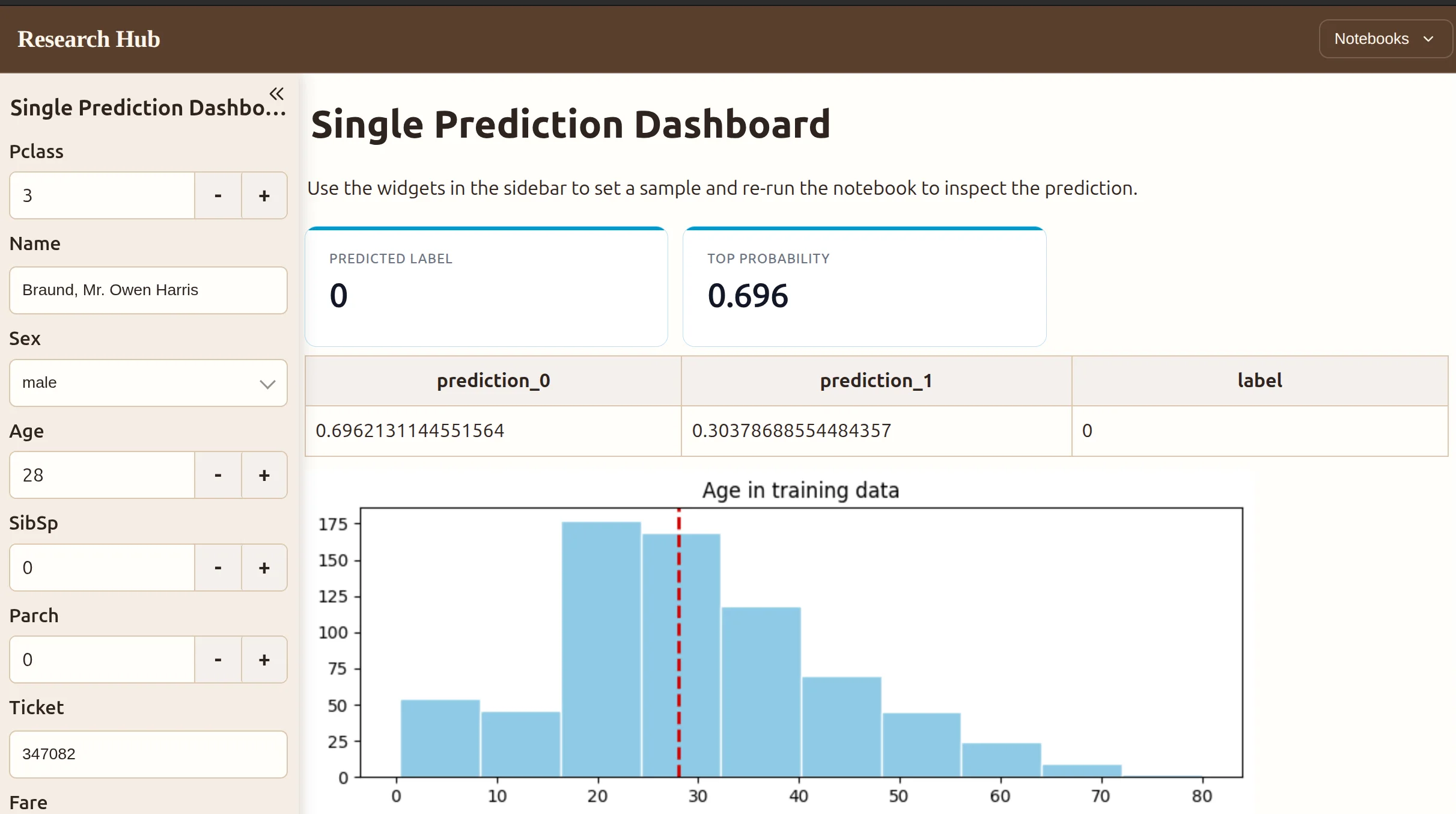
A publication-style theme for research, reports, and narrative analysis.
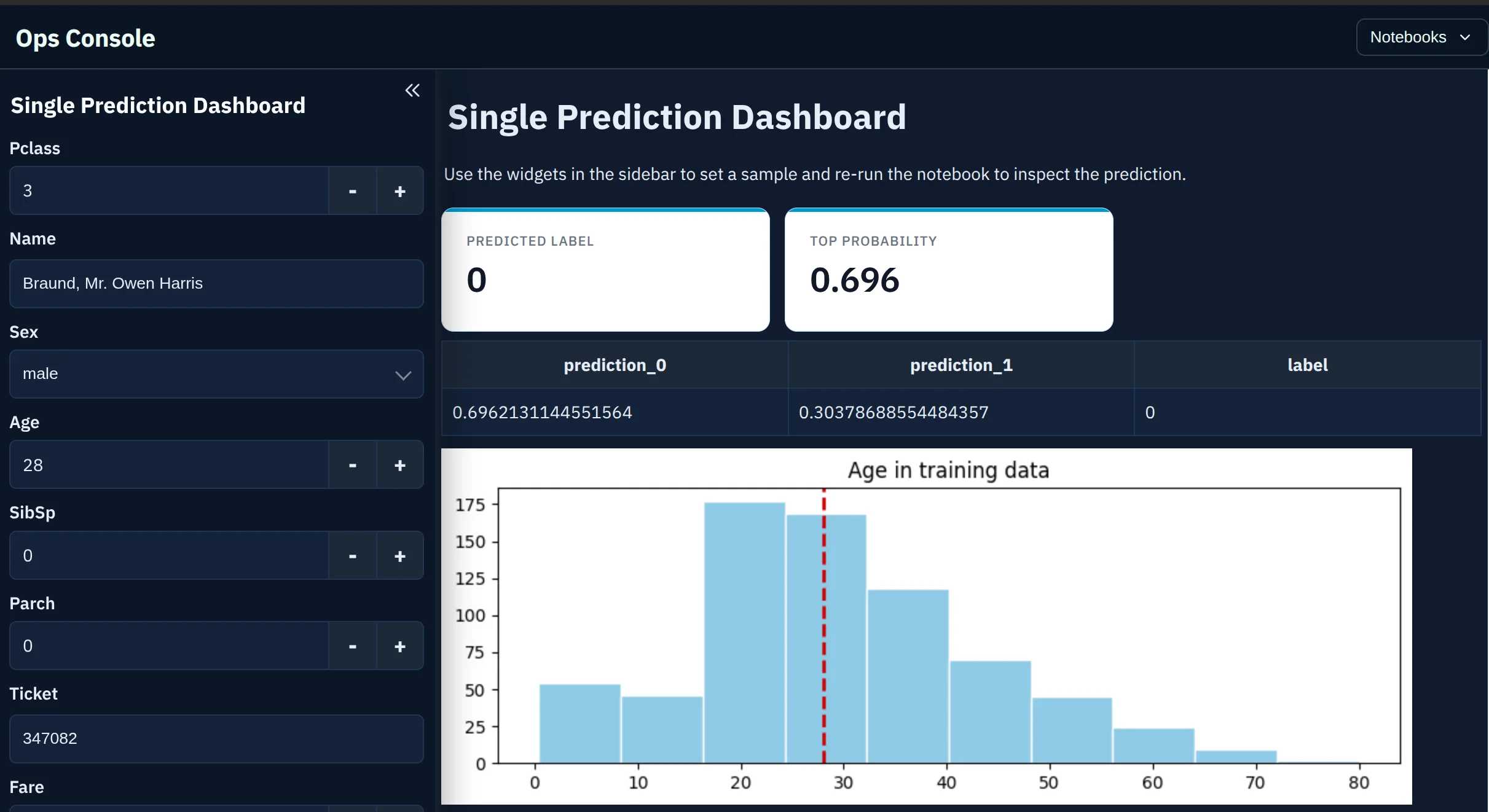
A high-contrast dark theme for operational dashboards and internal tools.
The notebook remains the source artifact while the published application can match a report, internal product, or company brand.
Explore Mercury stylesAccess protection
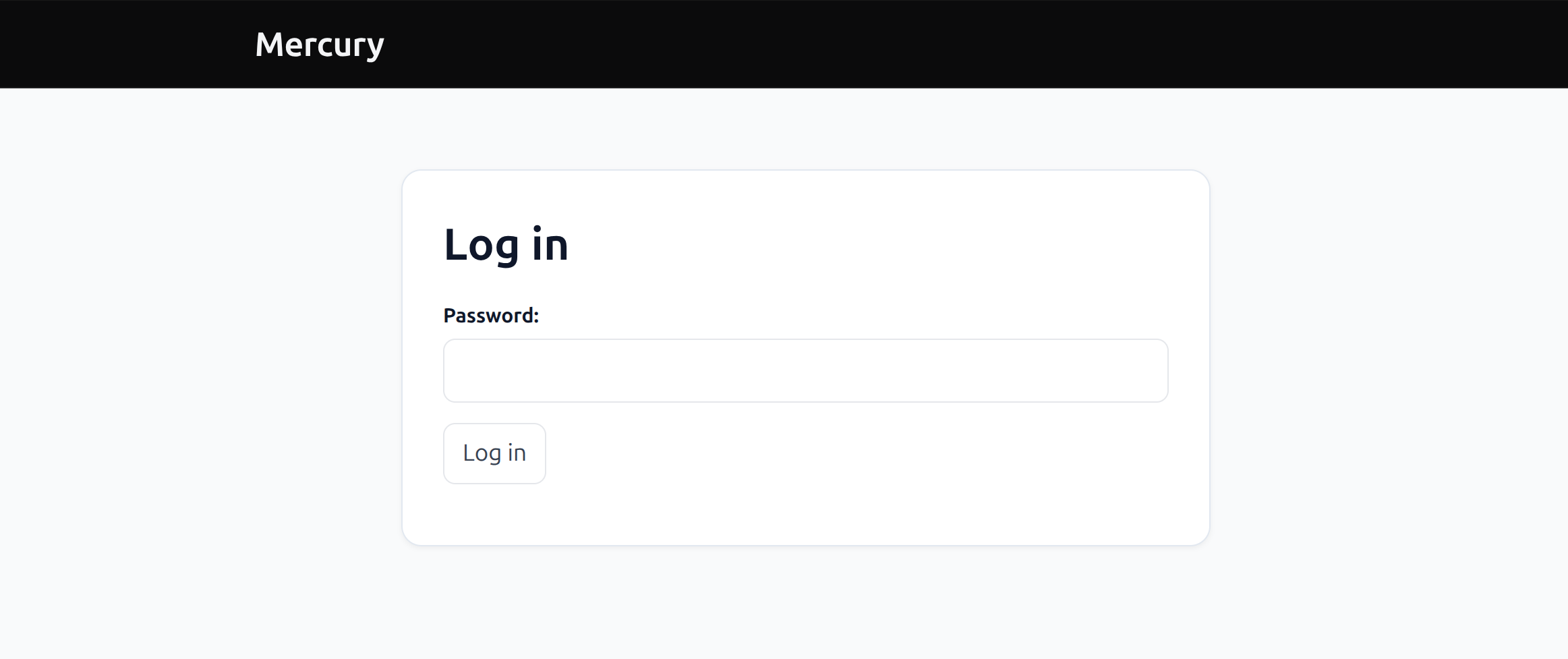
Publish an internal dashboard, report, or tool without exposing the notebook editor. Mercury can require a password before users can open the application.
Streamlit also supports OIDC authentication through st.login and st.user. Authentication itself is not the architectural difference; Mercury includes password protection in the notebook publishing workflow shown here.
One-click deployment
Streamlit Community Cloud provides a free GitHub-linked deployment workflow. Mercury starts from the notebook instead: publish directly from MLJAR Studio or upload the notebook and its supporting files.
Click Publish from the notebook workflow and send the Mercury application directly to MLJAR Platform.
Using another editor? Upload the .ipynb file, data files, and requirements.txt to create the web app.
Share the result publicly or restrict the deployed dashboard, report, or tool behind login.
The real difference
The same sales filter shows how each framework avoids repeating expensive work in its normal application structure.
import pandas as pd
import altair as alt
import mercury as mr

df = pd.read_csv("sales.csv")region = mr.Select(
label="Region",
choices=["All", "North", "South"]
)filtered = (
df if region.value == "All"
else df[df["region"] == region.value]
)
alt.Chart(filtered).mark_bar().encode(
x="month", y="revenue"
)The loading cell is above the Select widget, so changing the selection only runs the cells below it.
import streamlit as st
import pandas as pd

@st.cache_data
def load_data():
    return pd.read_csv("sales.csv")

df = load_data()
region = st.selectbox(
    "Region", ["All", "North", "South"]
)
filtered = (
    df if region == "All"
    else df[df["region"] == region]
)
st.bar_chart(filtered)
In the default full-script flow, @st.cache_data prevents the CSV from being read again after every selection.
Streamlit reruns the full script by default, so the cache decorator prevents the CSV from loading again each time the dropdown changes. Mercury does not need that decorator here: the loading cell sits above the widget, and only downstream cells run again. For notebook authors, Mercury makes the recomputation boundary visible in the cell order without introducing a cache decorator or separate execution unit.
Current Streamlit also supports fragments, which let a function rerun independently of the rest of the app. That gives Streamlit an alternative to a full-app rerun, but it requires you to choose and define the fragment boundary yourself.
Streamlit’s default rerun model starts regular Python variables again, so values that must persist—such as chat history—belong in st.session_state. It is a clear, dict-like API scoped to each user session. In Mercury, a plain variable in a cell above the changed widget remains available because that cell does not rerun.
Both support chat natively. Streamlit provides st.chat_message, st.chat_input, and st.write_stream(). Mercury provides Chat, ChatInput,Message, and streaming with .append_markdown(). The capability is comparable; state and execution are handled differently.
When Streamlit may fit better
Streamlit’s Session State, forms, navigation, and fragments are real architectural advantages when an app is not naturally top-to-bottom. They support multi-step flows, batched input submission, multipage navigation, and isolated reruns without making notebook position carry those responsibilities.
Streamlit also has a larger component ecosystem and pool of examples, plus Community Cloud’s free, GitHub-linked deployment workflow. MLJAR Platform has a free publishing path too; its distinction is accepting the notebook artifact directly from MLJAR Studio or an upload.
Decision guide
Both re-execute Python when the user interacts, and both can avoid callbacks. The difference is the unit of re-execution. Streamlit reruns the whole script top to bottom, so you protect expensive work with caching and carry values across runs with session state. Mercury reruns the cells below the widget that changed, so anything above it survives without an API.
Streamlit’s full-script rerun is the source of both its simplicity and its caching APIs: every interaction produces a clean state, and you opt out of that with decorators where it is too slow. Mercury’s cell-order execution skips that step for the common notebook shape, where setup sits at the top and controls sit below it. When the interaction pattern is not top-to-bottom—a form that should not submit until complete, or a step that depends on what the user did two screens ago—Streamlit’s explicit state model is the better fit.
Compare more Python app frameworksFAQ
Both are simple for a basic app. Streamlit has a larger ecosystem, so it offers more tutorials, community examples, and third-party components. Mercury can feel more direct when the work already lives in a Jupyter notebook.
No. There is no automatic migration. You need to rebuild the interface with Mercury widgets, although your pandas, plotting, model, and other ordinary Python logic can usually carry over.
Both have native chat components and support streamed responses. The main difference is architectural: Streamlit usually stores chat history in Session State, while Mercury can keep it in a notebook variable above the input widget.
Yes. Mercury and Streamlit are both Apache-2.0 licensed and free to self-host.
Both have free managed paths. Streamlit Community Cloud connects directly to GitHub and is especially convenient for public script-based apps. MLJAR Platform provides a free path for publishing Mercury notebooks from MLJAR Studio or uploaded files.
Yes. Mercury supports ready-made styles and config.toml settings for colors, typography, surfaces, widgets, navigation, and application details. The notebook code can remain unchanged while the application shell is branded.
Yes. Mercury can restrict access with a password, and private managed applications can be placed behind login. This is useful for internal dashboards, reports, and tools.
In MLJAR Studio, use the integrated Publish action. From another notebook environment, upload the .ipynb file and supporting files to MLJAR Platform. Mercury can also be self-hosted with Docker.
Add reactive widgets to the analysis you already have, preview it in your notebook environment, and deploy it as a web app.
pip install mercury