
Starting point
- Mercury
- Your existing Jupyter notebook (.ipynb)
- Gradio
- A function and interface written for the app
Python app framework comparison · Reviewed August 2026
Both turn Python into a shareable web app with no frontend work. Mercury serves the notebook itself—cells, narrative, and outputs, in order. Gradio serves an interface you define in code, wired to functions you supply.
Revenue
$1.28M
+18%
Orders
8,429
+12%
Margin
31.4%
+3.2%
Monthly revenue
Interactive Plotly chartThe short answer
Quick answer
Mercury publishes the analytical workflow as the application. Gradio is optimized for collecting inputs, calling a function or model, and presenting its outputs.
The starting point
The difference becomes clear when the application needs filters, calculations, charts, tables, and explanatory text—not merely one output.
import mercury as mr
import pandas as pd
import plotly.express as px

sales = pd.read_csv("sales.csv")mr.Markdown("# Sales dashboard")
region = mr.Select(
value="All regions",
choices=["All regions", "Europe", "Americas"],
label="Region",
)filtered = (
sales
if region.value == "All regions"
else sales[sales["region"] == region.value]
)
mr.Indicator(
value=f"${filtered['revenue'].sum():,.0f}",
label="Revenue",
variant="teal",
)
fig = px.line(
filtered,
x="month",
y="revenue",
color="region",
title="Monthly revenue",
)
fig.show()The notebook remains the dashboard: inputs, calculations, charts, and report narrative stay together.
import gradio as gr
import pandas as pd
import plotly.express as px

def build_report(csv_file, region):
    sales = pd.read_csv(csv_file)

    if region != "All regions":
        sales = sales[sales["region"] == region]

    revenue = f"${sales['revenue'].sum():,.0f}"
    chart = px.line(
        sales,
        x="month",
        y="revenue",
        color="region",
        title="Monthly revenue",
    )
    return revenue, chart

demo = gr.Interface(
    fn=build_report,
    inputs=[
        gr.File(label="Sales CSV", type="filepath"),
        gr.Dropdown(
            ["All regions", "Europe", "Americas"],
            value="All regions",
            label="Region",
        ),
    ],
    outputs=[
        gr.Textbox(label="Revenue"),
        gr.Plot(label="Monthly revenue"),
    ],
)
demo.launch()
Gradio reorganizes the same work around a function with declared inputs and outputs.
Gradio’s concise API is a strength when an interface exists to call one function. For a substantial dashboard or report, however, the application usually contains many analytical steps and outputs. Mercury preserves that notebook structure instead of reorganizing the work around interface handlers.
Publish and protect
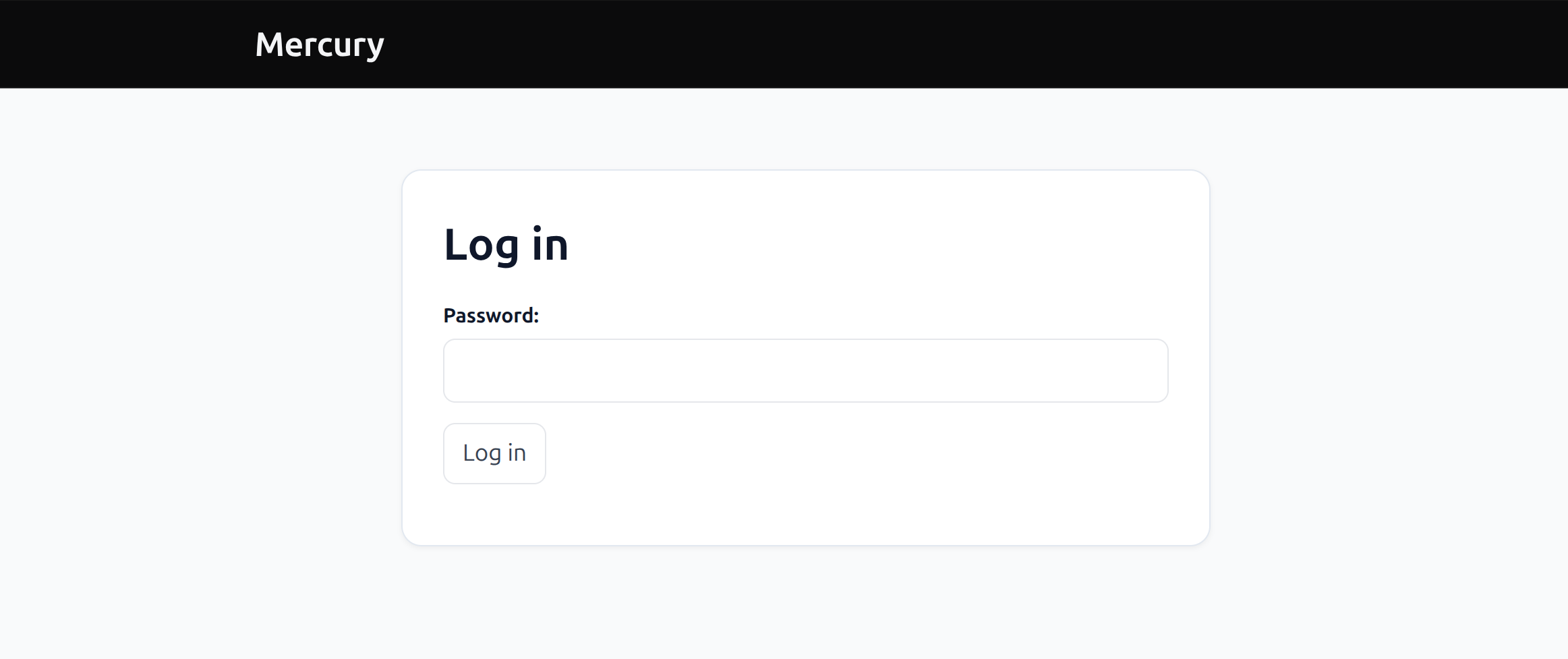
Mercury does not stop at rendering an interface. Publish the complete notebook as a web application and put it behind a login screen for authorized users.
Deployment
Choose the path that matches how you work. The output is the same: a ready-to-share Mercury web application.
Use the direct integration in MLJAR Studio. Click Publish from the notebook workflow and deploy the Mercury app without assembling hosting infrastructure.
Not using MLJAR Studio? Upload the .ipynb file, supporting data, and requirements.txt. MLJAR Platform prepares the web application.
Publish a public application or protect an internal dashboard, report, or tool behind a login screen.
Mercury customization
Mercury includes ready-made styles and a compact config.toml setup for colors, typography, surfaces, widgets, navigation, and app details. Start with a theme and adapt it without maintaining a separate frontend.
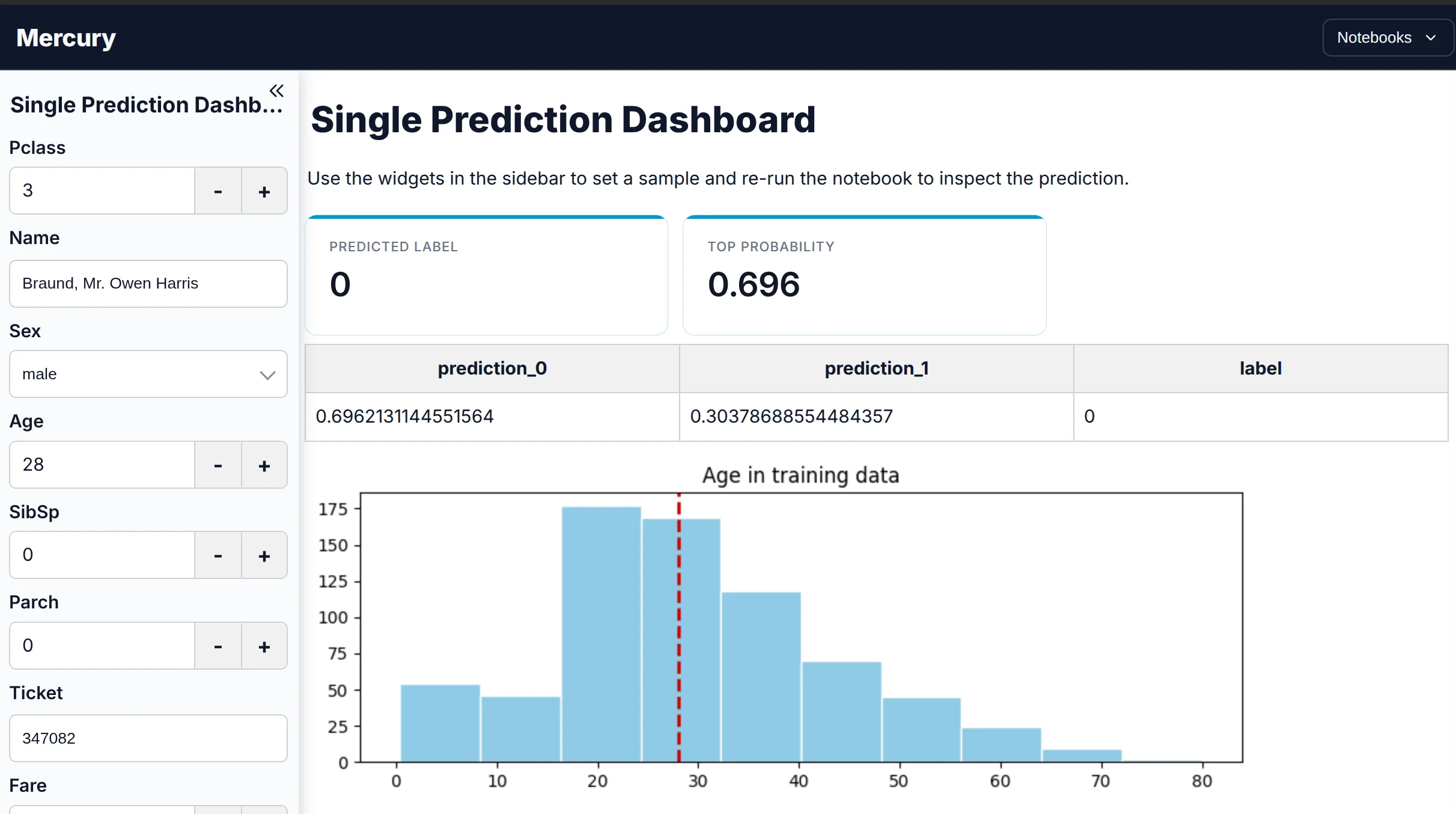
A clean, neutral application theme for reports and everyday dashboards.
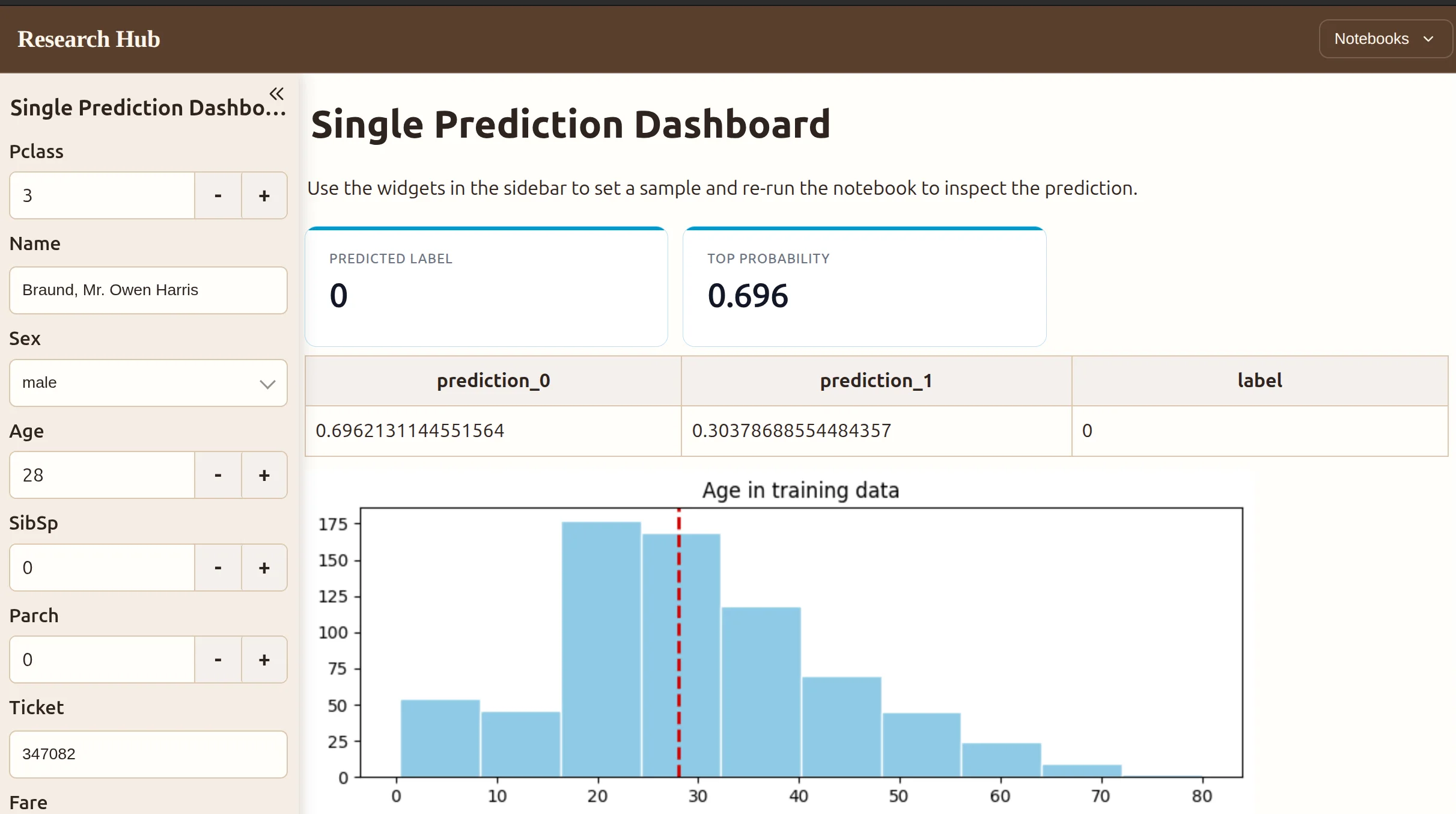
A publication-style theme for research, reports, and narrative analysis.
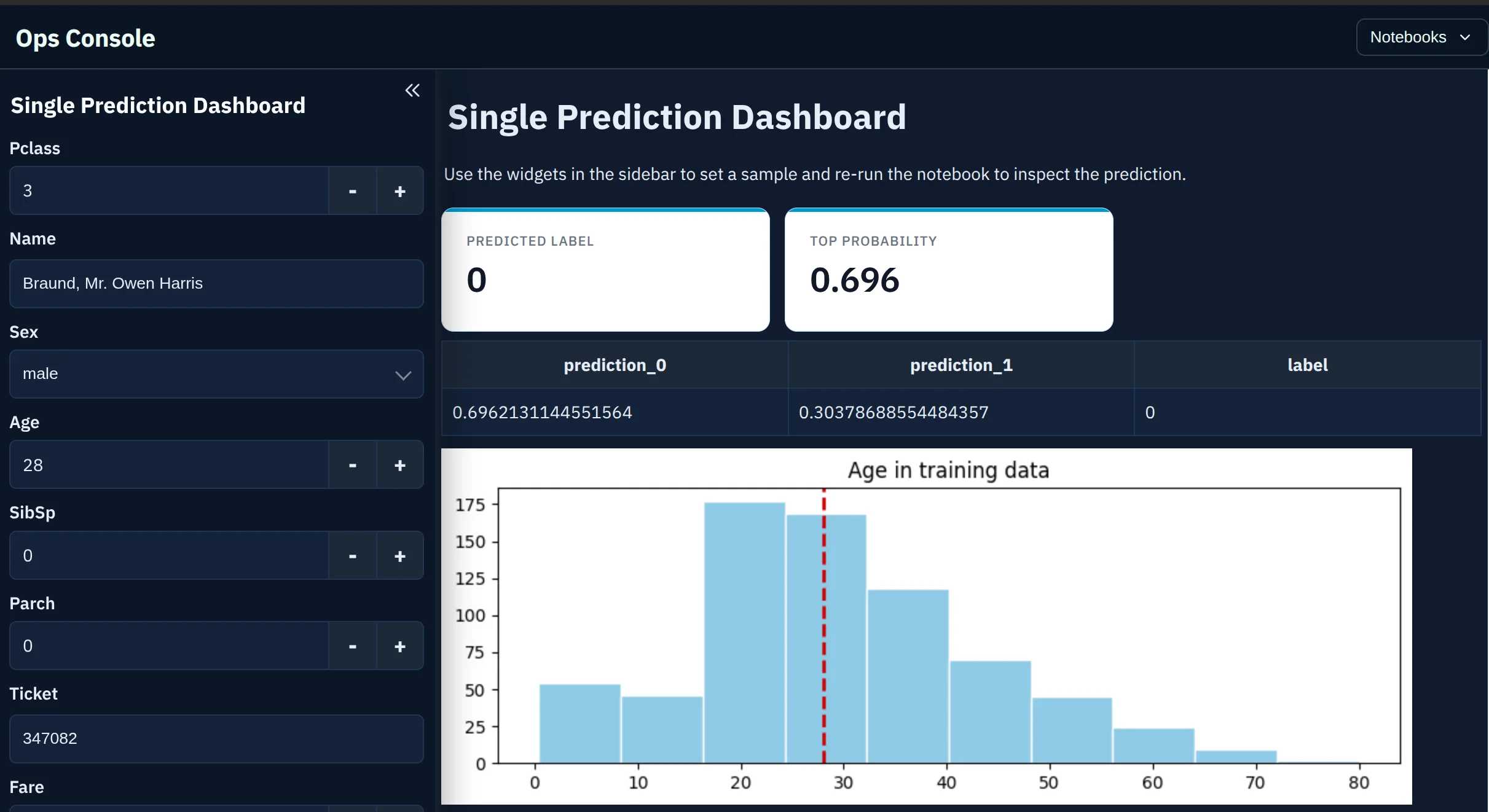
A high-contrast dark theme for operational dashboards and internal tools.
The Python notebook stays the same while the application shell can match a business dashboard, published report, or internal product.
Explore Mercury stylesChat apps
Use the same reactive notebook model for the conversation, retrieval, analysis, charts, and controls instead of separating the chat into a dedicated interface function.
import mercury as mrchat = mr.Chat()
prompt = mr.ChatInput()if prompt.value:
user_msg = mr.Message(
prompt.value,
role="user",
)
chat.add(user_msg)
response_msg = mr.Message(
f"Echo: {prompt.value}",
role="assistant",
)
chat.add(response_msg)Mercury exposes the message objects directly inside the notebook's reactive flow.
import gradio as gr

def echo(message, history):
    return message

demo = gr.ChatInterface(fn=echo)
demo.launch()
ChatInterface builds a standalone chat UI around one response function.
Mercury uses the same reactive approach for ChatInput, a filter such as Select, and form inputs inside the same notebook. You can keep retrieval results, supporting charts, evaluation, and explanatory content alongside the conversation without adopting another application structure.
For a pure standalone chatbot, Gradio’s ChatInterface is more concise. It supplies the conversation structure and history to a response function automatically. Mercury preserves the notebook as the source when the conversation belongs inside an analysis that should remain the published artifact.
Decision guide
Both turn Python into a shareable web app with no frontend work. Mercury serves the notebook itself—cells, narrative, and outputs, in order. Gradio serves an interface you define in code, wired to functions you supply.
Gradio Blocks composes more elaborate layouts than the high-level interfaces suggest. The distinction that holds is the source: a Gradio app is code that describes an interface, so the analysis that produced the model usually lives elsewhere. A Mercury app is the analysis, published.
Compare more Python app frameworksFAQ
Gradio ChatInterface is arguably more concise for a standalone chatbot because it creates the chat UI and passes message history to your function automatically.
Mercury. It adds reactive widgets to the notebook you already have, so the existing analysis cells remain the source of the application instead of being reorganized around dedicated interface functions.
Yes. Gradio launch methods display inline by default in Python notebooks, and Gradio also provides notebook magic for developing Blocks apps. You are still writing a Gradio Interface, ChatInterface, or Blocks app inside the notebook.
They optimize for different workflows. Gradio integrates closely with Hugging Face Spaces. Mercury integrates directly with MLJAR Studio and MLJAR Platform, where a notebook can be published from Studio or uploaded with its supporting files.
Yes. Mercury applications can be published as private web apps so access is restricted behind a login screen. This is useful for internal dashboards, confidential reports, and tools that should only be available to authorized users.
No. MLJAR Studio provides the most direct workflow with its Publish integration. If you use another notebook environment, you can upload the .ipynb file, supporting data, and requirements file to MLJAR Platform instead.
Yes. Mercury supports ready-made styles and configurable colors, typography, surfaces, widgets, navigation, and application details. You can start from an example config.toml and adapt it to a dashboard, report, internal tool, or product brand.
Yes. A Gradio ChatInterface function can yield partial responses from a Python generator. Mercury updates an empty assistant message by calling append_markdown() as chunks arrive. See the complete Mercury streaming pattern.
Turn your charts, controls, tables, report narrative, and model code into one web application—then share it publicly or protect it behind login.
pip install mercury