
LLM Providers
OpenAI Integration
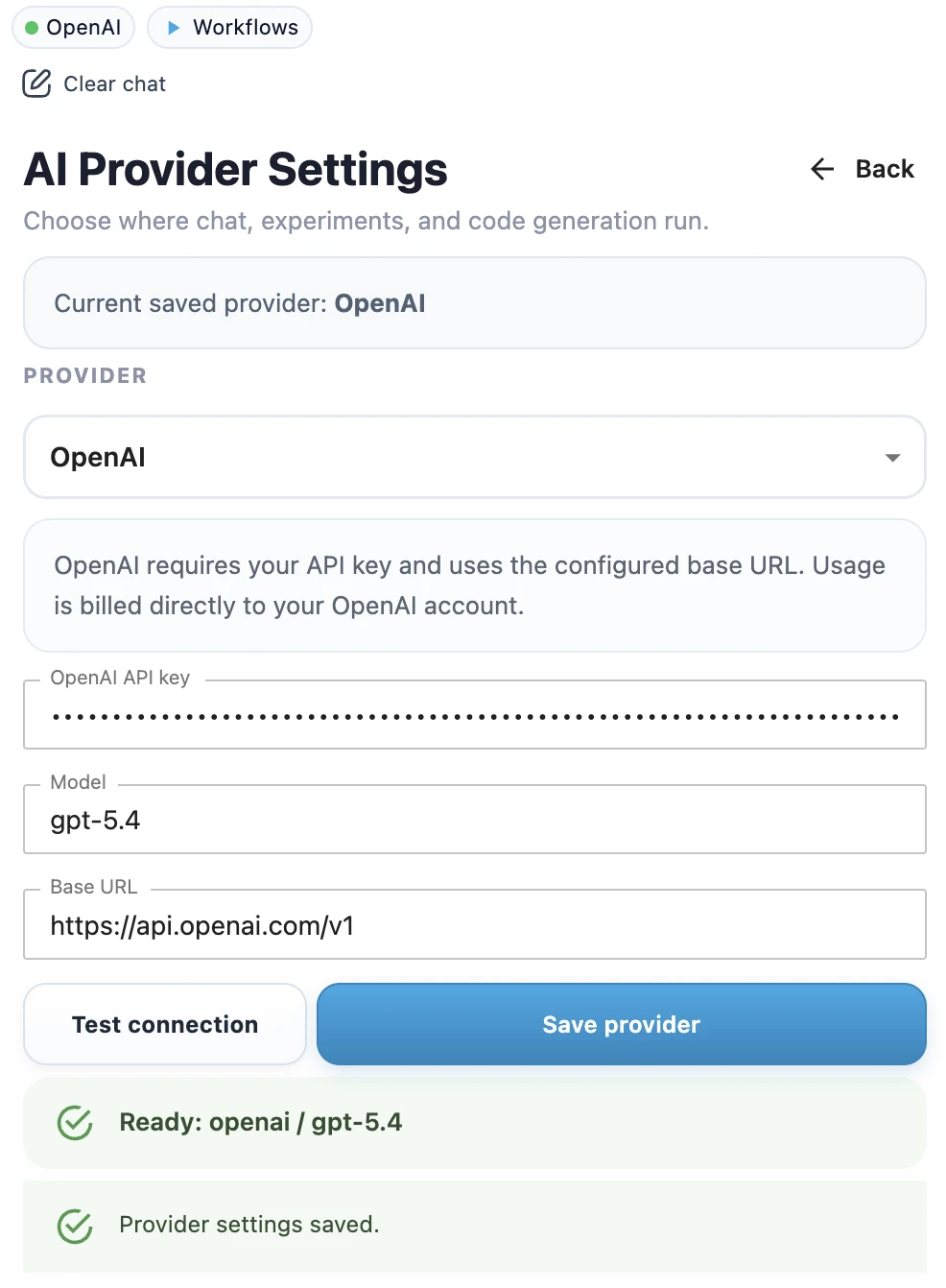
You can connect MLJAR Studio to OpenAI by using your own OpenAI API key. This is useful when your team already uses OpenAI, needs a specific GPT model, or wants to manage AI usage through an existing OpenAI account.
Before you start
- Create or use an existing OpenAI account.
- Create an API key in the OpenAI dashboard.
- Make sure your account has billing and model access configured.
- Decide which OpenAI model name you want to use in MLJAR Studio.
Configure OpenAI in MLJAR Studio
- Open MLJAR Studio.
- Open AI provider settings.
- Select OpenAI as the provider.
- Paste your OpenAI API key.
- Enter the OpenAI model name, for example
gpt-5.4. - Click Test connection to check whether the API key works and the model is available.
- When the test succeeds, click Save provider.
- Confirm the success toast.
- Check the top provider chip in the sidebar. It should show OpenAI with a green dot.
Example model names
The model name depends on your OpenAI account and the models available to you.
gpt-5.4Use OpenAI in a notebook workflow
After OpenAI is configured, you can use the same MLJAR Studio AI workflows as with other providers. Ask AI Data Analyst to inspect a dataset, ask AI Code Assistant to generate Python code, or use the assistant inside a classic notebook.
Privacy note
OpenAI is a cloud provider. When you use OpenAI as the LLM provider, prompts and relevant context may be sent to OpenAI according to your configuration and provider terms. If you need local-only execution, use Ollama Local Setup instead.
Troubleshooting
If you see an API key error, invalid model error, or rate limit problem, go to LLM Setup Troubleshooting.