
LLM Providers
Ollama Local Setup
Ollama lets you run local LLMs on your own computer. In MLJAR Studio, this is useful when you want AI assistance for notebooks and data analysis without relying on a cloud LLM provider. Before you save the provider, the selected model must be downloaded and running locally.
1. Install Ollama
Download and install Ollama from the official Ollama website for your operating system. After installation, make sure the `ollama` command is available in your terminal.
ollama --version2. Download a local model
Pull a model that fits your hardware. Smaller models are faster and easier to run on laptops. Larger models usually need more memory and stronger hardware.
ollama pull qwen-3.5:27b
ollama pull gemma4:31b
3. Start or test the local model
Run the model once to verify that Ollama works on your machine.
ollama run qwen-3.5:27b4. Connect MLJAR Studio to Ollama
- Open MLJAR Studio.
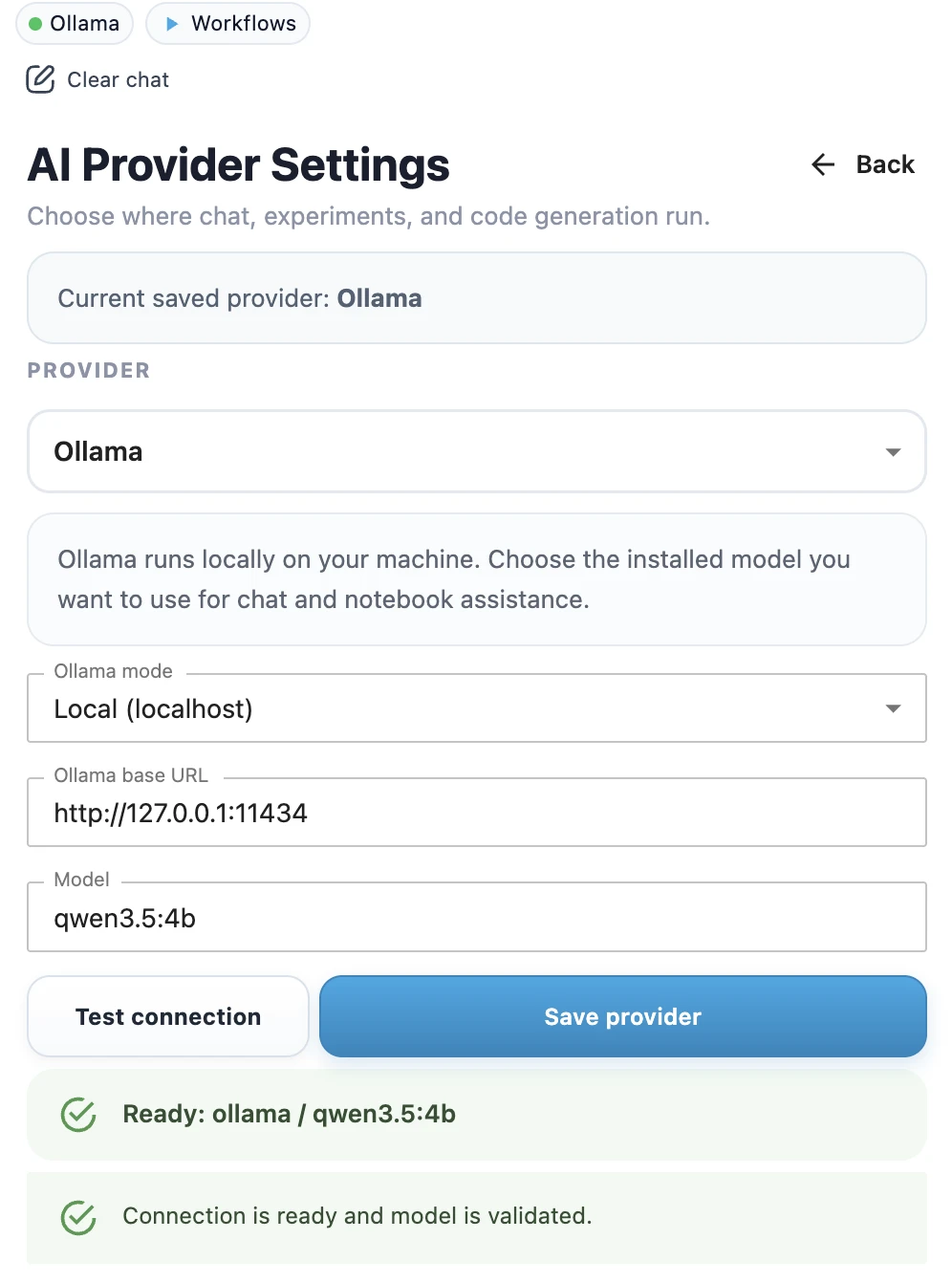
- Open AI provider settings.
- Select Ollama as the provider.
- Use the local Ollama endpoint.
- Enter the model name you downloaded, for example
qwen-3.5:27borgemma4:31b. - Click Test connection to check whether Ollama is reachable and the model is available.
- When the test succeeds, click Save provider.
- Confirm the success toast.
- Check the top provider chip in the sidebar. It should show Ollama with a green dot.
The default local Ollama endpoint is usually:
http://localhost:11434When to use local Ollama
- You want prompts and notebook context to stay on your machine.
- You work with private or regulated datasets.
- You want to avoid cloud API costs for local experimentation.
- You are comfortable installing and running a local model.
If something does not work
If MLJAR Studio cannot connect to Ollama, check whether Ollama is running, whether the model is downloaded, and whether the endpoint is correct. See LLM Setup Troubleshooting for common fixes.