
LLM Providers
Ollama Cloud Setup
Ollama cloud setup is useful when you want an Ollama-compatible provider but do not want to run the model on your own laptop or workstation. This can be a good hybrid option: the configuration feels similar to Ollama local, but inference happens on a remote endpoint.
When to use Ollama cloud
- Your local machine does not have enough memory or GPU capacity.
- You want an Ollama-compatible API but prefer remote infrastructure.
- You manage a shared model endpoint for a team.
- Your organization has an approved private LLM endpoint.
Configuration checklist
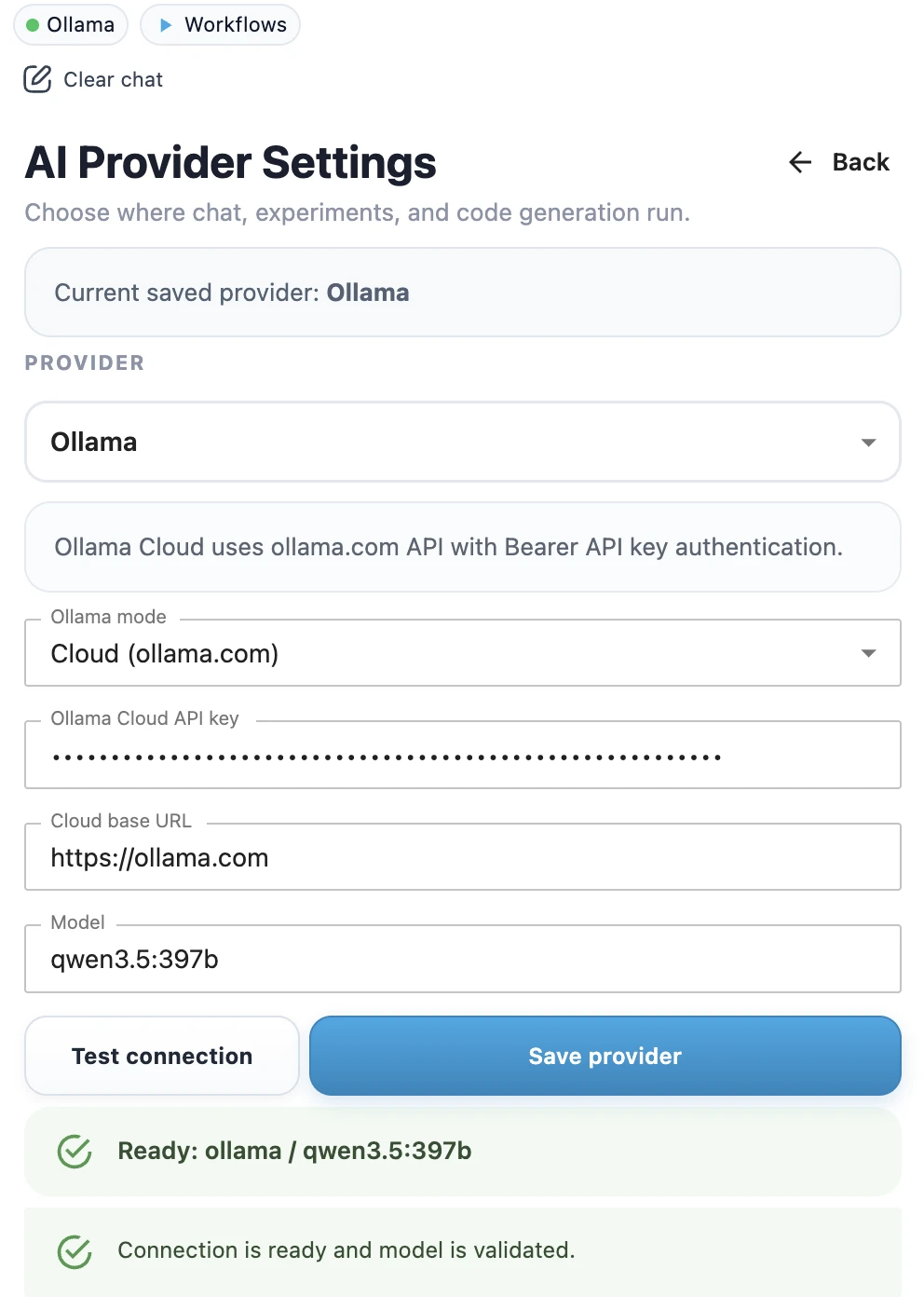
- Open MLJAR Studio provider settings.
- Select Ollama Cloud as the provider.
- Enter your Ollama API key.
- Enter the model name, for example
qwen3.5:397borgemma4:31b. - Click Test connection to check whether the API key works and the model is available.
- When the test succeeds, click Save provider.
- Confirm the success toast.
- Check the top provider chip in the sidebar. It should show Ollama Cloud with a green dot.
Example model names
The model name depends on the models available in your Ollama Cloud account.
qwen3.5:397b
gemma4:31b
Privacy note
Ollama cloud is not the same as local Ollama. With local Ollama, the model runs on your own computer. With a remote endpoint, prompts and context are sent to that remote endpoint. Use this only when the endpoint matches your privacy and security requirements.
Related pages
If you want a local-only workflow, use Ollama Local Setup. If you are choosing between local and cloud providers, read Local vs Cloud LLMs.