
Database Connections
PostgreSQL connection setup
PostgreSQL connector is available in AI Data Analyst conversational notebooks. In the prompt box, click DB Connector, configure PostgreSQL details, test connection, and save.
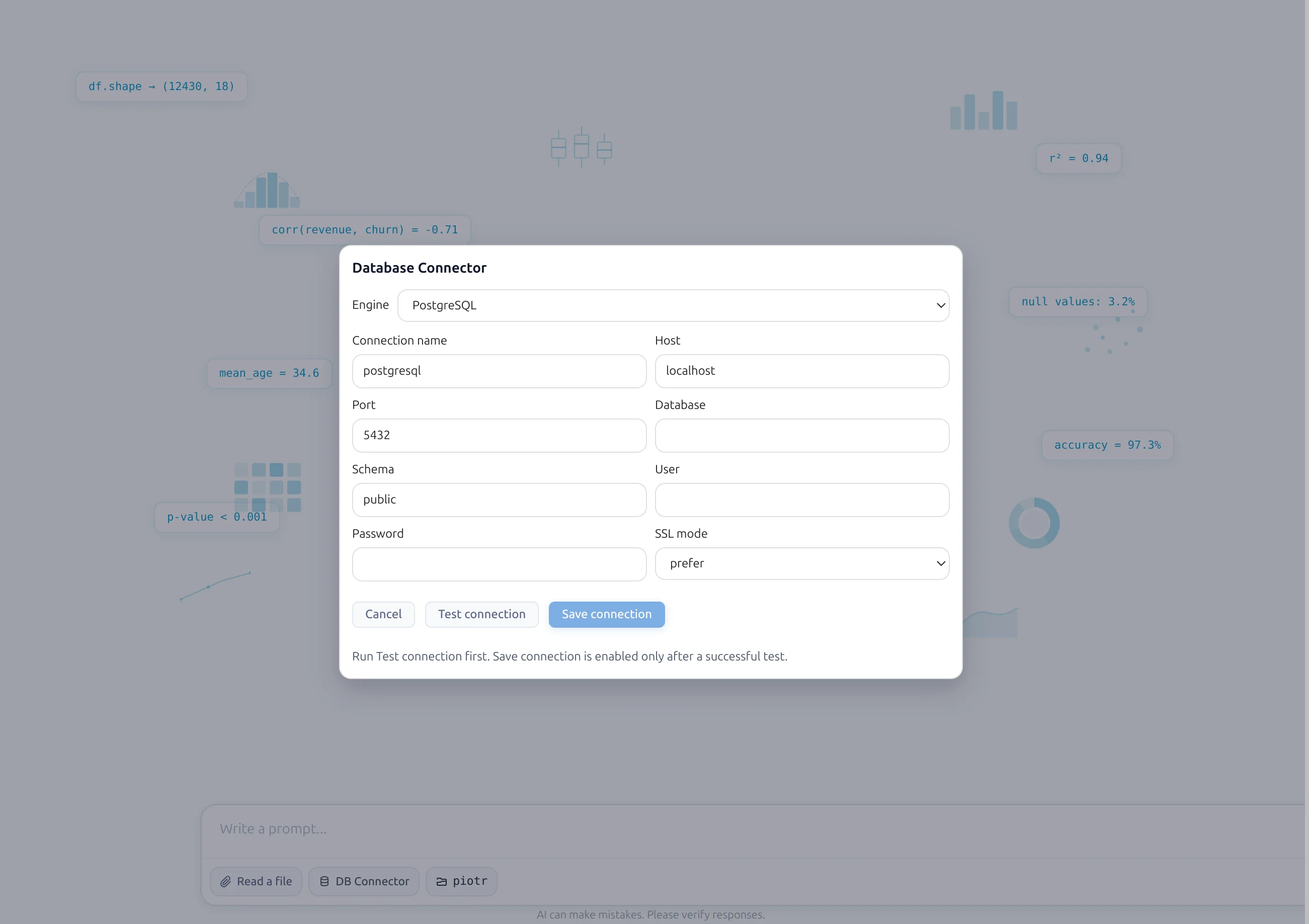
Requirements
- PostgreSQL host
- Port (usually 5432)
- Database name
- Schema
- Username
- Password
Connection steps
- Open MLJAR Studio and create/open an AI Data Analyst notebook.
- Click DB Connector in the prompt box.
- Choose PostgreSQL as the connector type.
- Enter host, port, database, schema, user, and password.
- Click Test connection.
- If PostgreSQL Python driver packages are missing, MLJAR Studio asks for install and installs them.
- When connection test succeeds, click Save connection.
- MLJAR Studio scans available tables and prepares LLM context.
- Select which tables should be available to the LLM.
- Click final Save to confirm table visibility.
- Verify active connection chip in prompt box and tables in Data Awareness panel on the left sidebar.
SQL block in conversational notebook
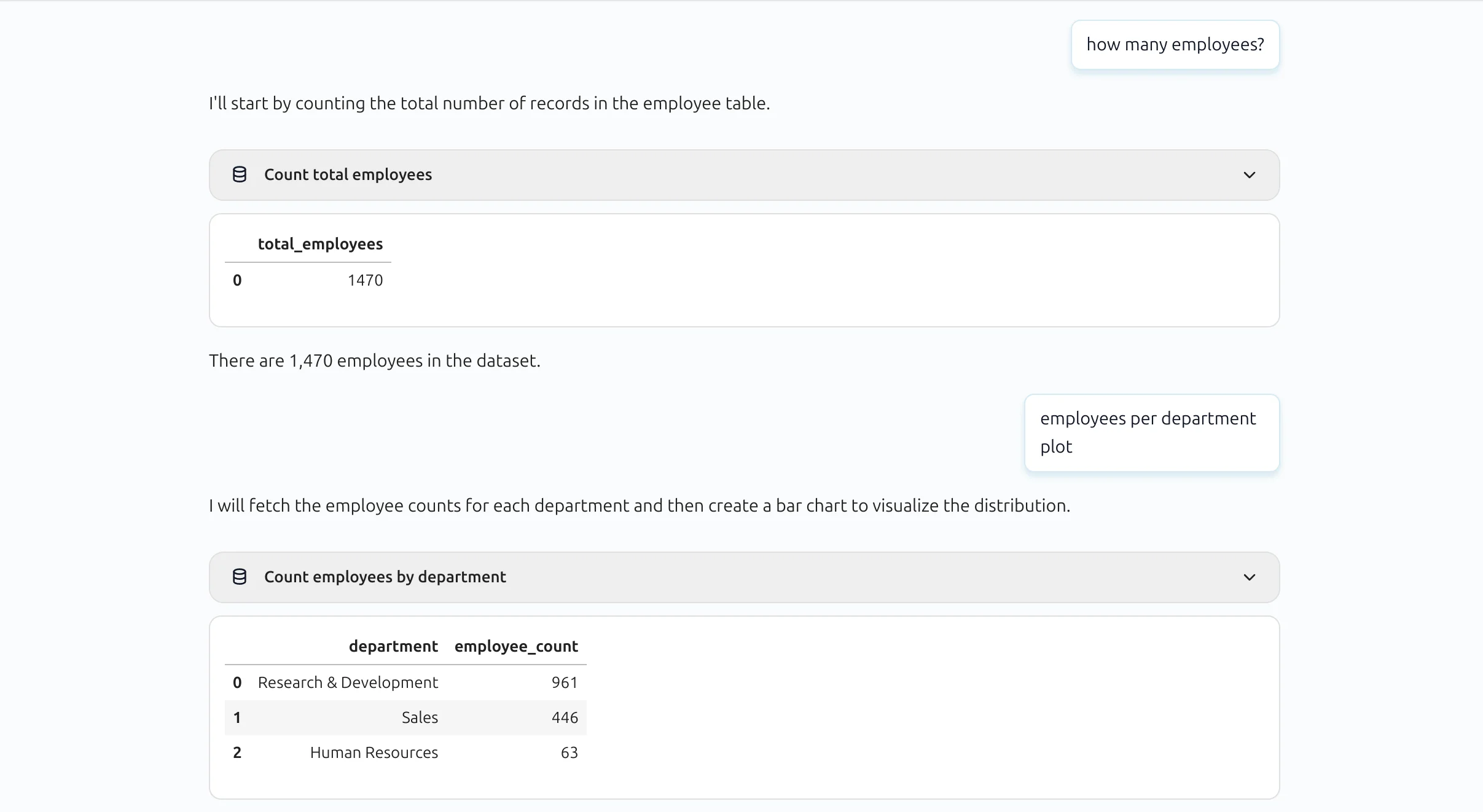
SQL queries are shown in a compact block by default. Users can expand the block to inspect full SQL text.
Expanded SQL block view:
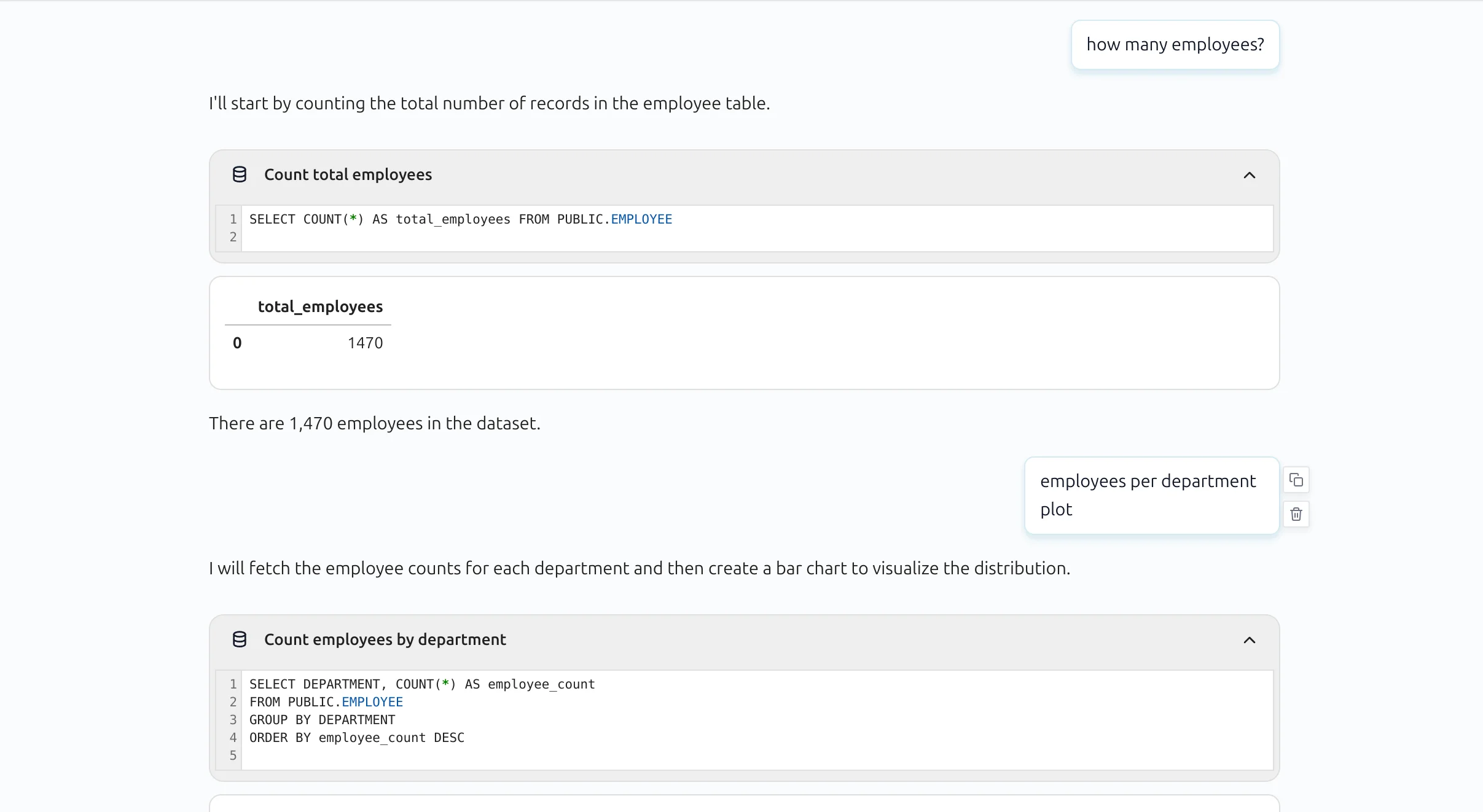
MLJAR Studio can execute SQL blocks, materialize outputs into notebook variables, and continue analysis in Python for visualizations and machine learning workflows.
Troubleshooting
- Connection refused: verify host, port, VPN/network access, and PostgreSQL service status.
- Authentication failed: check username/password and database-level permissions.
- SSL/transport issues: confirm required SSL mode and server certificates.
- Schema/tables not visible: verify schema name, user grants, and table visibility selection in connector save flow.
Related docs
See the Database Connections overview and AI Data Analyst for prompt-driven analysis on top of SQL outputs.