Database Connections
MySQL connection setup
MySQL connector is available in AI Data Analyst conversational notebooks. Click DB Connector in the prompt box, configure MySQL details, test connection, and save.
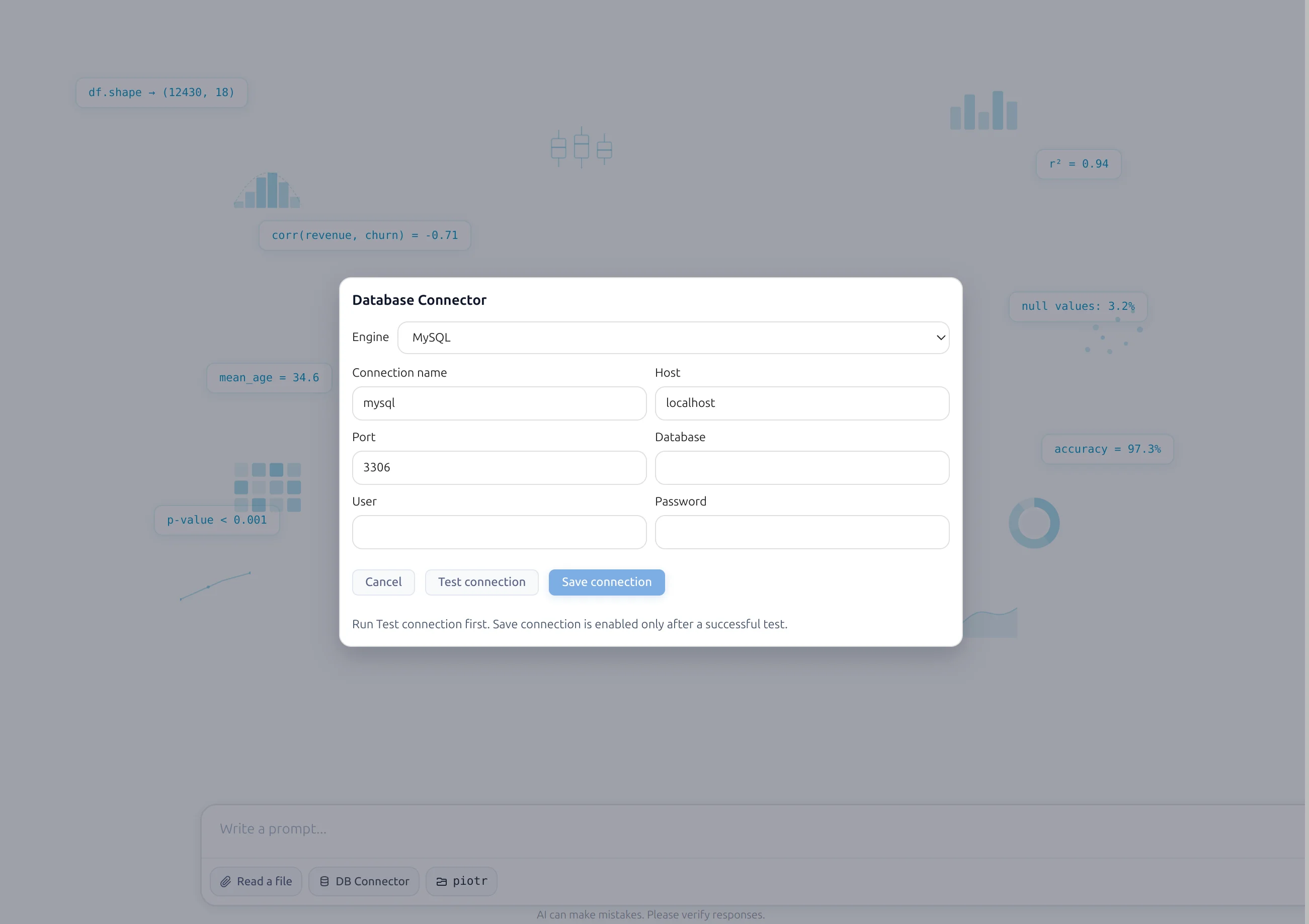
Required fields
- host
- port
- database
- user
- password
Connection flow
- Open AI Data Analyst notebook.
- Click DB Connector.
- Select MySQL and fill required fields.
- Click Test connection.
- If Python driver packages are missing, MLJAR Studio asks to install and installs them.
- When test succeeds, click Save connection.
- Review scanned tables and choose which should be available to the LLM.
- Click final Save.
SQL block in conversational notebook
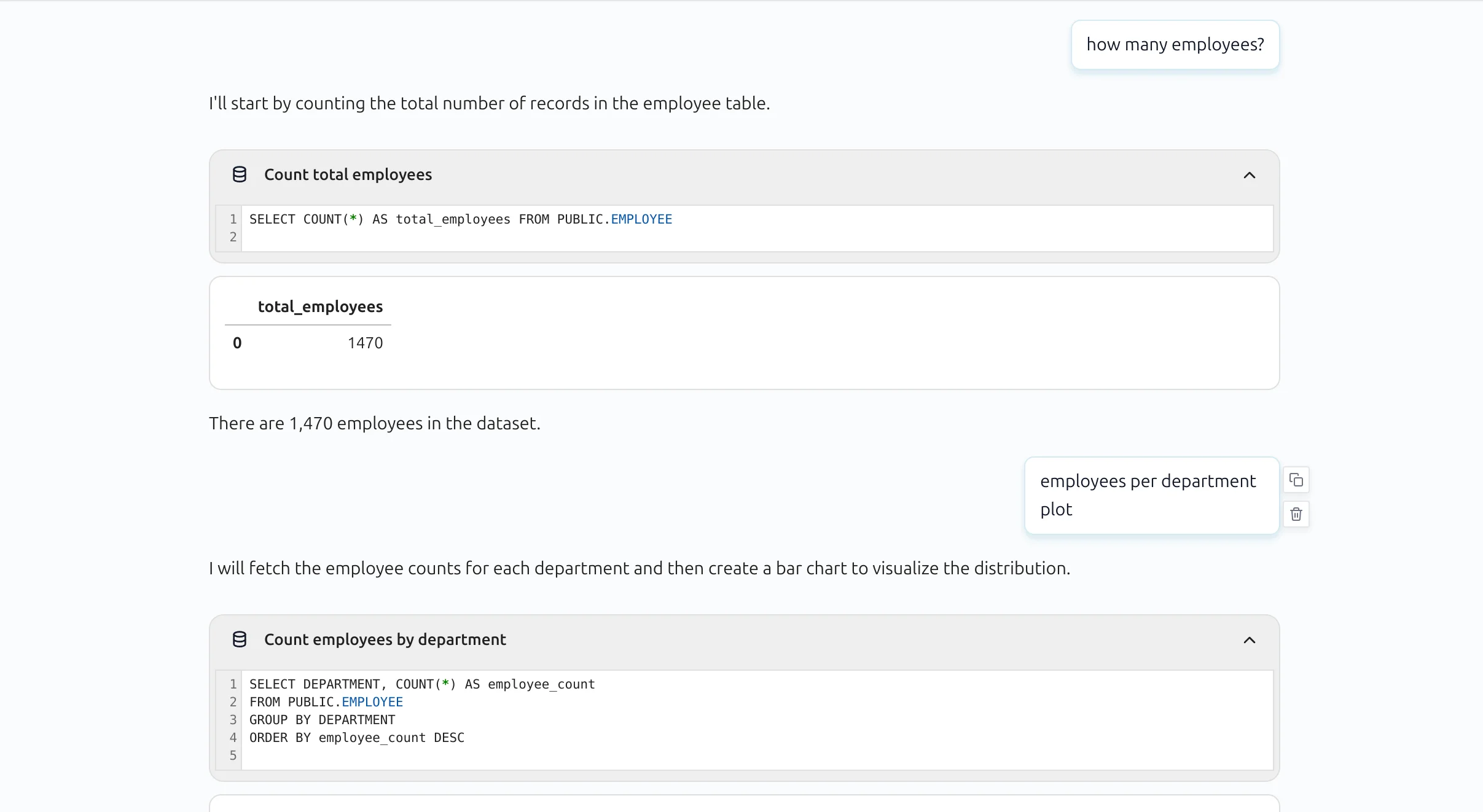
SQL queries are shown in a compact block by default. Users can expand the block to inspect full SQL text.
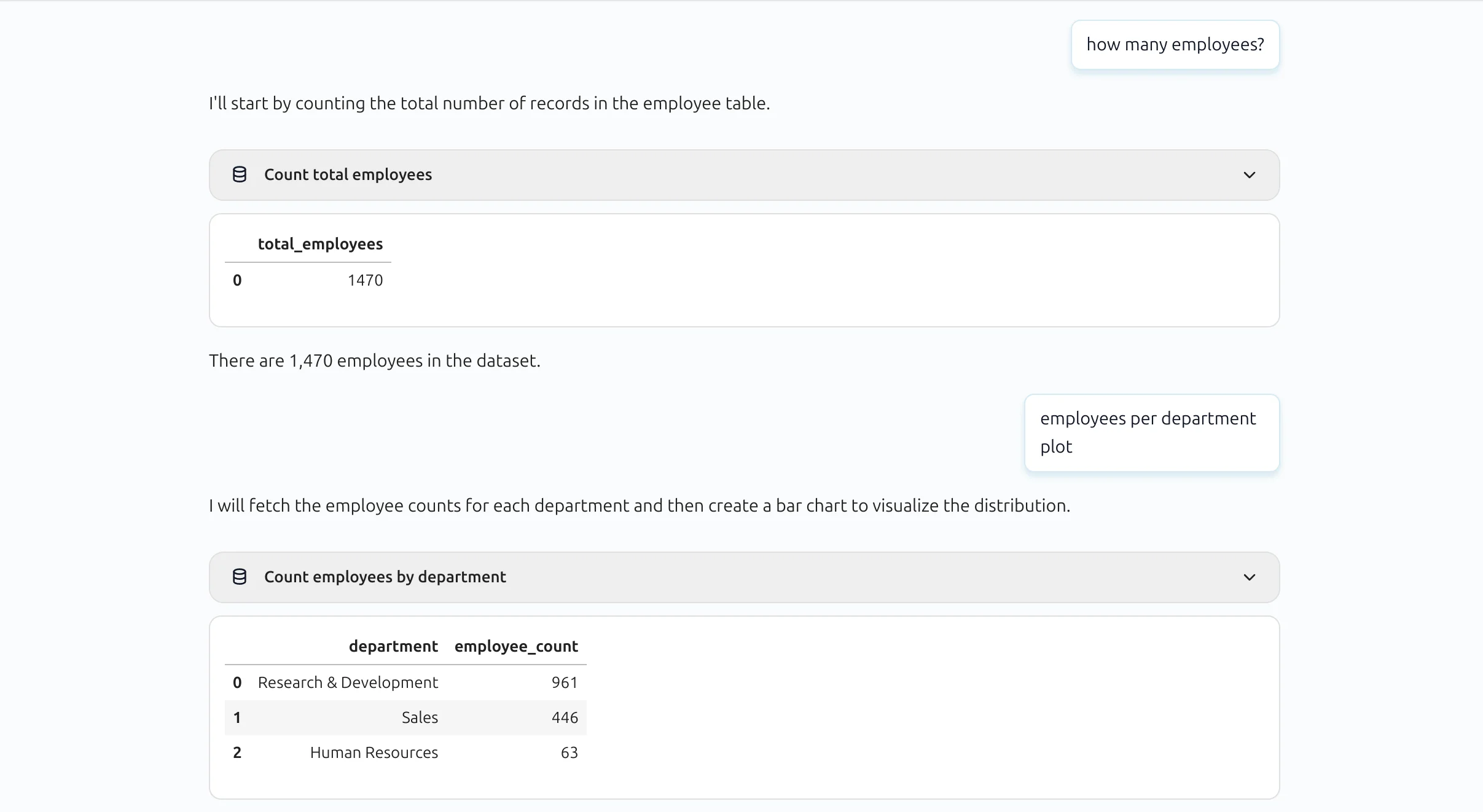
Expanded SQL block view: