
Database Connections
Connect databases for AI data analysis
Database connectors are available in AI Data Analyst (conversational notebooks). In the prompt box, click DB Connector to open the connection dialog, configure your engine, test connection, and save.
After saving a connection, MLJAR Studio loads table metadata to build context for the LLM. You can decide which tables are available to AI, then confirm save and start querying your database from the notebook.
Supported databases and platforms
PostgreSQL
Connect PostgreSQL, run SQL queries, and ask AI for analysis.
MySQL
Connect MySQL and run SQL + AI analysis in conversational notebooks.
SQL Server
Connect Microsoft SQL Server with DB Connector and AI table context control.
Databricks
Connect Databricks SQL endpoint with host, HTTP path, token, catalog, and schema.
Snowflake
Connect Snowflake account and analyze warehouse data with AI.
Supabase
Connect Supabase (PostgreSQL-compatible) and query with AI Data Analyst.
Required fields by engine
| Engine | Required fields | Notes |
|---|---|---|
| PostgreSQL | host, port, database, schema, user, password | Python driver installed automatically when missing. |
| Supabase | host, port, database, schema, user, password | Uses PostgreSQL-compatible connection flow. |
| MySQL | host, port, database, user, password | Python driver installed automatically when missing. |
| MS SQL Server | host, port, database, schema, user, password | Requires OS-level ODBC runtime/driver in addition to Python packages (Linux/macOS: unixODBC + msodbcsql18, Windows: ODBC Driver 18 for SQL Server). |
| Snowflake | account, database, schema, user, password, warehouse | Cloud warehouse connection with account-level auth. |
| Databricks | host, http path, access token, catalog, schema | Requires valid workspace SQL endpoint and token. |
DB Connector flow (conversational notebook)
- Open AI Data Analyst notebook.
- Click DB Connector in the prompt box.
- Choose engine and fill required fields.
- Click Test connection. MLJAR Studio validates the connection details.
- If Python database drivers are missing, MLJAR Studio asks to install them and performs installation.
- When connection test succeeds, Save connection is enabled.
- Click Save connection. MLJAR Studio scans available tables to build LLM context.
- Select which tables should be visible to the LLM.
- Click final Save to confirm table context.
- Active connection appears in the prompt box, and tables appear in left sidebar Data Awareness panel.
SQL blocks in conversational notebook
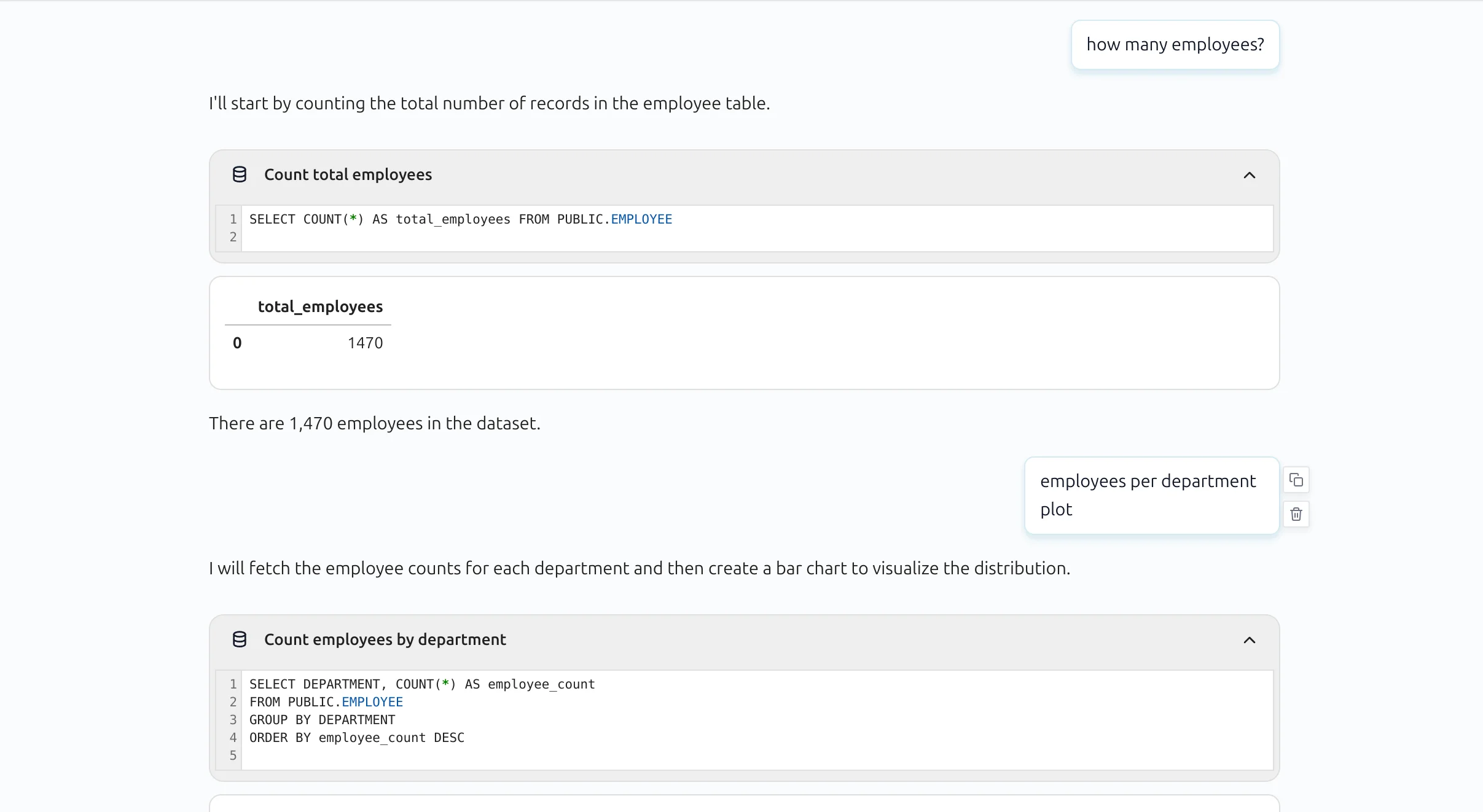
In AI Data Analyst, SQL blocks are compact by default. Users can expand a block to inspect the full query.
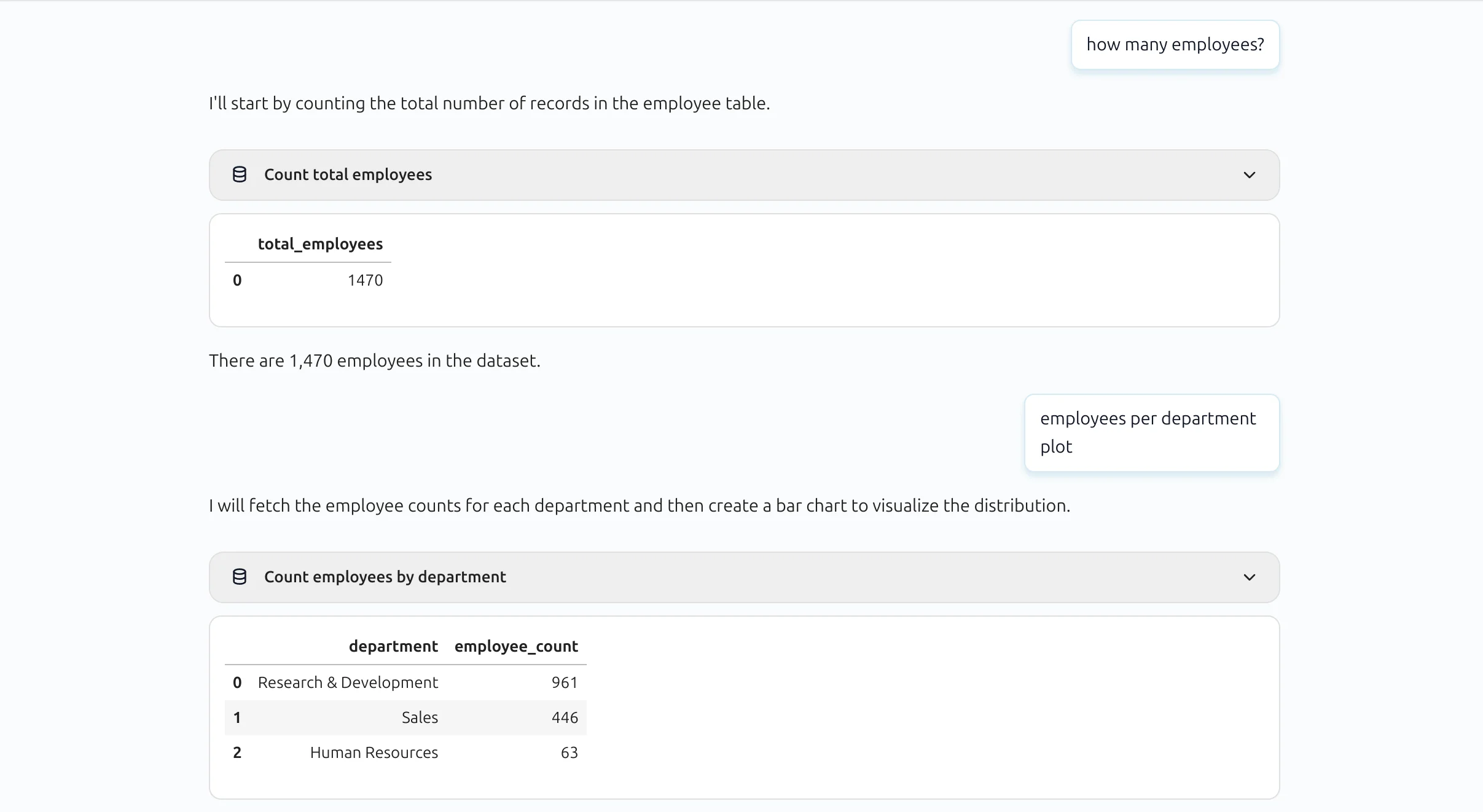
Expanded SQL block view:
Related docs
For conversational analysis after SQL queries, see AI Data Analyst. For model provider setup, see LLM Providers.