
Reimagine Python Notebooks in the AI Era
At MLJAR, we work on tools that make working with data easier. We love helping people with domain knowledge use computers to analyze their data more effectively. We are building MLJAR Studio, a desktop app for data analysis.
Before starting work on Studio, we explored many different approaches for creating a universal environment for data work. In the end, we decided to build on top of Jupyter Notebook. It is a flexible tool that can combine markdown and code, and it allows easy experimentation. You can build a program by creating small code snippets and executing them as notebook cells. The notebook keeps the execution state and displays outputs directly below the cells.
I think this is the main reason we fell in love with notebooks.
Of course, notebooks also have drawbacks. They can have hidden state, and they mix code and outputs in a single file, which makes them harder to track in code repositories. Do you remember the famous talk I Don't Like Notebooks by Joel Grus at JupyterCon 2018? Since then, there have been many attempts to fix these problems.
However, with the AI era, everything changed.
Once AI became good at generating code snippets, many tools started adding AI chat in the notebook sidebar. The main view stayed focused on the notebook, while a chat panel appeared on the side. You could ask AI questions about your notebook, and it would provide code snippets that could be inserted and executed. This was a fantastic improvement.
We implemented this feature in MLJAR Studio as well.
My cofounder and wife, Aleksandra, has a law and business background. One day, she told me that notebooks are really hard to read. She said she did not want to see all the code cells and was much more interested in the results. For her, code is not the final goal. It is only a way to get results.
She said that code matters to me because I am an engineer, but most people care mainly about the results. That simple observation changed the way we were thinking.
She said we should make Python notebooks more user friendly.
And this is how we started working on Conversational Notebooks in MLJAR Studio.
In this article, I would like to show you how conversational notebooks work, what makes them user friendly, and which features make me especially proud.
New Data Analysis Workflow
The typical workflow in a notebook is simple: write code, execute it, and inspect the output to see whether it works as expected. The hardest part was always the first step: writing the code. The user needed to know syntax, libraries, and implementation details.
AI greatly simplified this step.
In Conversational Notebooks, there is a prompt box at the bottom of the main view. The user writes in plain English what they want and sends it to the AI model.
In the response, we receive a reasoning block, response text, and code blocks. We parse the LLM response and store each part as a notebook cell. By the way, the user prompt is also stored as a cell — it is a markdown cell with metadata, which is possible thanks to the flexibility of the *.ipynb format.
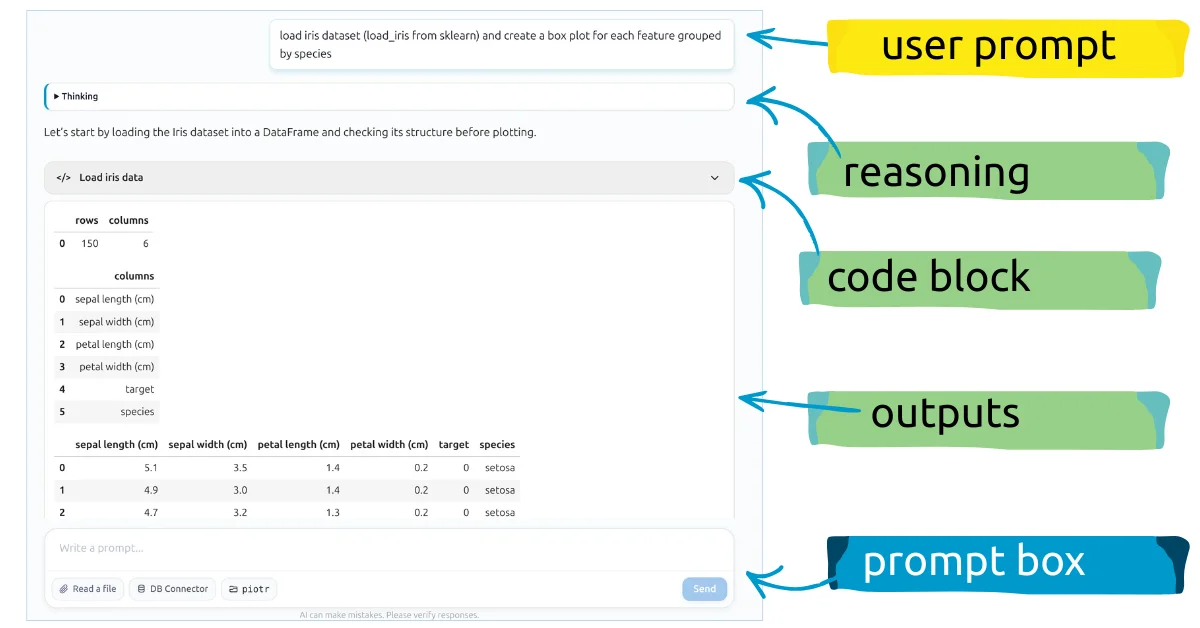
The most interesting part is how we handle code blocks. We parse all ```python ``` blocks, save them as code cells, but display them as collapsed code blocks in the conversational interface. We also make an additional LLM request to generate a short, meaningful description of each code block, as shown below:
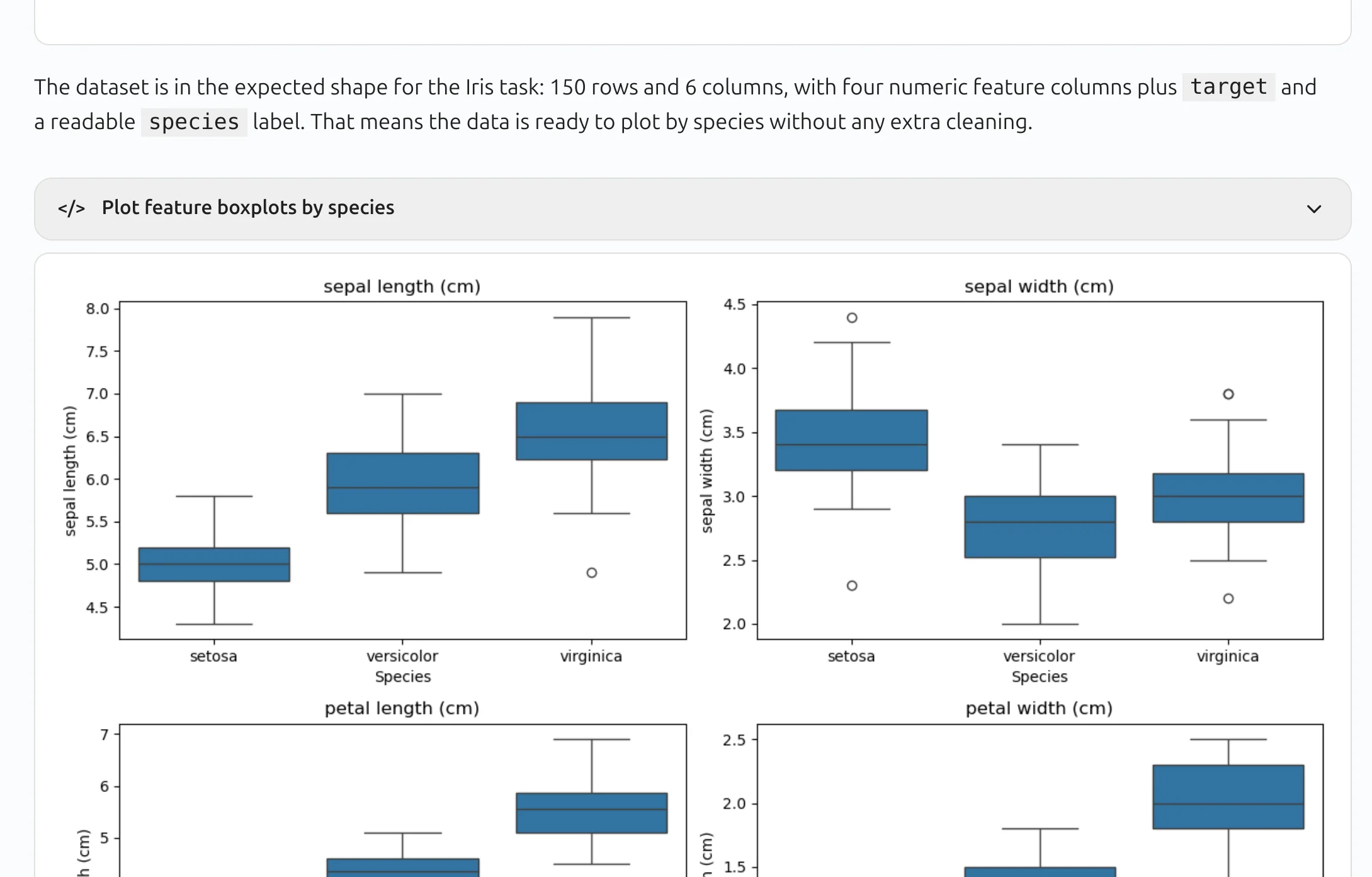
When you click on code block header, the code panel expands and you can see raw Python code:
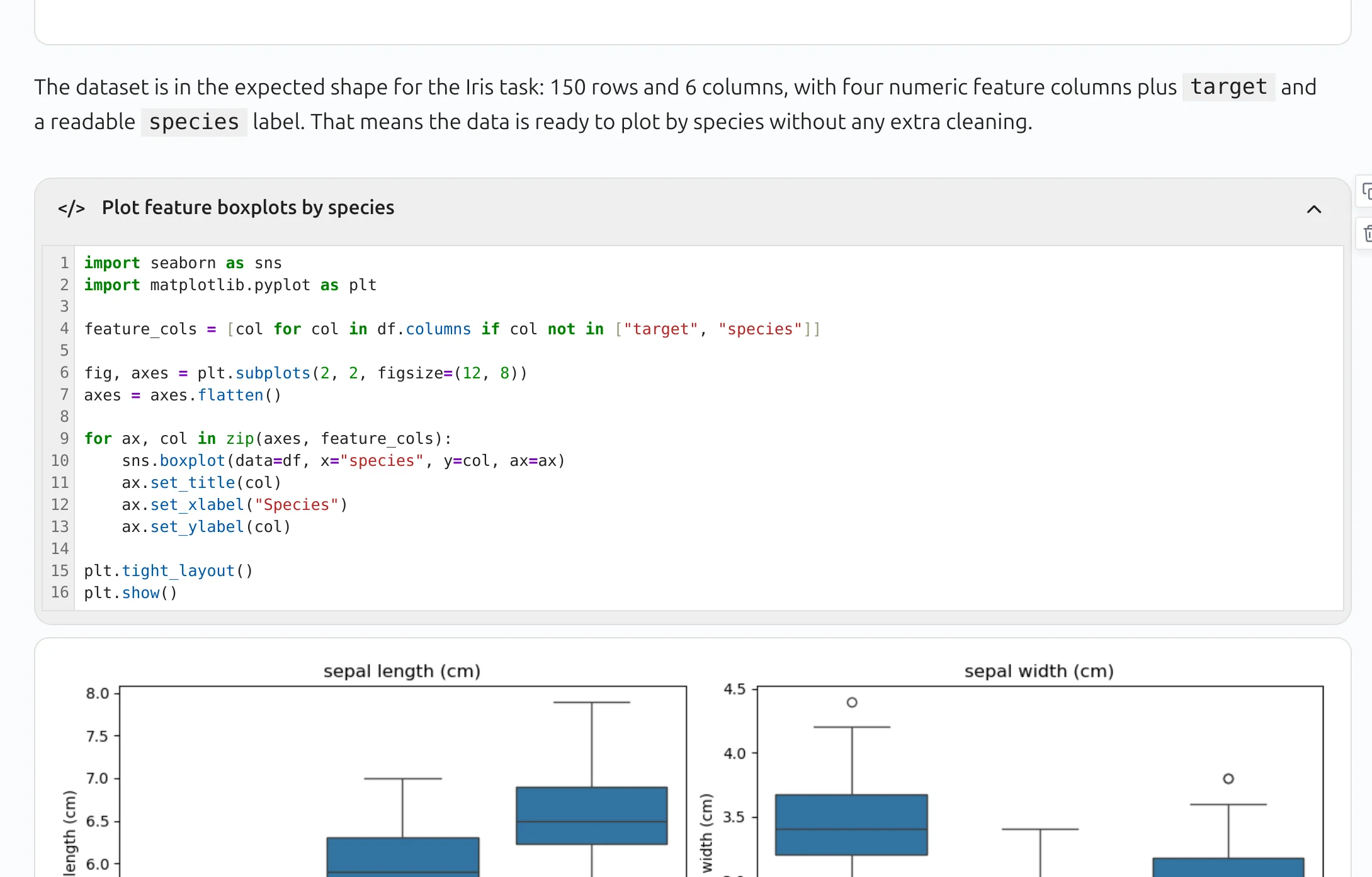
All Python code blocks are executed automatically. Their outputs are displayed directly below the code block. That's how we get notebook which is more focused on results than code.
Install a New Package
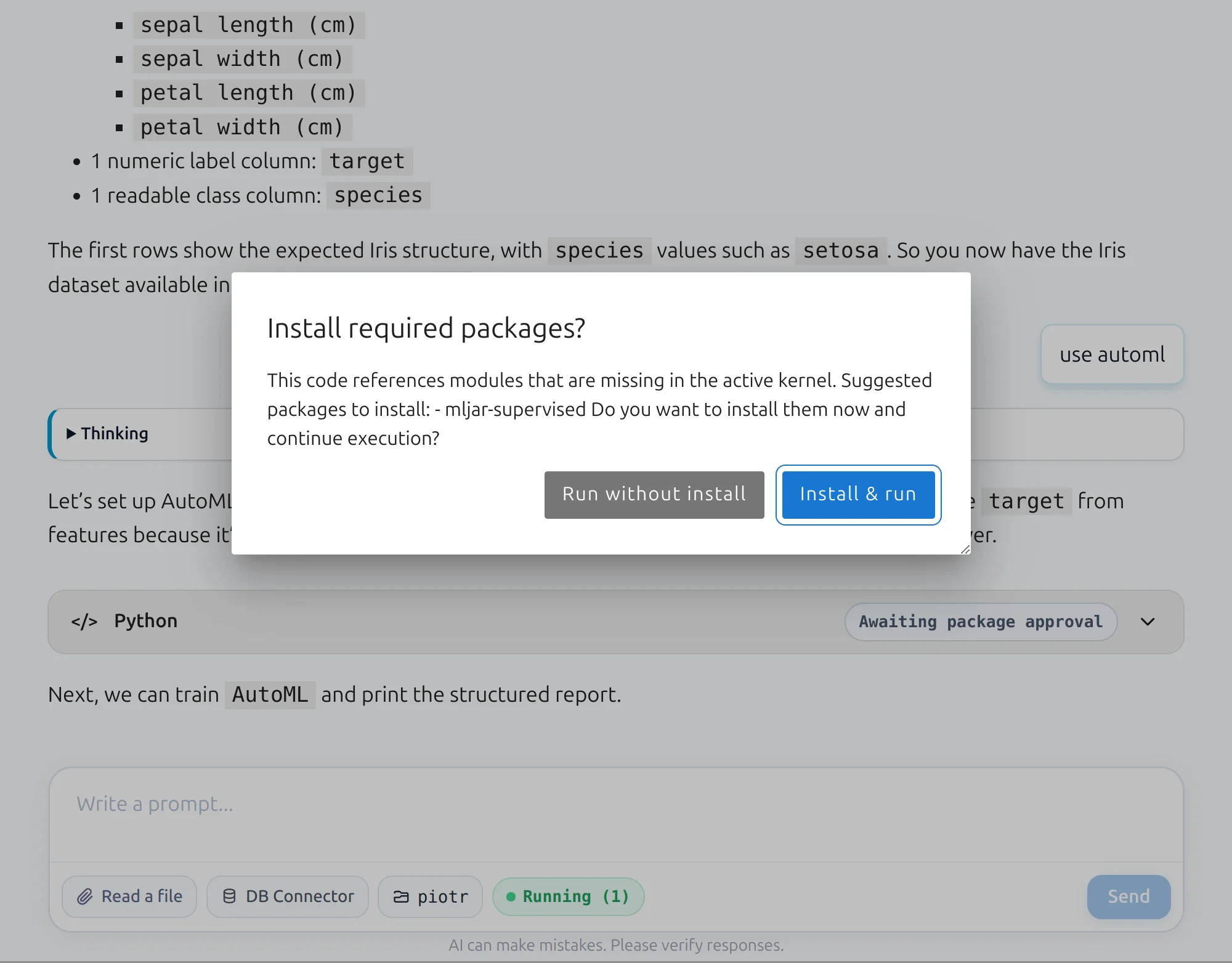
What happens if the generated code uses a Python package that is not available in the current environment?
The application detects such situations and asks the user for confirmation before installing the new package. Once the package is installed, the code is executed automatically.
In the screenshot below, the app asks for permission to install mljar-supervised, our open-source package for AutoML.
Code Cells Auto-Fix
What if the Python code returned by the LLM contains an error?
We implemented automatic fix retries. The LLM tries to fix its own code by using the error message together with the current code as context.
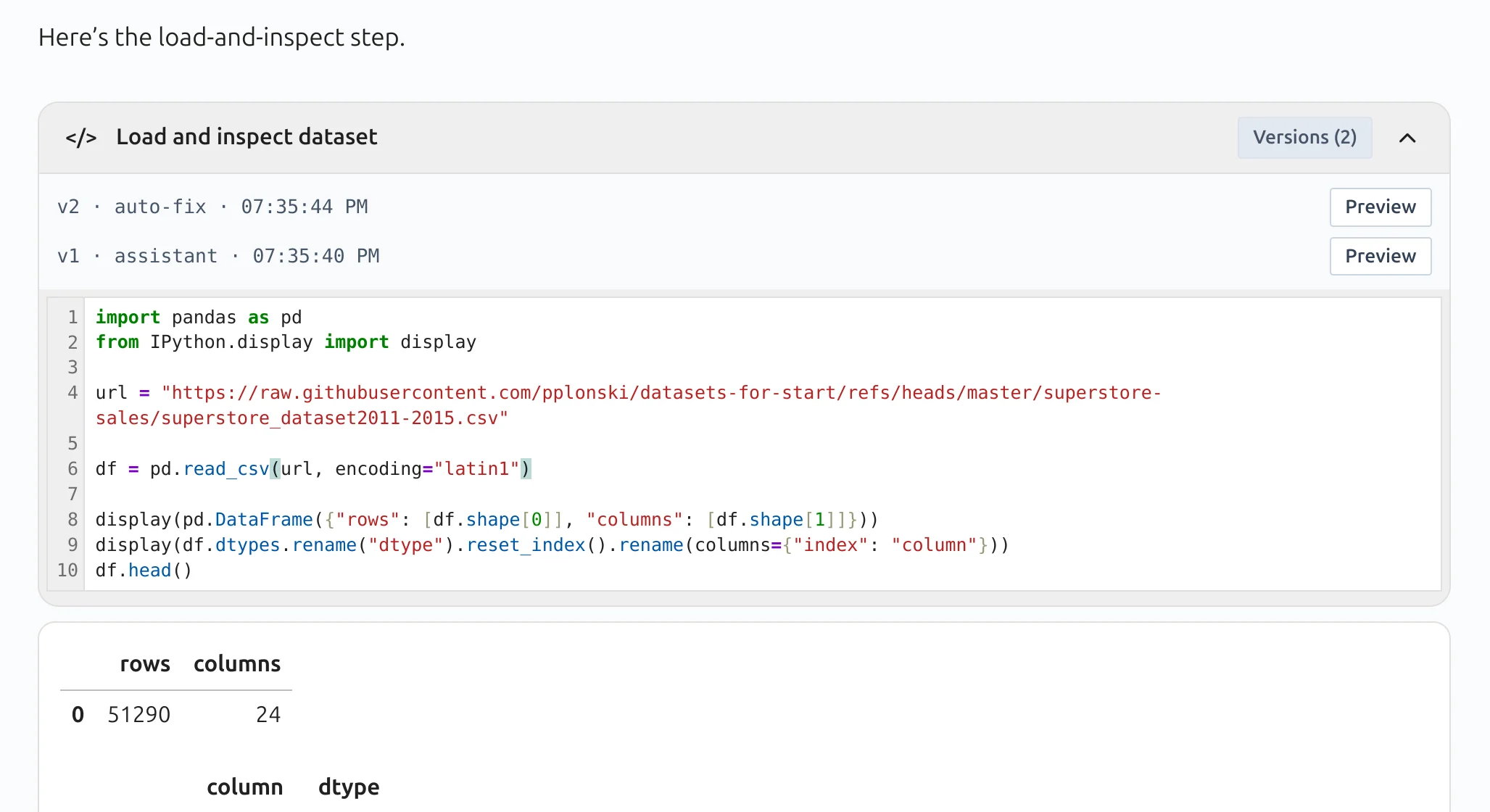
Dual Representation
As I mentioned earlier, we save user prompts and LLM responses as cells. We also store additional information in the cell metadata.
Thanks to this design, each conversation can be saved as a standard .ipynb notebook file. The user can also open the same conversation in the classic notebook view and edit the code directly.
| Classic notebook mode | Conversational notebook mode |
|---|---|
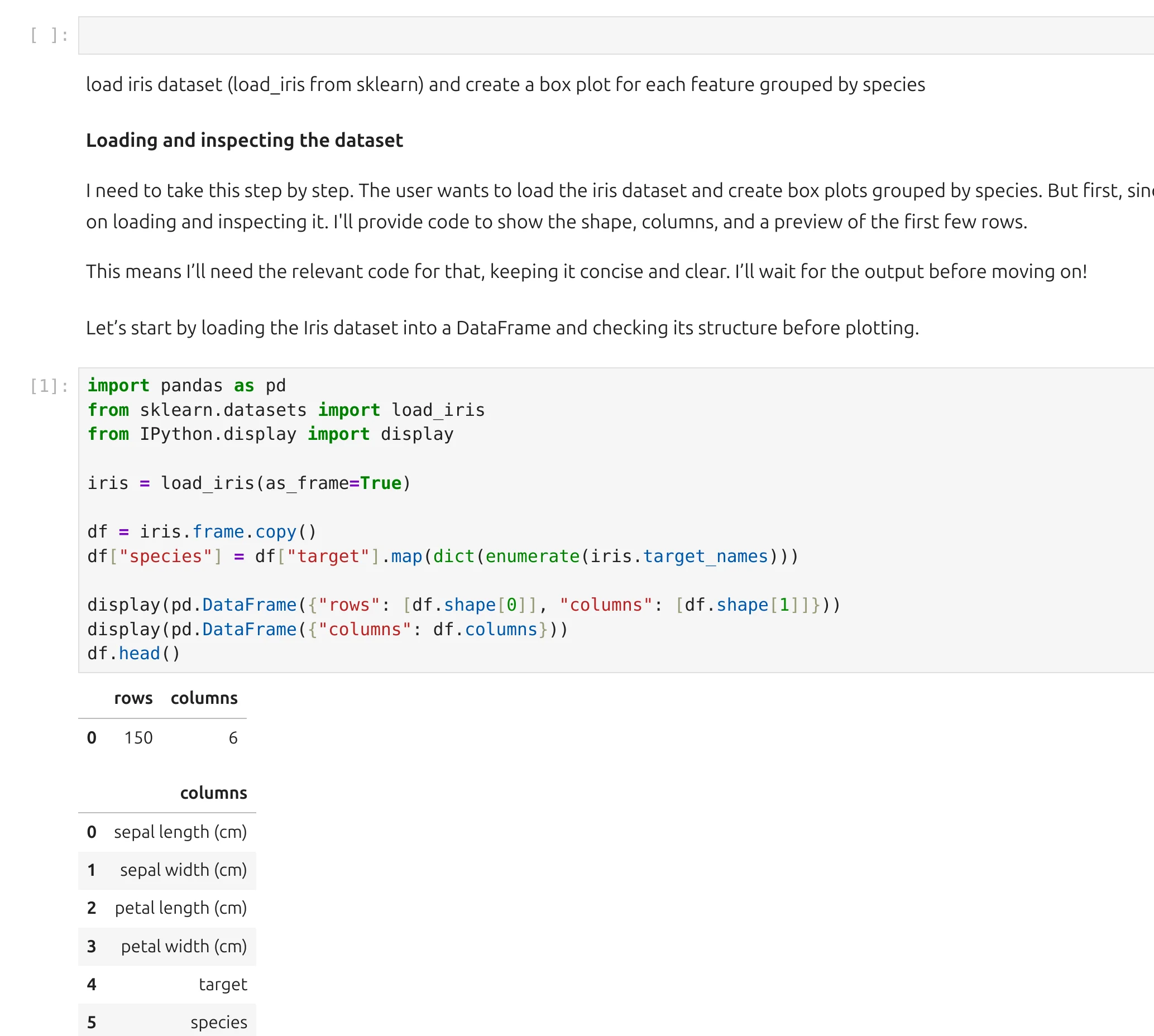 | 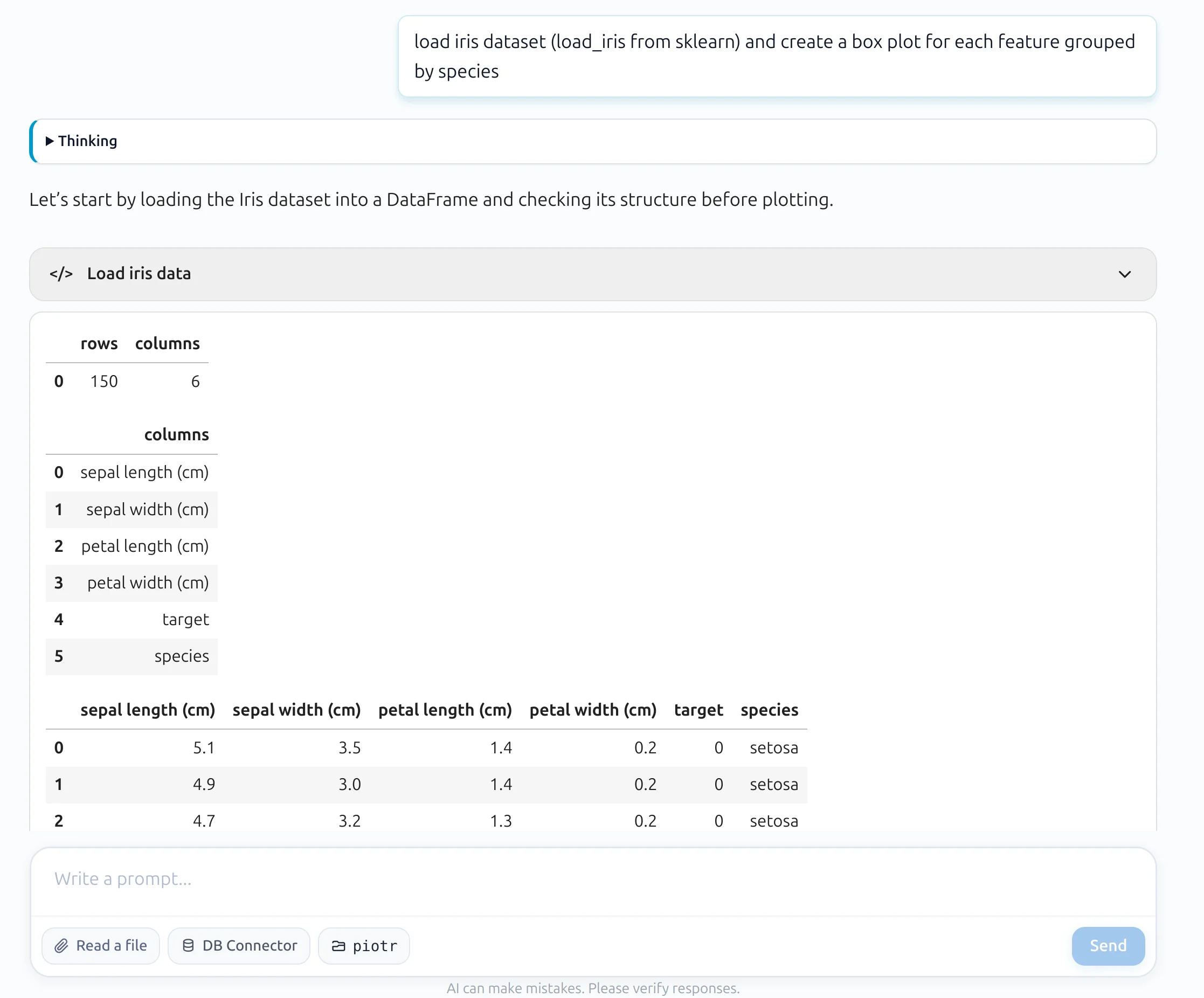 |
Small Features for Big UX improvements
No More Unititled.ipynb
There is always the problem of having too many Untitled.ipynb files. We start a new conversation by creating an Untitled.ipynb file:
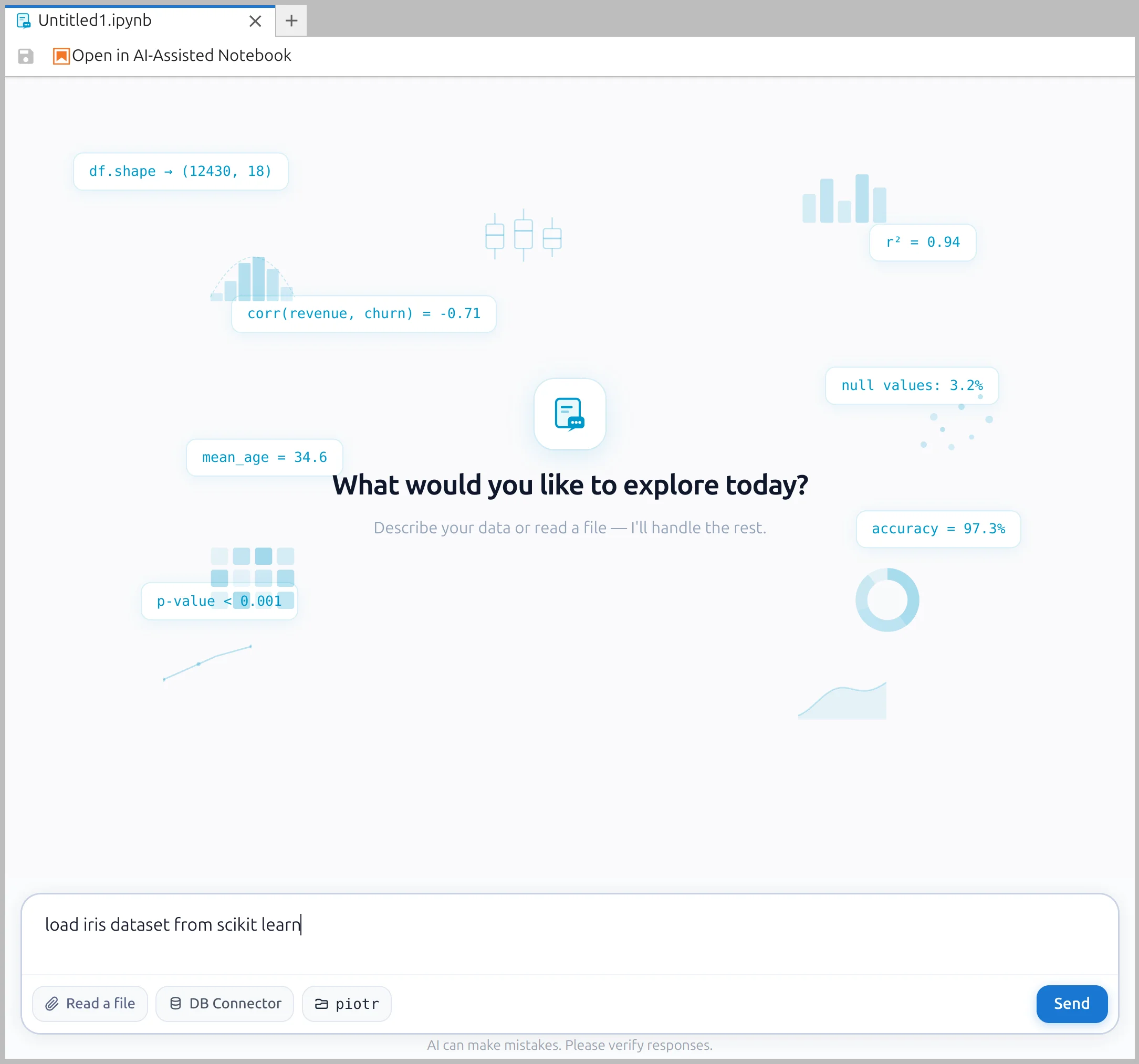
After a few prompts, if the user still has not changed the name, we ask the LLM to suggest a meaningful title for the notebook. After a successful rename, we display a small chip in the prompt box to inform the user.
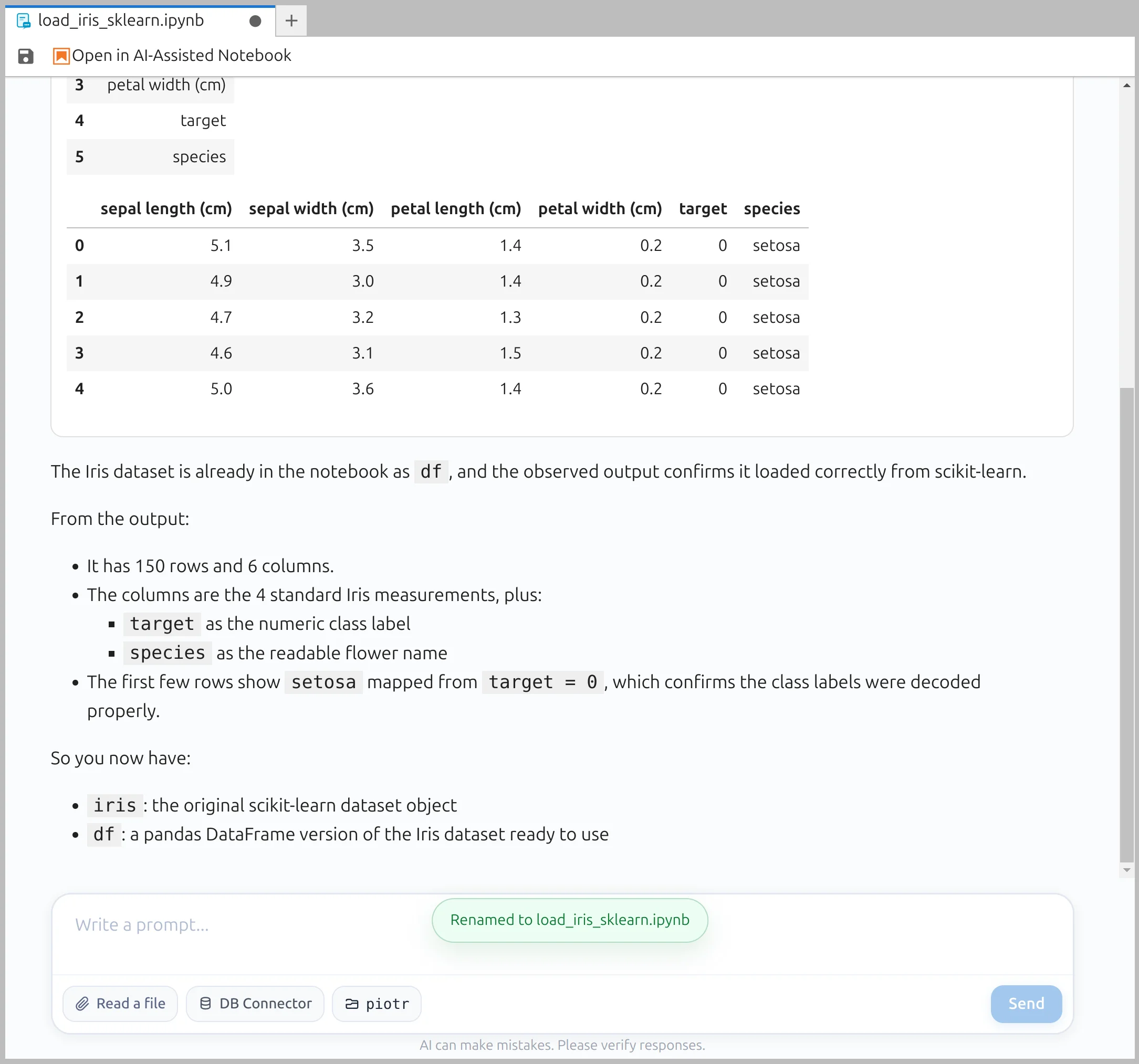
Gentle Display for Errors and Warnings
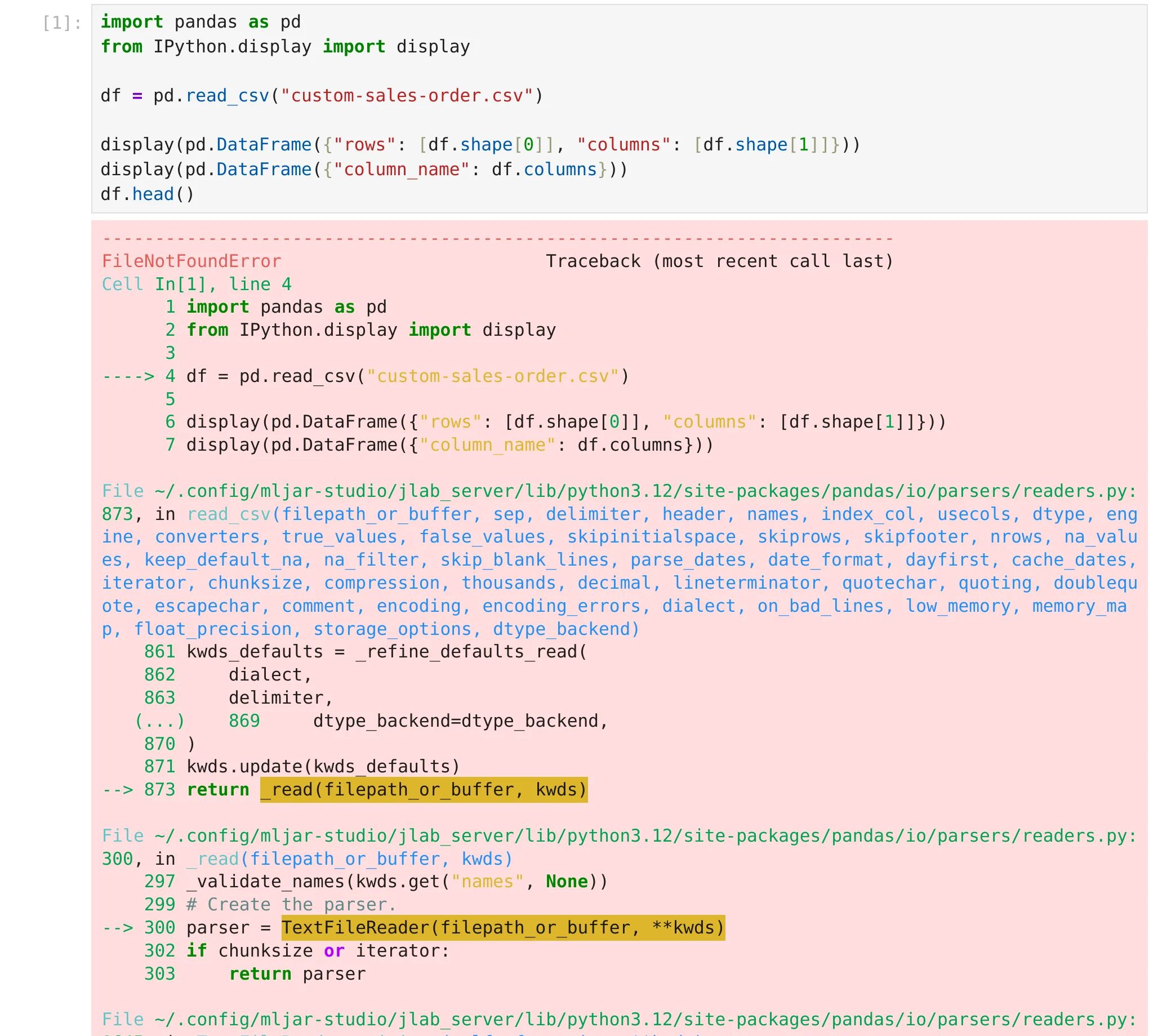
When there is an error that cannot be auto-fixed, we display the error information without showing the full traceback.
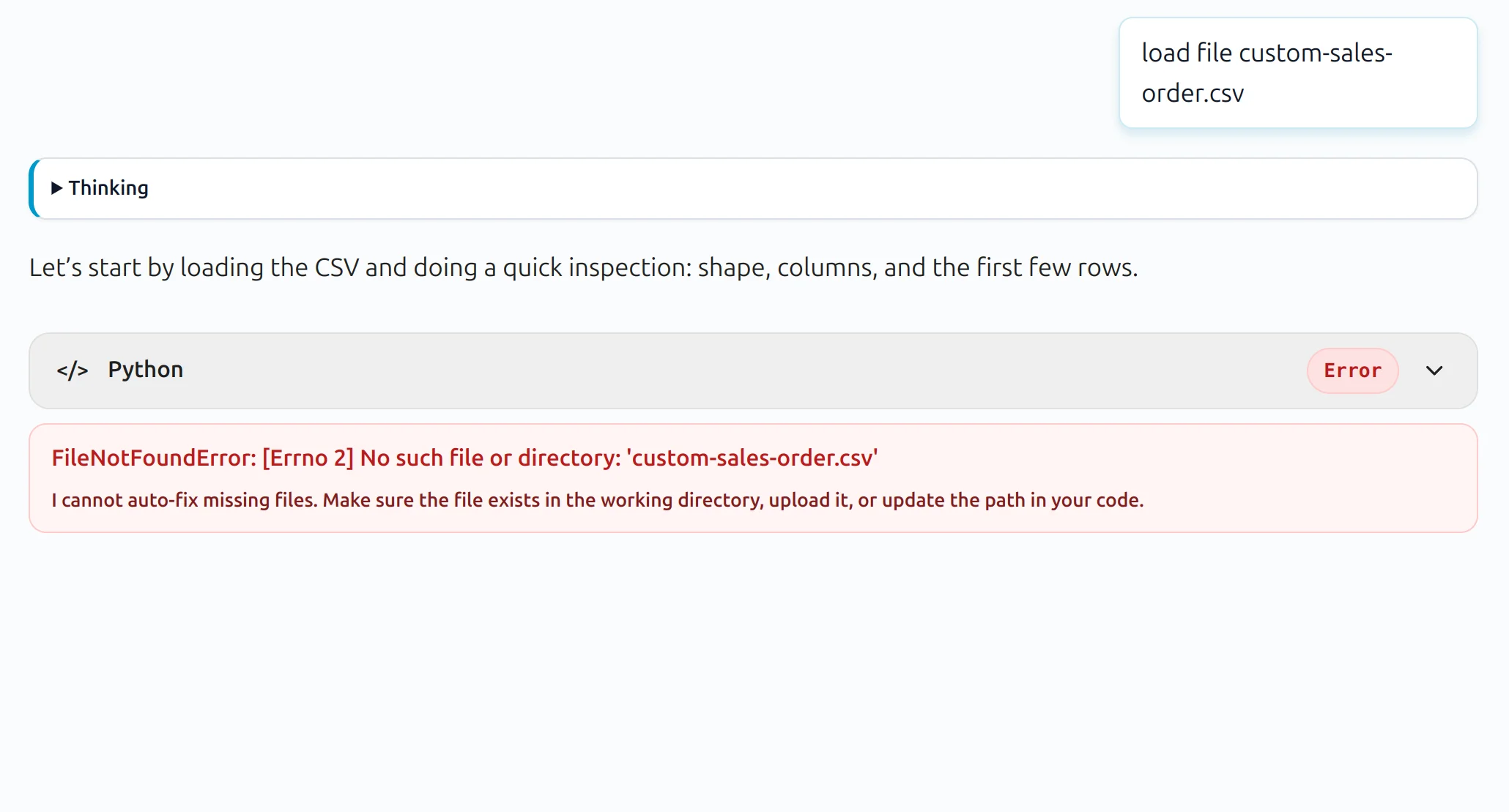
The full error traceback is still available in the classic notebook view.
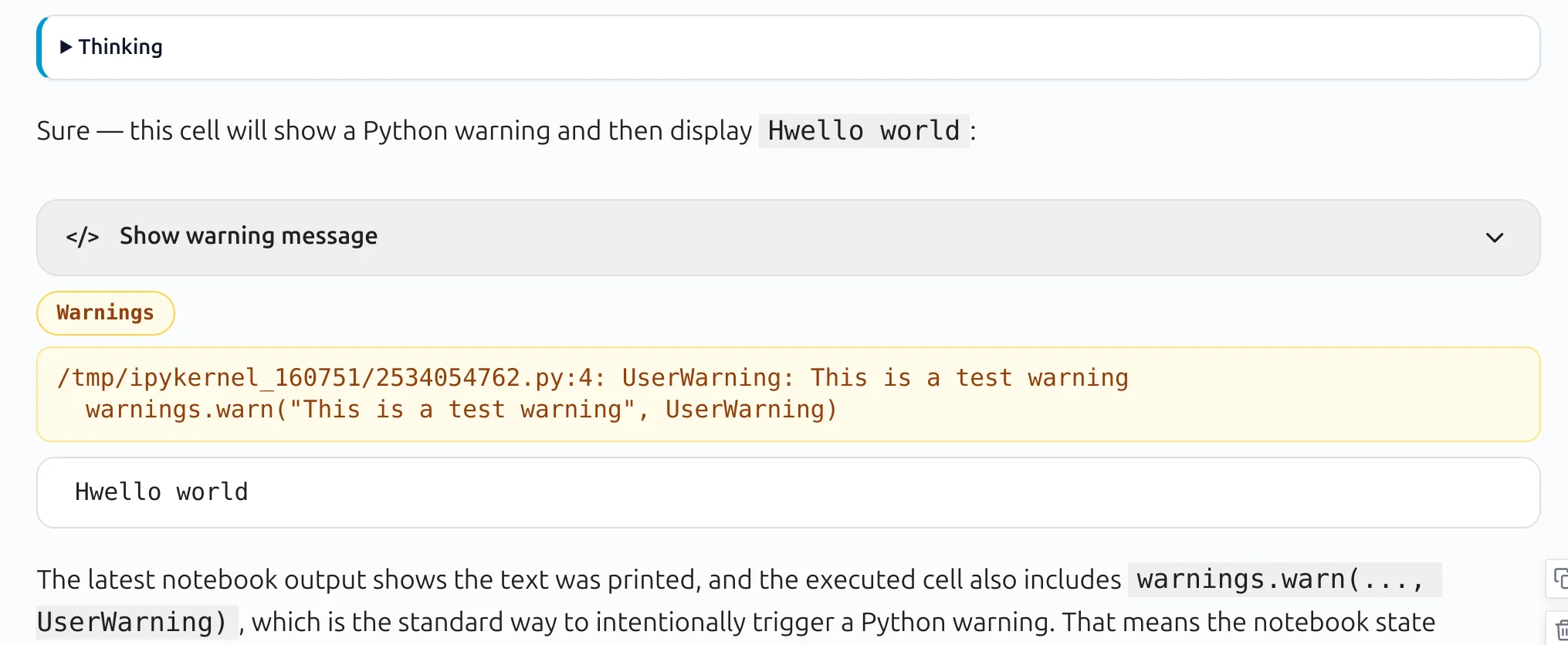
We use a similar approach for warnings. In conversational mode, only a warning chip is displayed.
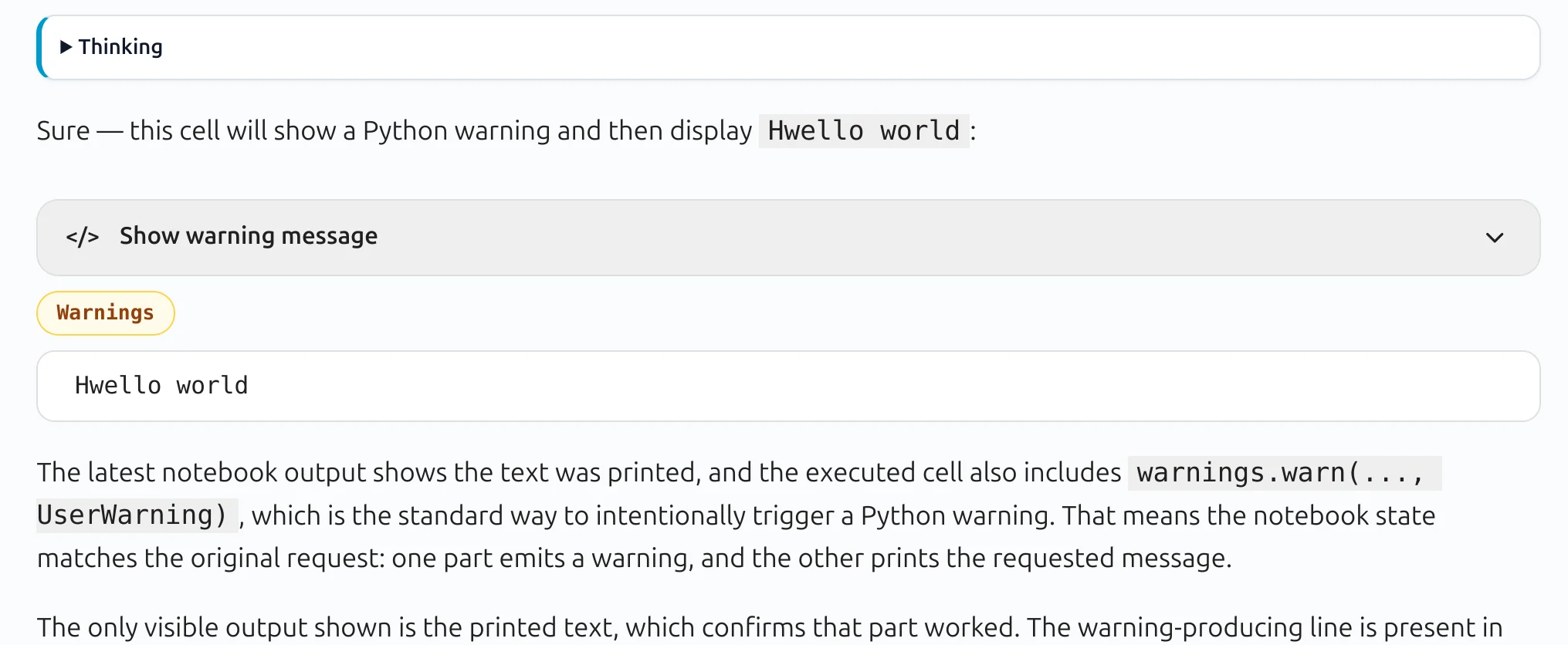
When the user clicks the chip, the warning details are shown:
After Success, the AI Keeps Helping
Once the LLM response is processed and the code executes successfully, the workflow does not stop there.
We make follow-up automatic requests and ask the LLM to analyze the outputs and provide insights. This means the notebook is not only generating code — it is also helping the user understand the results.
Desktop App with local LLMs support
We created a MLJAR Studio as a desktop application, to have better privacy and integrated experience for data analysis. There is no need to upload any data, because the desktop app works with tou local files. In MLJAR Studio we also support local LLMs via Ollama application.
Conclusions
Jupyter notebooks changed the way many people work with code and data. They made experimentation easier and more interactive. But in the AI era, we believe notebooks can become even more accessible.
With Conversational Notebooks, we wanted to keep the flexibility and power of Jupyter while making the experience much more friendly for people who care more about results than code. Code is still there, fully available, editable, and executable - but it is no longer forced into the center of the user experience.
We believe this is an important step toward a better data analysis workflow: one where users can talk to their notebook, get results quickly, inspect code when needed, and stay focused on solving real problems.
This is how we reimagine Python notebooks in the AI era.
— The MLJAR Team from Poland with ❤️
About the Author

Piotr Płoński
Piotr Płoński is a software engineer and data scientist with a PhD in computer science. He has experience in both academia—working on neutrino experiments at leading research labs and collaborating on interdisciplinary projects—and in industry, supporting major clients at Netezza, IBM, and iQor. In 2016, he founded MLJAR to make data science easier and more accessible, creating tools like AutoML, Mercury, and MLJAR Studio.
Related Articles
- Complete Guide to Offline Data Analysis 2026
- Data Analysis Software for Pharmaceutical Research
- AI Coding Assistants for Data Science: Complete 2026 Comparison
- Machine Learning for Humans and LLMs: Structured AutoML Reports in Python
- AI in Healthcare without breaking HIPAA (MLJAR Studio guide)
- AI gave me a perfect report. I still didn’t trust it.
- AI Generated Code Looked Right, but the Data Was Wrong
- Open-source AutoML projects in 2026
- Best AI Courses for Data Analysis in 2026
- Why ipynb is a perfect format for saving AI data analysis conversations
Private AI data analysis
AI Data Analyst on Your Computer
Use MLJAR Studio to explore data, discover insights, and create reports with AI.
Runs locally · Your data stays private