
Private PyPI Server: How to Install Python Packages from a Custom Repository
Every Python developer knows how important package management is. If you have ever programmed in Python, you have probably used pip — one of the most popular tools for managing Python packages. But did you know that you can install packages from your own private PyPI server? In this article, I will explain what a Private PyPI Server is, what problems it solves, and how to use it from the terminal, in Jupyter Notebook, and with the Jupyter Package Manager plugin.
What is a Private PyPI Server
A private PyPI server is your own Python package repository. It works like the official PyPI, but instead of using the public service, the packages are stored on your own server. This gives you full control over which packages and versions can be installed. For this reason, private PyPI servers are often used by companies that want to manage dependencies in a safe and controlled way.
By using a private PyPI server, you can limit access to trusted packages only and reduce security risks.
Using a Private PyPI Server from the Terminal
Temporary usage
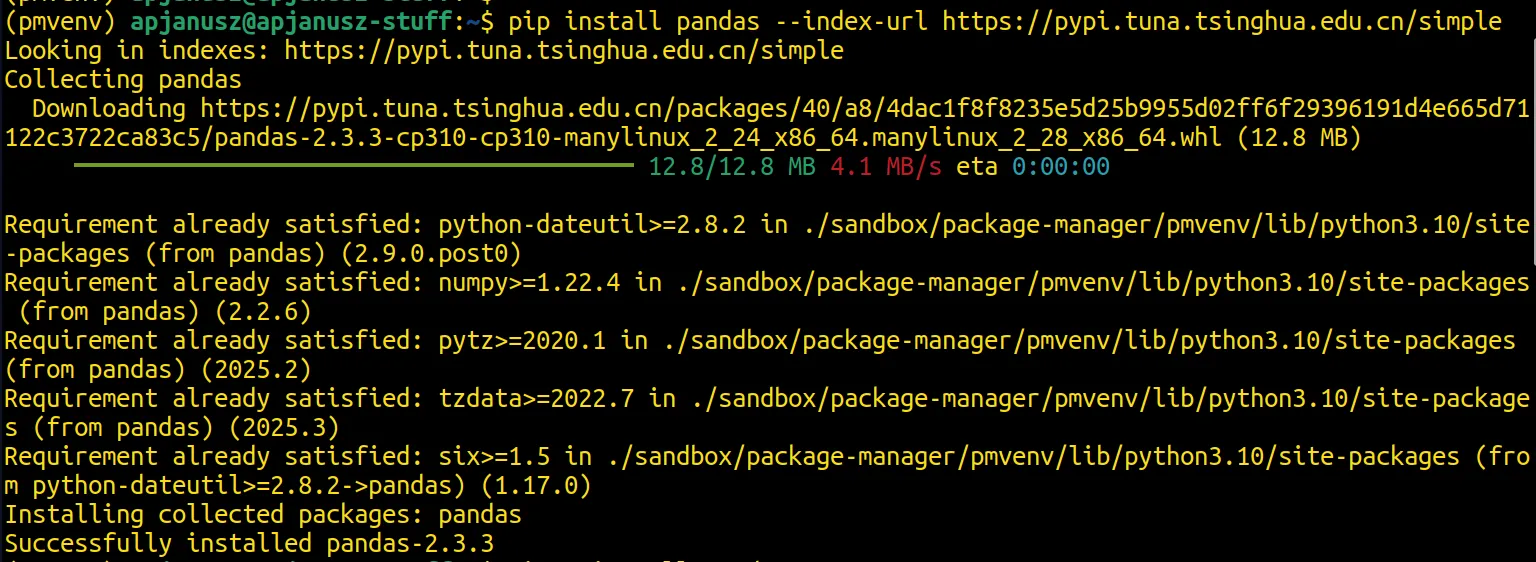
The simplest way is to pass the URL directly using the --index-url flag.
Command
pip install my_package --index-url https://my-pypi.example.com/simple
Example
Permanent configuration
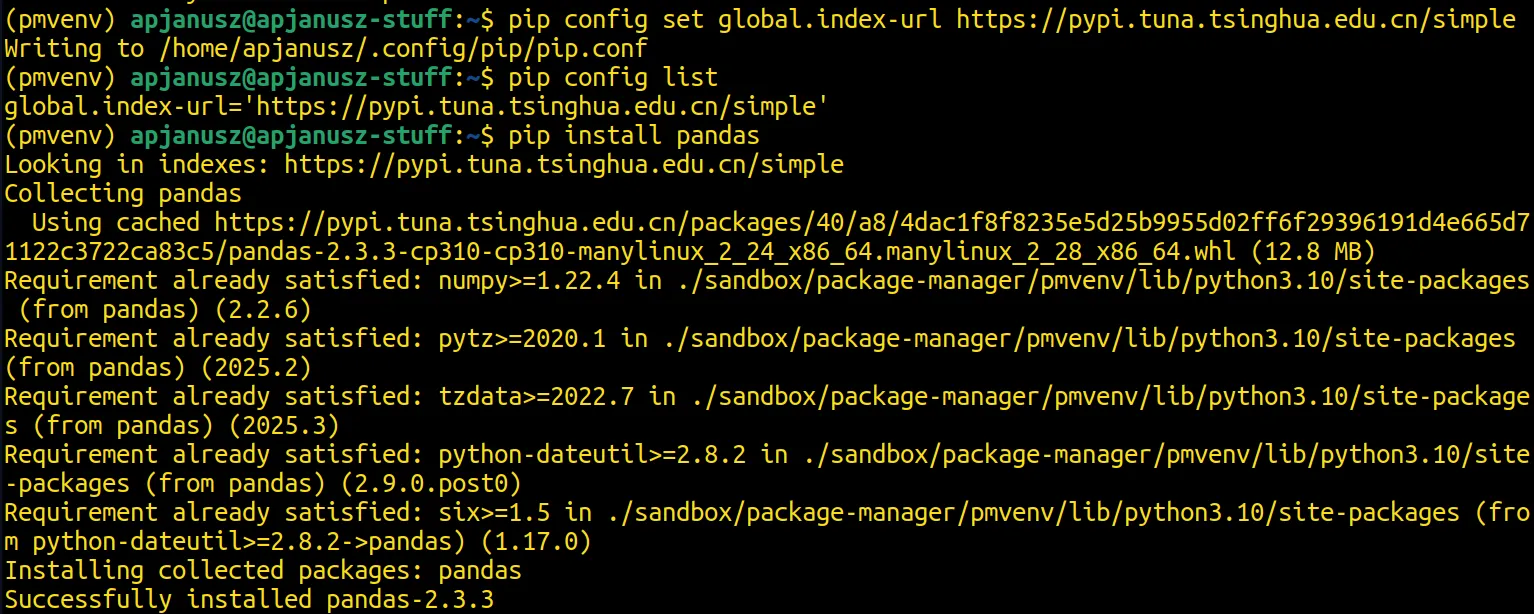
You can also set a custom PyPI URL once, and pip will remember it. The easiest way is to set the index URL for the current user.
Command
pip config set global.index-url https://my-pypi.example.com/simple

pip config list # check configuration

pip install my_package # install package without using the flag
Example
Using a Private PyPI Server in Jupyter Notebook
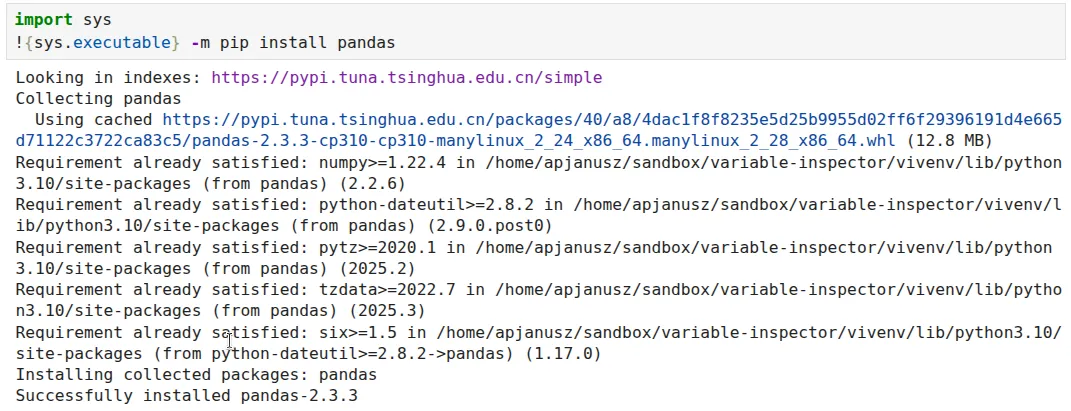
Jupyter uses the same Python environment as pip. If you already configured pip in your terminal, you can install packages directly from a notebook and pip will automatically use your private PyPI server.
Code
import sys
!{sys.executable} -m pip install my_package
Example
Temporary usage
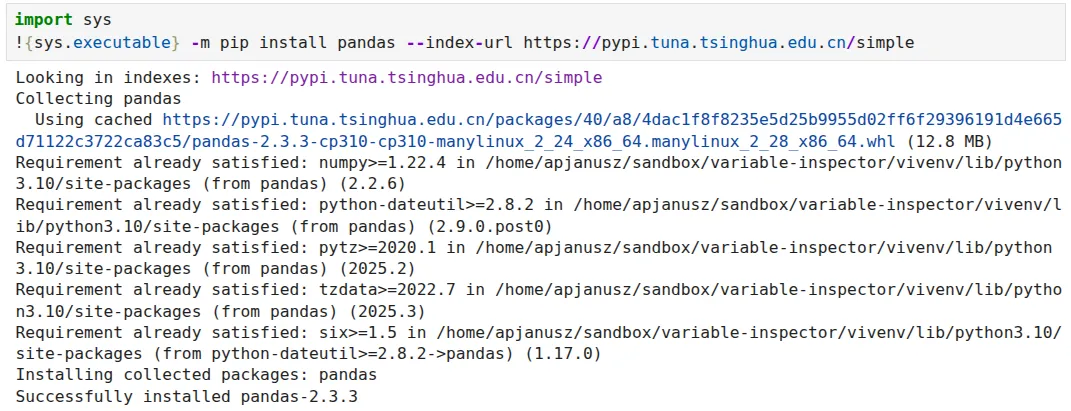
If you don't have a permanent configuration, or you don't want to use one, you can pass the URL using a flag, just like in the terminal.
This is also useful when you want to share a notebook with others who do not have a private PyPI configuration.
Code
import sys
!{sys.executable} -m pip install my_package --index-url https://my-pypi.example.com/simple
Example
Using a Private PyPI Server in Jupyter Package Manager
If you don't want to interfere with Python environments on your computer and want to save time on package management, you should try Jupyter Package Manager. It's an open-source extension for JupyterLab designed to simplify package management.
The extension allows you to install, update, remove, and list Python packages using a simple user interface. You do not need to write any code or run terminal commands, which makes package management faster and easier.
Installation
You can install the extension using following command:
pip install jupyter-package-manager
or download it from GitHub: https://github.com/mljar/package-manager
Want to learn more about the extension? Check out this article: Jupyter Package Manager
Open Jupyter Package Manager
After installation, a new icon should appear on the sidebar:
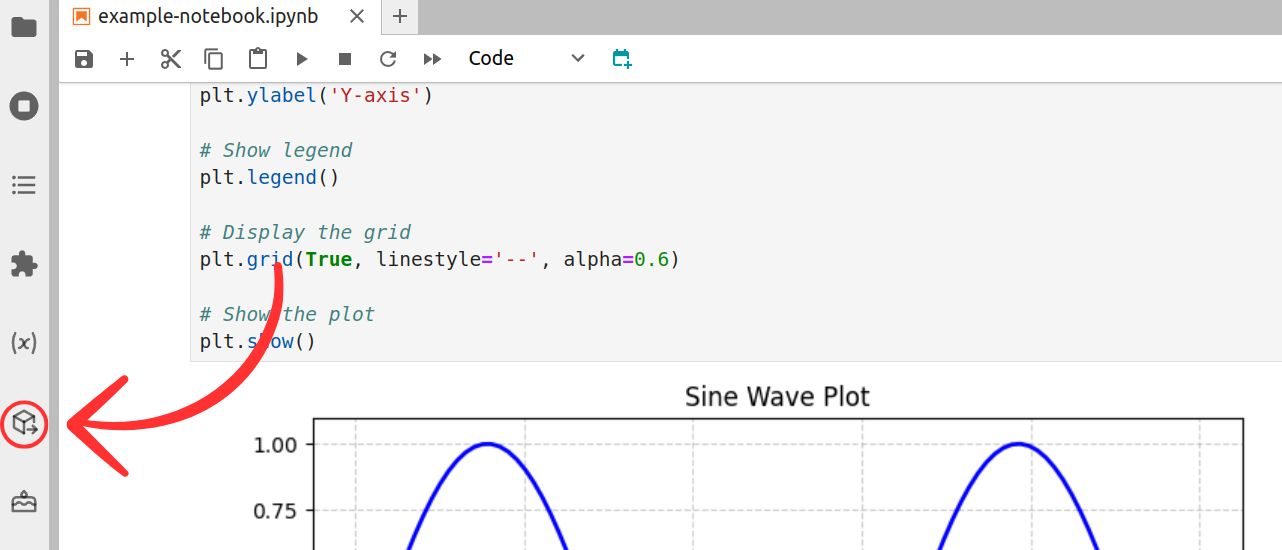
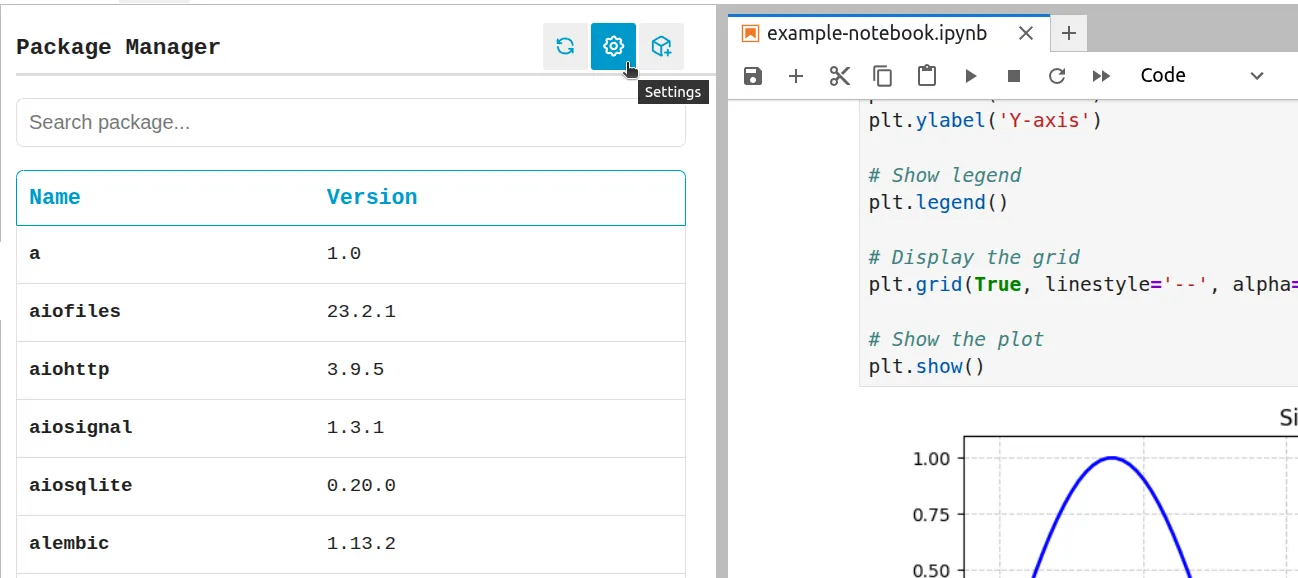
Go to settings
Click the settings icon in the top-right corner to open Package Manager Settings.
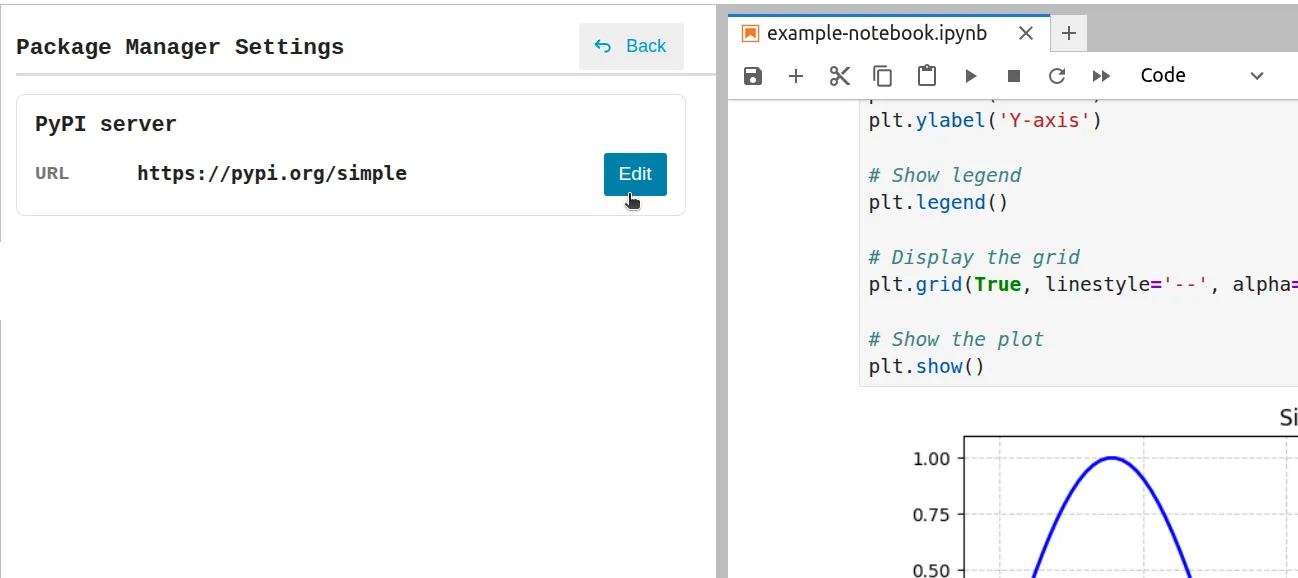
Change PyPI Server URL
To change the PyPI server URL, click Edit in the PyPI Server section:
Enter your custom PyPI URL and click Save:
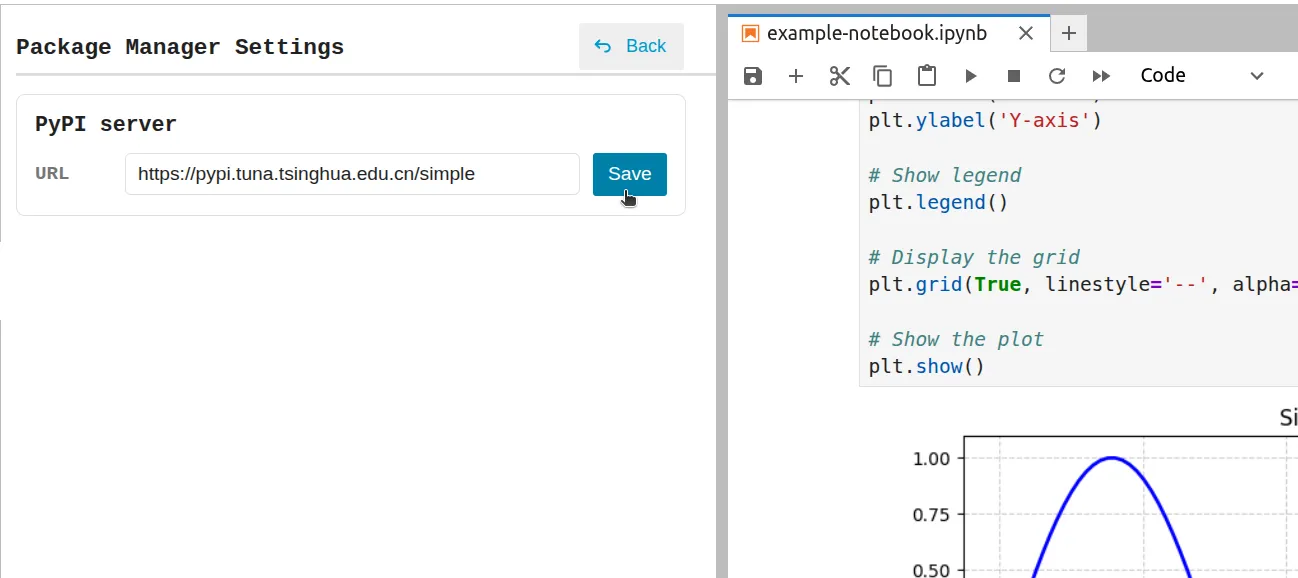
That’s it — your PyPI server has been changed!
If you want to switch back to the official PyPI, just click Restore defaults.
Go to Install Package
To verify that the new PyPI server works correctly, go back and click the package icon in the top-right corner (next to the settings icon). This will open the Install Package modal.
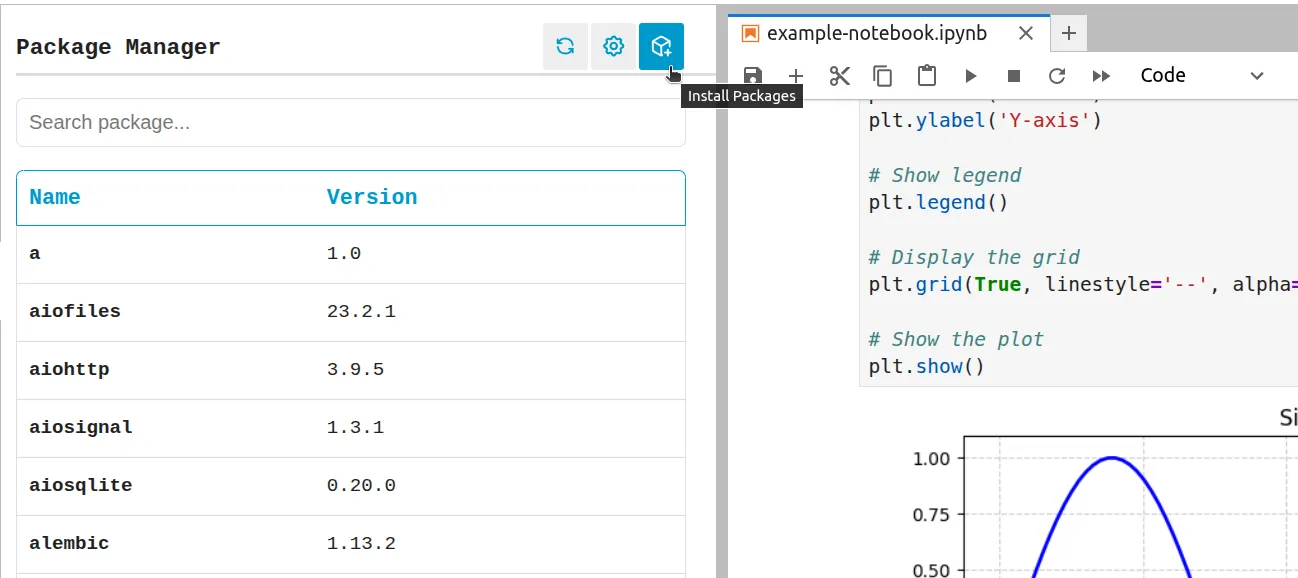
Install Package
Now enter the package name and click the Install button:
This extension and many others are available in MLJAR Studio - powerful Data Science tool that saves you time while coding with the help of an AI assistant and other features.
Get more information here: https://mljar.com/
Conclusion
Using a private PyPI server is a reliable way to manage Python packages in a secure and controlled environment. It is especially useful for companies and teams that need full control over dependencies and package versions. Remember to use Jupyter Package Manager when working in JupyterLab to save time and optimize daily work by making package management faster and easier.
About the Author

Related Articles
- Navy SEALs, Performance vs Trust, and AI
- New version of Mercury (3.0.0) - a framework for sharing discoveries
- Zbuduj lokalnego czata AI w Pythonie - Mercury + Bielik LLM krok po kroku
- Build chatbot to talk with your PostgreSQL database using Python and local LLM
- Build a ChatGPT-Style GIS App in a Jupyter Notebook with Python
- Essential Python Libraries for Data Science (2026 Guide)
- Statistics for Data Science: Essential Concepts
- Machine Learning Basics: Beginner’s Guide 2026
- Machine Learning vs AI vs Data Science: What’s the Difference? (Complete Guide)
- AI Ethics and Responsible Data Science: Building Fair and Private Machine Learning Systems
Private AI data analysis
AI Data Analyst on Your Computer
Use MLJAR Studio to explore data, discover insights, and create reports with AI.
Runs locally · Your data stays private